
Burn in Objects
(Not available in the Free version)
The Burn In feature permanently places the annotation data into the TIFF image. If one clicks on the Burn in button, the IceViewer will burn in the annotations only on the current page of the document.
.png)
If one clicks on the dropdown menu under Burn In button, the following options are available:
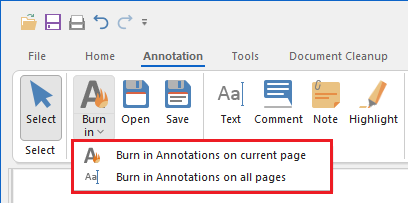
- Burn in Annotations on current page – This option will burn in the annotation only on the current page. (This option results in the same as clicking on the Burn In button.)
- Burn in Annotations on all pages – This option will burn in the annotation on all pages in the document.
Saving Color Annotations to a Monochrome Image
When a user attempts to save a monochrome (1-bit) image that contains color annotations, IceViewer prompts the user to choose how to handle the color information.
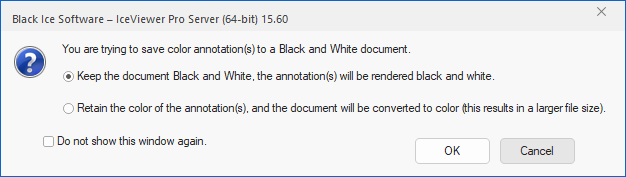
- Keep the 1-bit image (the color annotation(s) will change to black and white):
Converts every color annotation to black and white in order to preserve the 1-bit image format. This option maintains the smallest possible file size.
- Retain the color of annotation(s), the image changed to 24-bit (this will result in a larger file size):
Converts the image to 24-bit color to retain the original colors of the annotations. This results in a larger file size but preserves the visual appearance of the annotations.
Do not show this window again - Selecting this checkbox will remember the selected option and prevent the dialog from appearing in the future.
NOTE: Once the annotation objects are burned in, they cannot be removed or modified.