
Annotation Context Menu
(Not available in the Free version)
By right-clicking on an existing annotation, a context menu appears that provides Copy, Cut, Paste, Delete, and further options to edit the annotation.
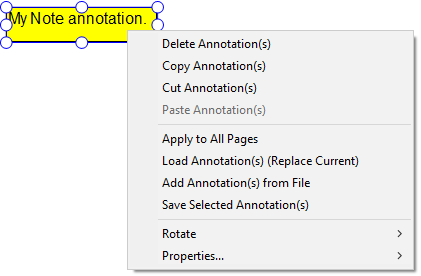
Apply to All Pages
By clicking on the Apply to All Pages option, the IceViewer will insert the selected annotation to every page in the document.
Load Annotation(s) (Replace Current)
By clicking on the Load Annotation(s) (Replace Current) option, the IceViewer will prompt the user to select an external annotation (.ann) file to open. Existing annotations on the document will be replaced with the annotations included in the loaded annotation file.
Add Annotation(s) from File
By clicking on the Add Annotation(s) from File option, the IceViewer will prompt the user to select an external annotation (.ann) file to open. Annotations in the loaded annotation file will be inserted and existing annotations will remain.
Save Selected Annotation(s)
By clicking on the Save Selected Annotation(s) option, the IceViewer can save the selected annotations into a separate annotation (.ann) file. The IceViewer will prompt the user to select a location for the saved annotation file.
For more information, please see the Save Annotation and the Load Annotation sections.
Rotate
Using the Rotate option, the user can rotate the annotation by 90, 180, and 270 degrees.
NOTE: The rotate option is not available for comment annotations.
Properties
By clicking on an option under the Properties menu, the Properties window appears, where users can edit the available annotation properties. Annotation properties can differ for each annotation type.