Adding a Comment
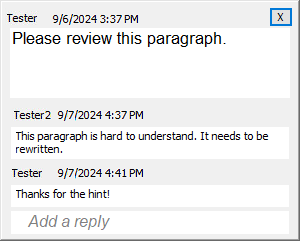
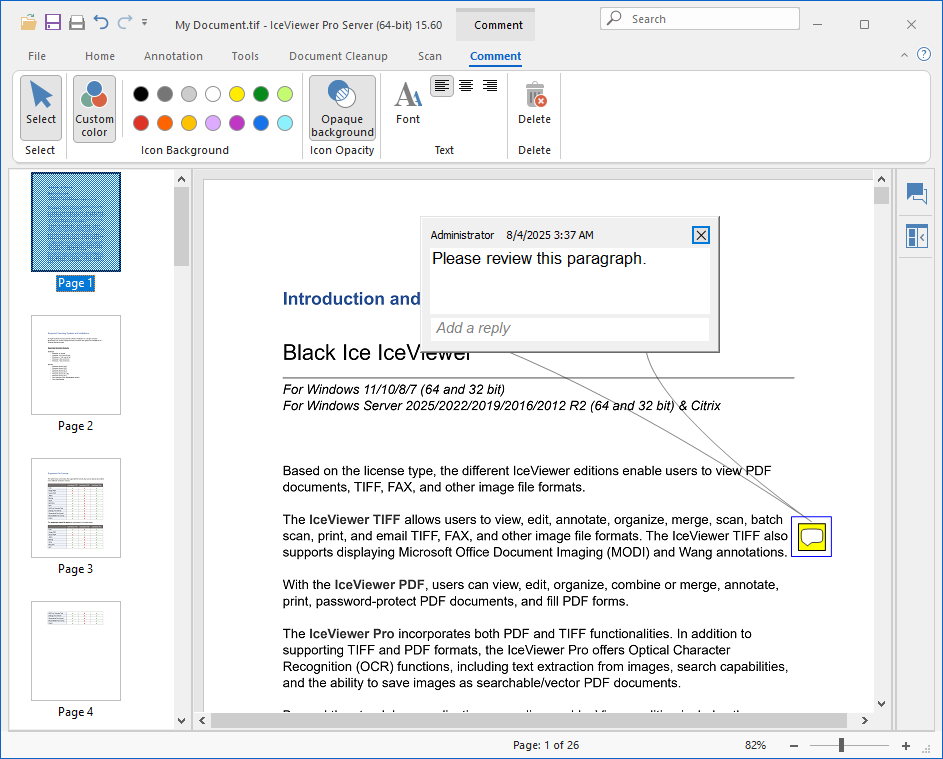
Comment object can be placed on a page to comment or add information to the document. The notes will be displayed in the document with a small note icon, and once the user clicks on the icon, the note editor appears, where the user can enter text. The note editor can be closed by clicking on the X button on the top-right corner of the note editor, and can be displayed at any time by clicking on the note icon on the document.
Notes can be saved as a separate file or stored in the TIF file header data tag.
The Note icon’s background color and opacity can be customized by selecting a note icon and clicking on the Notes tab in the IceViewer.
The note editor can be customized by right-clicking on the note text, and selecting the needed option from the appearing context menu.
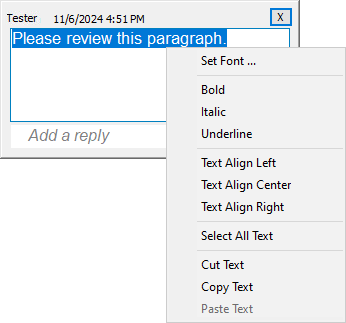
For customizing the text color, size, family select the Set Font…, Bold, Italic or Underline options from the context menu, or the Font option from the Comment tab.
For changing the alignment, select the Text Align Left, Text Align Center or Text Alight Right option.
For selecting the text, select the Select All Text option.
For copy and paste text, select the Copy Text, Cut Text, Paste Text option.
The note editor contains the username of the Author and Last Editor, and the date/time of the last change.
Comment Replies
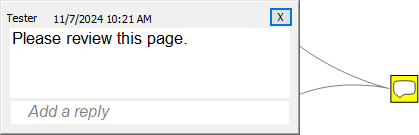
Comment Annotations allow users to easily collaborate while working on documents by using Comment Replies.
To reply to an already existing comment annotation, please select the annotation, click in the Add a Reply field on the Comment Annotation window, enter the, and click the OK button.
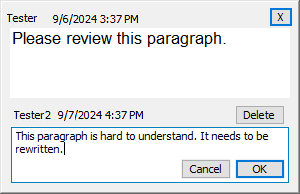
The Comment Annotation window displays the name of the respondent and the date of the response. Replies are displayed in chronological order, from top to bottom.