
Scanning
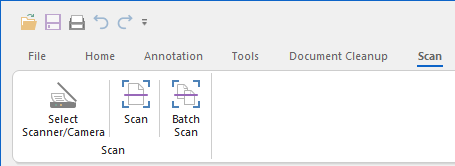
Black Ice IceViewer can acquire images from any TWAIN or WIA-compatible source, including scanners and digital cameras. Images can easily be acquired from a TWAIN or WIA data source using the following steps:
- Make sure the scanner or camera and software is installed and
configured and working correctly.
Black Ice Software cannot help with configuring scanner or camera hardware or software. Contact the manufacturer of the scanner or camera hardware and software for technical assistance.
-
Selecting a source (scanner, camera, etc.).
Select the TWAIN or WIA source that will be used for the scanning. Open Black Ice IceViewer, select the Scan tab and then Select Scanner/Camera. The following dialog box appears:
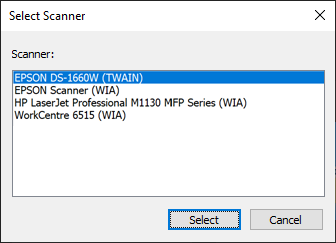
The dialog box displays a list of scanners, cameras, and other compatible devices that can be used with the IceViewer software. The type of each device (TWAIN or WIA) is shown in parentheses after the device name. Select the desired device and press Select.
NOTE: Every time Black Ice IceViewer is shut down and restarted, this step must be repeated in order to scan a document.
- Scanning the document and opening it in the IceViewer.
Insert the document into the scanner and select the Scan icon on the Scan Tab in IceViewer. This launches the scanner device software user interface.
Press the Scan button to send the document to Black Ice IceViewer. The document will be scanned and opened in the IceViewer software.
NOTE: Every manufacturer has a different user interface for their software that comes with their device, however, the general idea is the same. For more information on operating the software included in the scanner, contact the device manufacturer.
When the scanning is successfully finished, IceViewer opens the scanned document as a separate file.
If there is an already opened document in IceViewer, then IceViewer asks if you want to open the scanned document as a new separate file, or append it to the currently opened document:
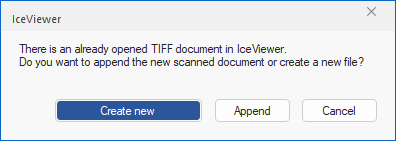
To open the scanned document as a new separate document, click on the Create new button.
To append the scanned document to the already opened document, click on the Append button.