Editing Text in PDF Documents
(Available in the IceViewer PDF and IceViewer Pro)
IceViewer PDF and IceViewer Pro editions support text editing within editable/searchable PDF documents. The Edit Text feature allows users to modify document content by editing existing text, adding new text areas, adjusting formatting, and resizing text boxes as needed.
To add or edit text in IceViewer, navigate to the Edit Text tab. Clicking on the Edit Text tab, the text edit ribbon will be displayed. When the Edit Text tab is active, any editable text area in the PDF document becomes selectable.
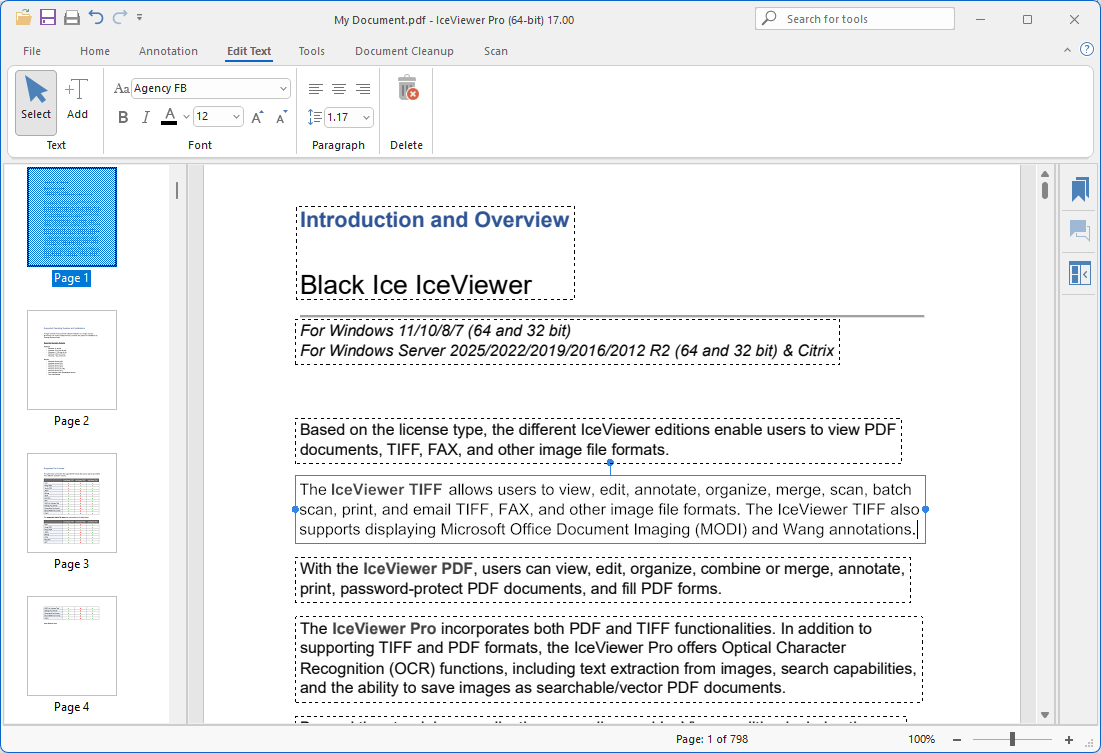
When a text box is selected, its outline turns blue. A blue handle appears on each side of the box for resizing, and an additional rotation handle appears at the top of the text box. Dragging a side handle adjusts the width of the text box, while the height automatically adapts to the content. Dragging the rotation handle rotates the entire text box. The text reflows inside the box during resizing, and font properties remain unchanged.
Editing Existing Text
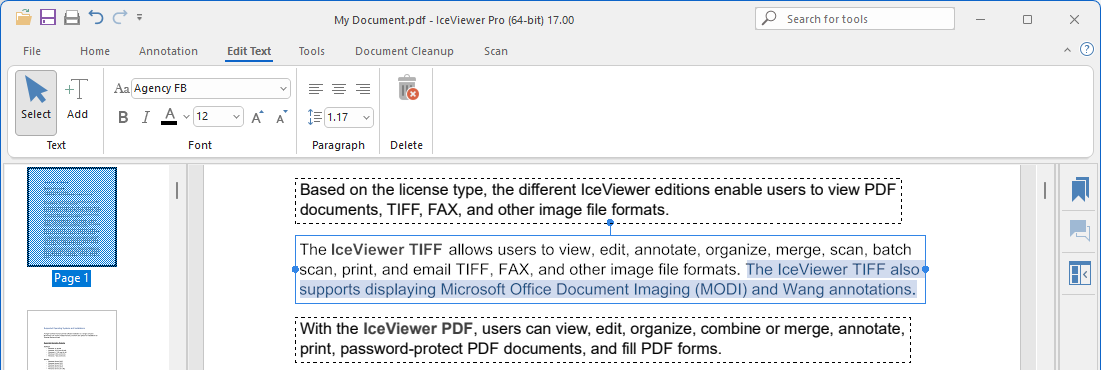
Text can be edited by clicking a text box, placing the cursor at the desired position, and modifying it, similar to any standard text editor. To replace text, select the portion to be changed and enter the new content. The selected text can be formatted using the options in the Edit Text ribbon.
Adding New Text
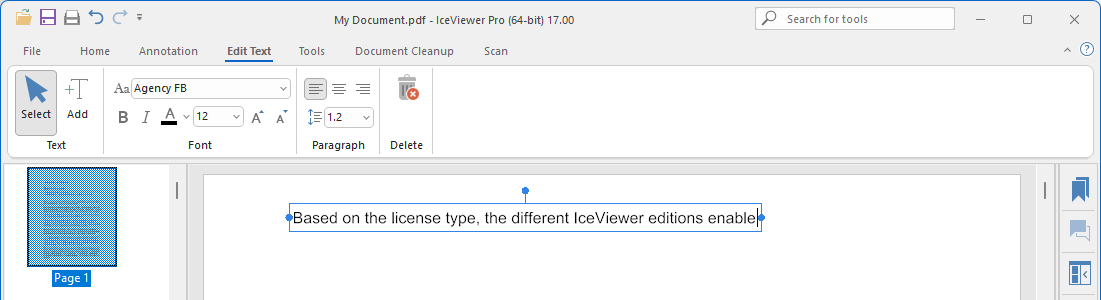
To add new text to a PDF document, select the Add button on the Edit Text ribbon, click anywhere on the page to place the cursor, and start typing. Selected text can be formatted using the options in the Edit Text ribbon. The text box automatically adjusts its size to fit the content. If the text box is already set to a desired width, any text that reaches the end of the box automatically continues on a new line.
Formatting Text
To apply formatting, select the desired text, then use the controls on the Edit Text ribbon.
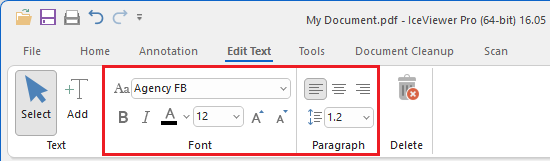
Users can apply the following formatting to the selected text:
- font family
- font style: bold, italic
- font size
- font color
- text alignment (left, center, right)
- line spacing
Deleting Text
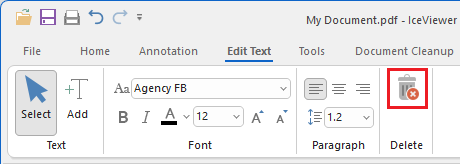
To delete text, select the desired text and press the Delete or Backspace key on the keyboard. To delete an entire text box, select the text box and click the Delete button on the Edit Text ribbon.