
Annotating PDF Documents
(Available in the IceViewer PDF and the IceViewer Pro)
The IceViewer PDF and IceViewer Pro editions allow users to add annotations to PDF documents. PDF annotations are useful for collaborative reviewing, feedback provision, and document markup, enabling users to communicate, highlight important points, and make revisions efficiently within the PDF format.
To add annotations to PDF documents, please navigate to the Annotation tab on the top toolbar, left-click on an annotation, and place the annotation on the PDF document.
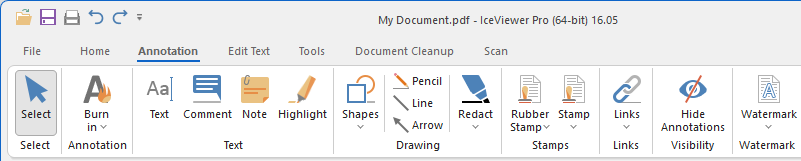
By left-clicking on an existing annotation, further options become available on the top toolbar providing more options to edit the annotation properties such as font, text color, text alignment (for notes and text objects), object color, borders, and more.
For certain annotation types such as Highlight, Rectangle, Rounded Rectangle, Ellipse, Line, Arrow, and Pencil annotations, a floating menu appears after placing or selecting the annotation. This menu offers quick access to useful tools, including appending a comment (reply) to the annotation, changing the color of the annotation, or deleting the annotation.
.png)
By right-clicking on an existing annotation, a context menu appears that provides copy, cut, paste, and delete options, and the user can also edit the annotation properties. For more information, please see the Annotation Context Menu section.
Please note that the interaction with annotations is not available in the Free version of the IceViewer.