
Adding a Note
Note annotation can be placed on Tiff documents for adding an opaque box with note or text information. The notes can be edited by clicking on the note. The note editor appears, allowing the user to enter and format the note.
By using Note annotations, one can format the entire Note or even different parts of the Note for different colors, sizes, font type, and border.
Notes can be saved as a separate annotation file.
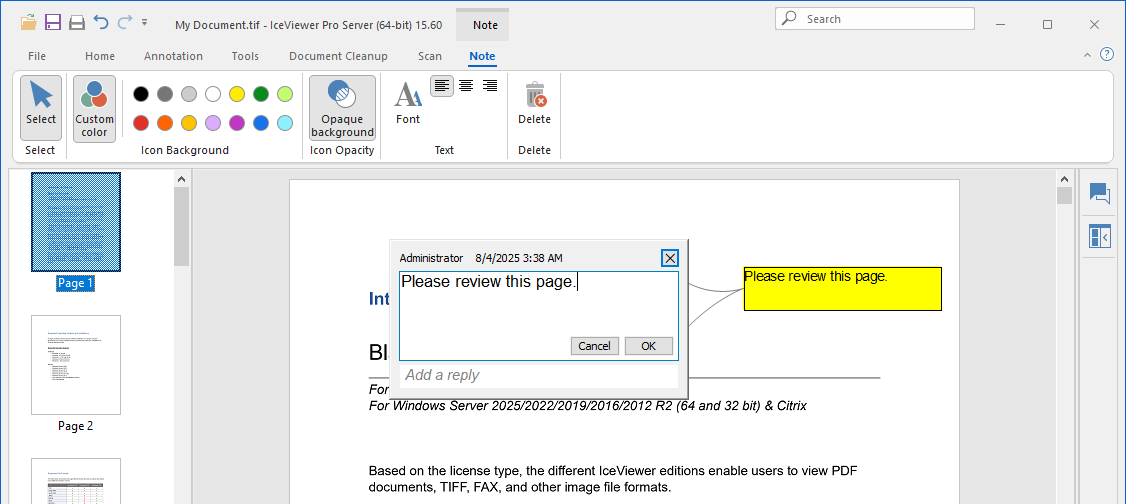
The note editor can be customized by right-clicking on the note, and selecting the appropriate formatting option from the appearing context menu under Note Properties.
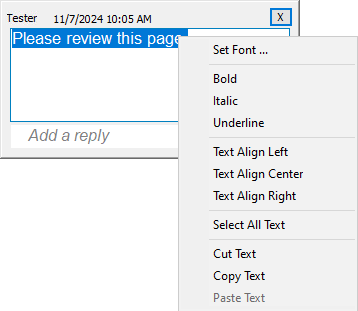
Select the Set Font… option in the context menu to customize the text color, size, or font family, or click on the Bold, Italic, or Underline option to format the selected text. The same options are available when the user clicks on the Font icon on the top toolbar.
To change the alignment, select the Text Align Left, Text Align Center or Text Alight Right option.
To select the entire text, select the Select All Text option.
To copy, cut, or paste the selected text, use the Copy text, Cut text, and Paste text options.
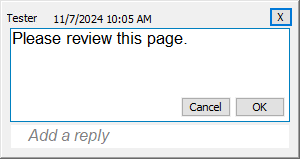
The note editor contains the username of the Author and Last Editor, and the date/time of the last change.
Note Replies
Note Annotations allow users to easily collaborate while working on documents by using replies.
To reply to an already existing note annotation, please select the annotation, click in the Add a Reply button on the Note Annotation window, enter the, and click the OK button.
.png)
The Note Annotation window displays the name of the respondent and the date of the response. Replies are displayed in chronological order, from top to bottom.
.png)