
Printing
(Limited in the Free version)
The IceViewer can be used to print single or multipage images or documents. To print the currently opened document, please click on the File menu item and select the Print option.
On the Print window, the IceViewer offers printing options and a preview of the document to be printed. The print preview enables users to inspect their documents before printing. To navigate through the document, one can utilize the Previous and Next Page buttons and the Zoom scrollbar under the preview or the vertical scrollbar next to the preview.
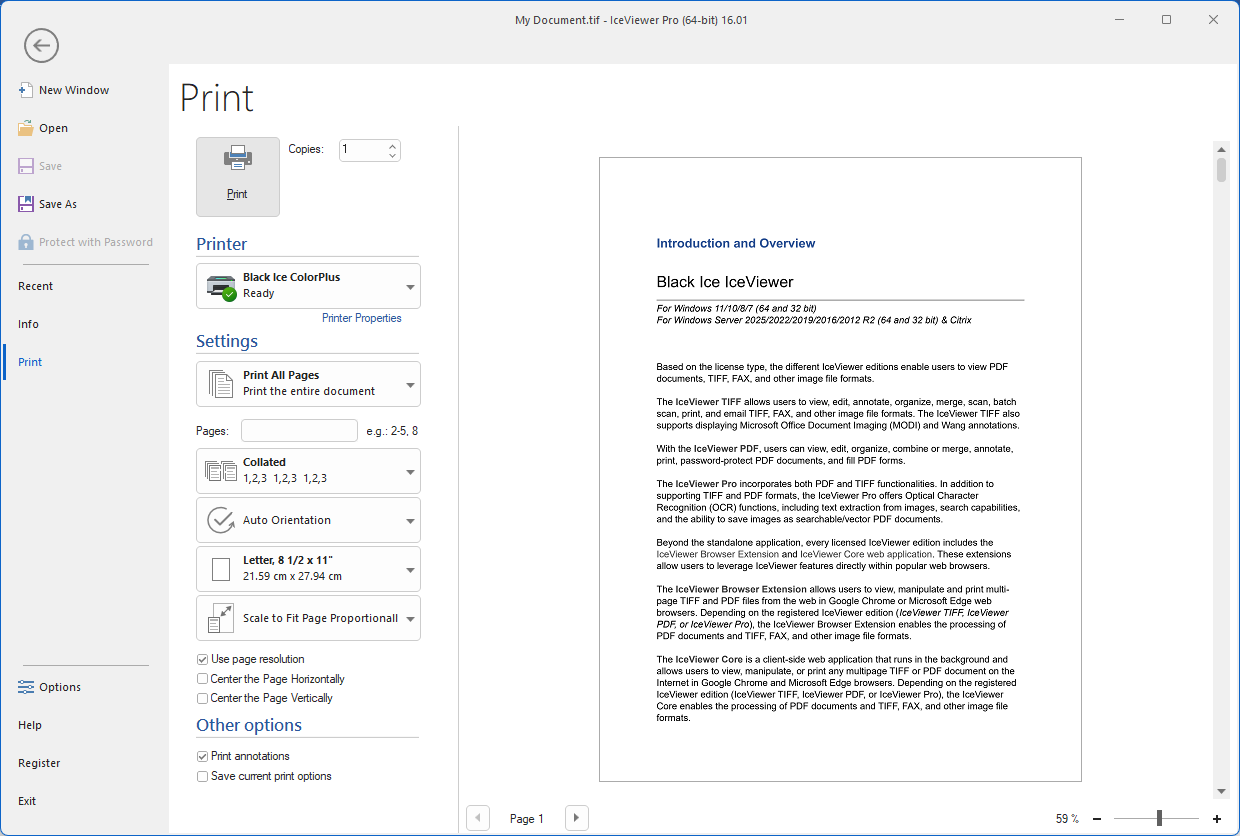
Selecting the printer
Under the Printer section, one can select the printer from a dropdown list with all the available printers.
Pages to Print
Users can specify which pages to print by using the Pages to print dropdown menu.
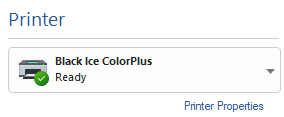
The following options are available:
Print All Pages
The IceViewer will print the entire document.
Print Selection
The IceViewer will only print the selected area from the current page. To select the area to print, just click and drag on the page in Select mode. This option is unavailable if the current selection is empty.
Print Current Page
The IceViewer will print only the currently selected page in the preview.
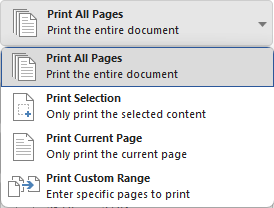
Print Custom Page Range
The IceViewer will print specified pages or page ranges entered to the Pages field. Type page numbers and/or page ranges separated by commas counting from the start of the document. For a range of pages, one can use a hyphen.
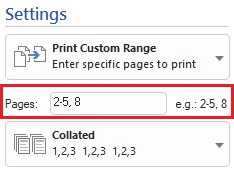
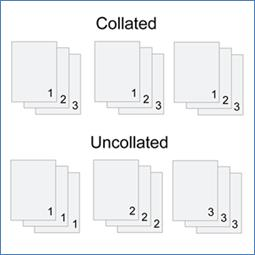
Collated/Uncollated
Collated printing arranges printed documents in a specific order, assembling each set of pages in the correct sequence, rather than printing each page in a stack.
Orientation
Users can configure the orientation of the printed image or document.
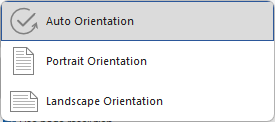
The following orientation options are available:
Auto Orientation
Page orientation is automatically detected. Portrait pages are printed with portrait orientation, while landscape pages are printed with landscape orientation.
Portrait Orientation
Every page will be printed with portrait orientation.
Landscape Orientation
Every page will be printed with landscape orientation.
Choose paper source by PDF page size
The paper source is automatically selected based on the page size defined in the PDF document. Keeps the original page size when printing to virtual printers.
Page size
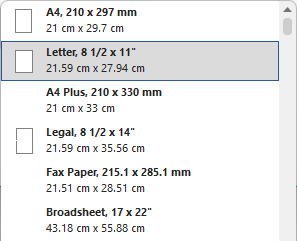
The Paper Size drop-down menu allows one to select the paper size on which the document or image will be printed.
Position and size
Position and Size options help users scale the printed image or document to fit to the paper size on which it will be printed.
Scale to Fit Page Proportionally
Scales the image to fit the page.
Stretch to Fit Page
Stretches the image to fill the page.
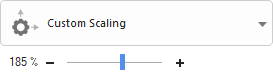
Custom Scaling
The Custom Scaling option allows users to proportionally scale the printed document or image on the selected paper size.
.png)
Use page resolution
Print the image using its DPI settings as opposed to the printers DPI settings.
Center the Page Horizontally
Center the image horizontally on the printed page.
Center the Page Vertically
Center the image vertically on the printed page.
Other options
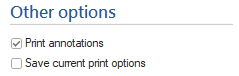
Print Annotations
This option enables or disables printing the annotations on the printed document. If this option is unchecked, the IceViewer will not print the annotations.
NOTE: In order for annotations to be printed, one must burn in the objects before printing.
Print as image
This options flattens the document and prints every page as a bitmap.
NOTE: Printing options are automatically saved after changing, and one does not have to manually save the printing options.