
Move Page
(Not available in the Free version)
The IceViewer offers several options to move pages within a document.
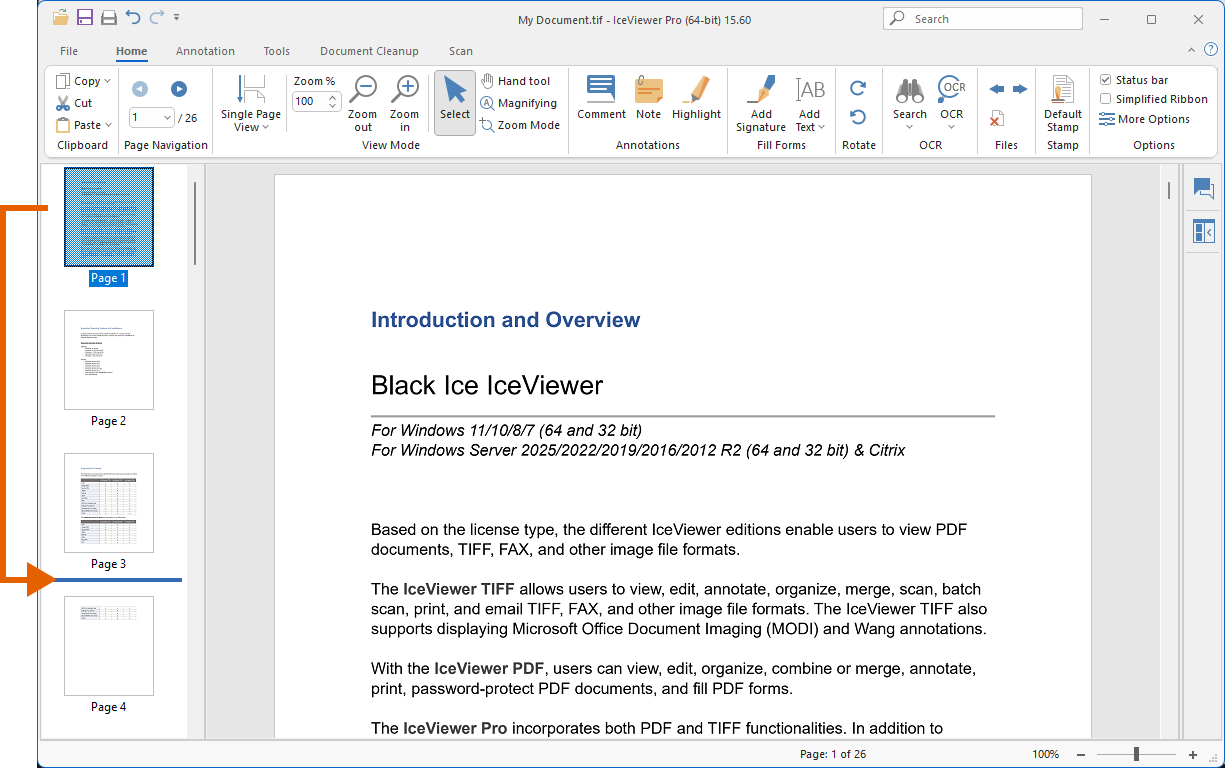
The easiest way to move a page in a document is to simply drag and drop a page to a new position in the thumbnail view.
Using the Move page option
Alternatively, users can move the pages by using the Move page option on the Tools toolbar.
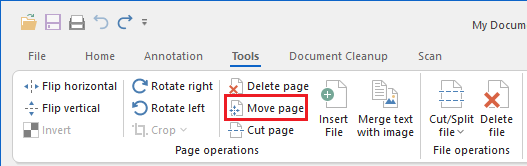
Clicking on the Move page option displays the following window:
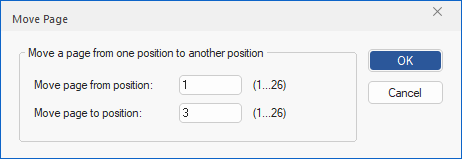
The Move Page feature allows moving a page from one position to another in a multipage document.
On the screen capture above the 1st page is moved to the 3rd position. It means that the 2nd page becomes the 1st, the 3rd becomes the 2nd, and the 1st becomes the 3rd in a 14-page TIFF document.
| Before | After |
| 1 | 2 |
| 2 | 3 |
| 3 | 1 |