
Split into two parts
(Not available in the Free version)
The Split into two parts tool allows the user to split the currently opened PDF document into two separate files. The user can choose which part of the document is kept in the current file, and which part goes into the new file.
To split a document into two parts, please navigate to the Tools tab, click on the Cut/Split file option, and select the Split into two parts option.
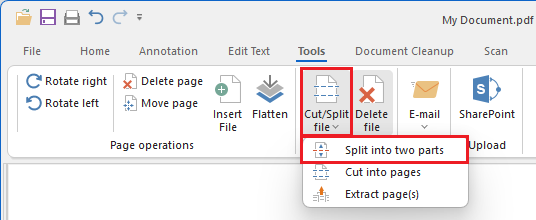
Clicking on the Split into two parts option displays the following window:
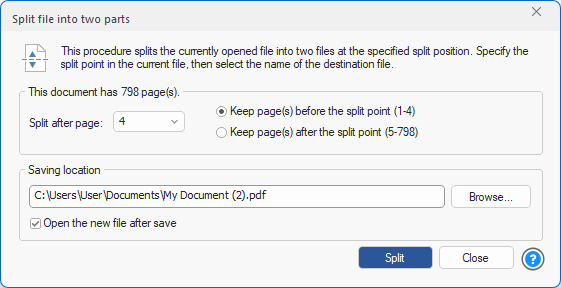
The user must specify the split point by typing in the page number after which the document is separated in the Split after page field. By default, the split point will be after the currently viewed page.
The user must also choose whether to keep pages before or after the split point, using the Keep page(s) before/after the split point options. The numbers at the end of the options update automatically when selecting a split point, showing which pages will remain in the current document after the split. The rest of the pages will be moved to the new document.
The IceViewer automatically generates a name for the new file when the dialog opens. One can change this by editing the Saving location field directly or pressing the Browse… button and navigating to the desired directory.
The saved document will be opened in a new IceViewer window – to disable this, one has to uncheck the Open the new file after save option.