
Copy or Move Pages from one document to another
(Not available in the Free version)
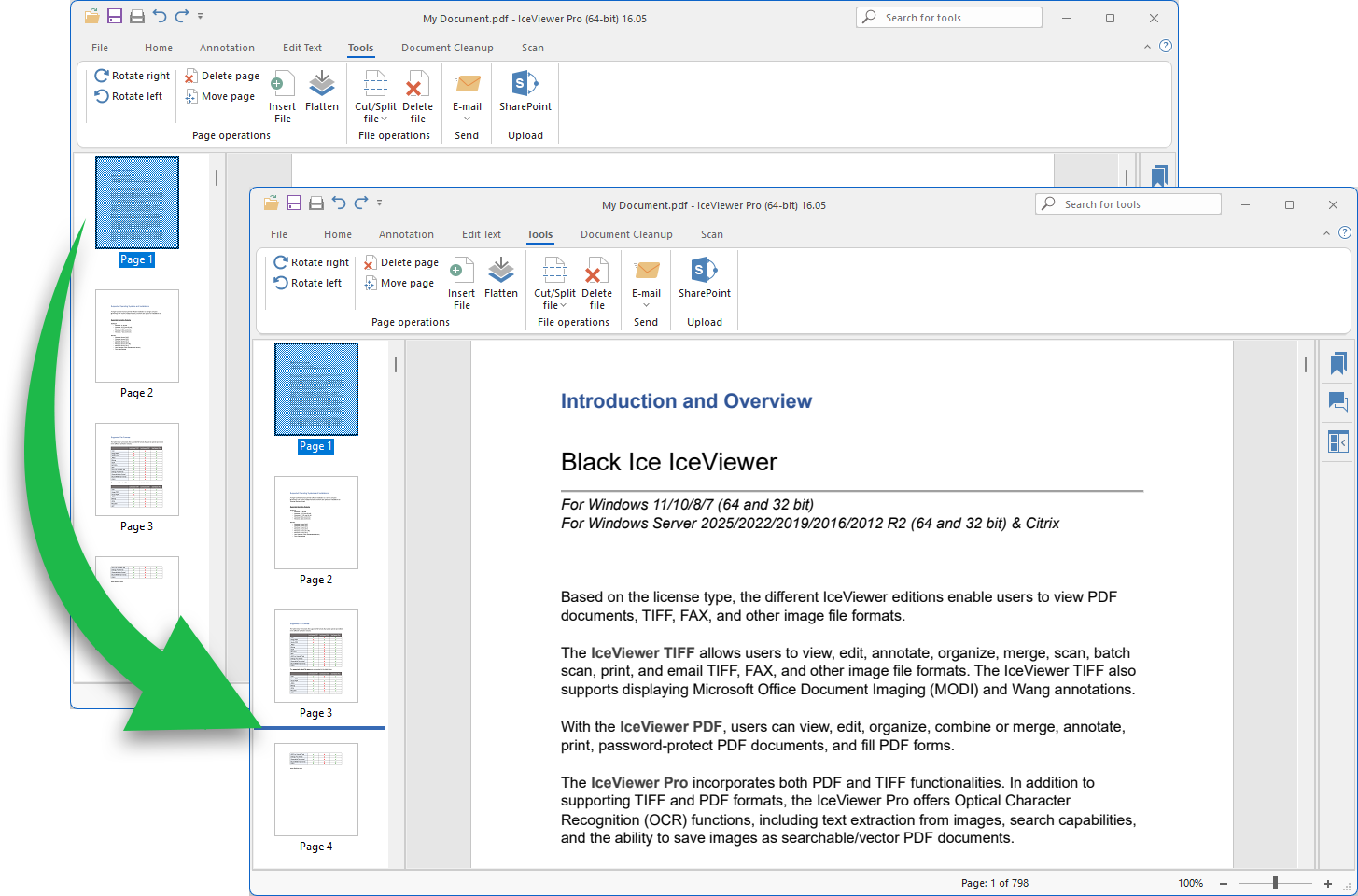
The IceViewer includes multiple options to copy or move pages between documents including drag-and-drop files in the IceViewer.
Copy pages to another document
To copy pages from one document to another with the IceViewer, please see the following steps:
- Open each document in separate IceViewer windows.
- Drag and drop the thumbnail of the desired page into the Thumbnail Browser Sidebar of the other IceViewer window.
Alternatively, to copy and paste pages, one can utilize the keyboard shortcuts Ctrl+C and Ctrl+V, or select the "Copy page(s)" option followed by either the "Paste Before Current Page" or "Paste After Current Page" option from the context menu of a thumbnail.
Move pages to another document
To move pages between documents using the IceViewer, please see the instructions below:
- Open each document in separate IceViewer windows.
- Right-click on the desired page thumbnail and choose the "Cut page(s)" option. One can also use the Ctrl+X keyboard shortcut to cut the page.
- Switch to the other document and locate the thumbnail where the copied page should be inserted to.
- Right-click on the page thumbnail and select either the "Paste Before Current Page" or "Paste After Current Page" option. One can also use the Ctrl+V keyboard shortcut to paste the page after the selected thumbnail.