
Flatten PDF Pages
The Flatten feature in the IceViewer allows users to merge form fields, and other interactive elements into the page content, making them permanent and non-editable. Flattening is useful for finalizing documents before sharing, ensuring that changes cannot be made by others.
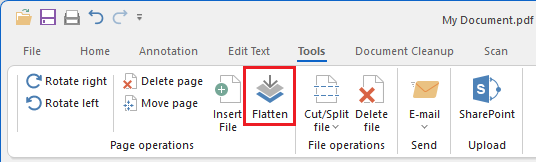
To flatten a single page, a specific page range, or the entire document, navigate to the Tools tab and click the Flatten button.
On the Flatten window, the user can select which pages to flatten.
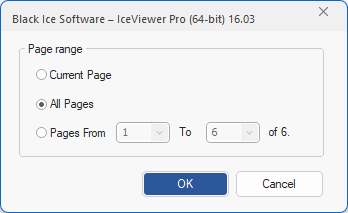
Current Page
Converts interactive elements on the currently selected page into static content.
All Pages
Applies the flattening process to all pages in the document, making interactive elements permanent.
Page Ranges
The Pages From [ ] To [ ] option enables users to flatten a specific range of pages by entering the starting and ending page numbers. Only the selected pages are flattened, while the remaining pages remain unchanged.
Click OK to flatten the selected pages.
Once a page or document is flattened, its content becomes permanent and cannot be edited. It is recommended to save a copy of the original file if future changes are required.