
File Association
On the File Association tab, supported file formats can be associated or unassociated with IceViewer. To associate a file type, enable the checkbox next to the desired format. Click Select All to associate every available file type, or Deselect All to remove the association from every supported format.
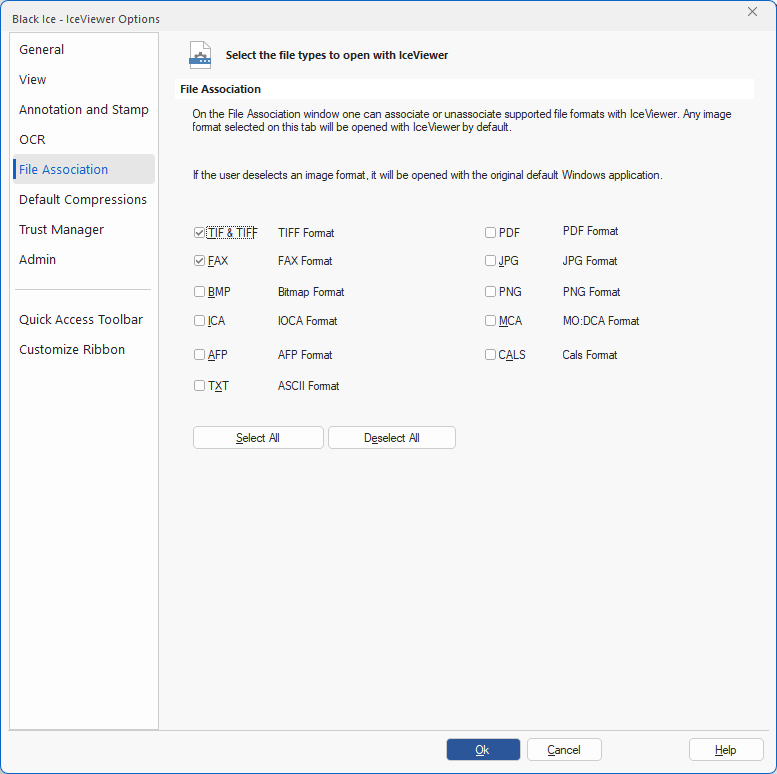
Click the OK button to save the changes. The following window appears:
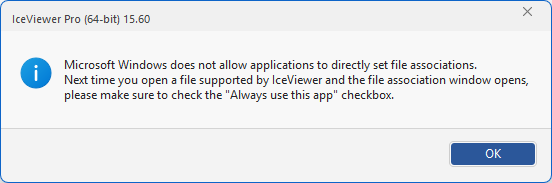
On Windows 11, 10, and Windows Server 2025, 2022, 2019, and 2016, applications are not permitted to set file associations directly. IceViewer can reset associations for selected file formats, but users must manually confirm the changes as described below.
The first time a file with the associated format is double-clicked after the file association has been changed, the "Select an app to open this [...] file" window appears. Select IceViewer from the list and click the Always button to set IceViewer as the default for that file type.
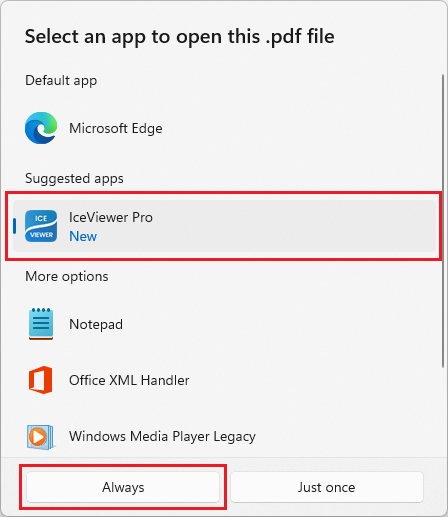
NOTE: If the user deselects a file format on the File Association tab, the next time a file with that format is double-clicked, Windows will prompt the user to choose a default application.
For more file association options, please see the Associating Files to be Opened with the IceViewer section of the manual.