
Admin
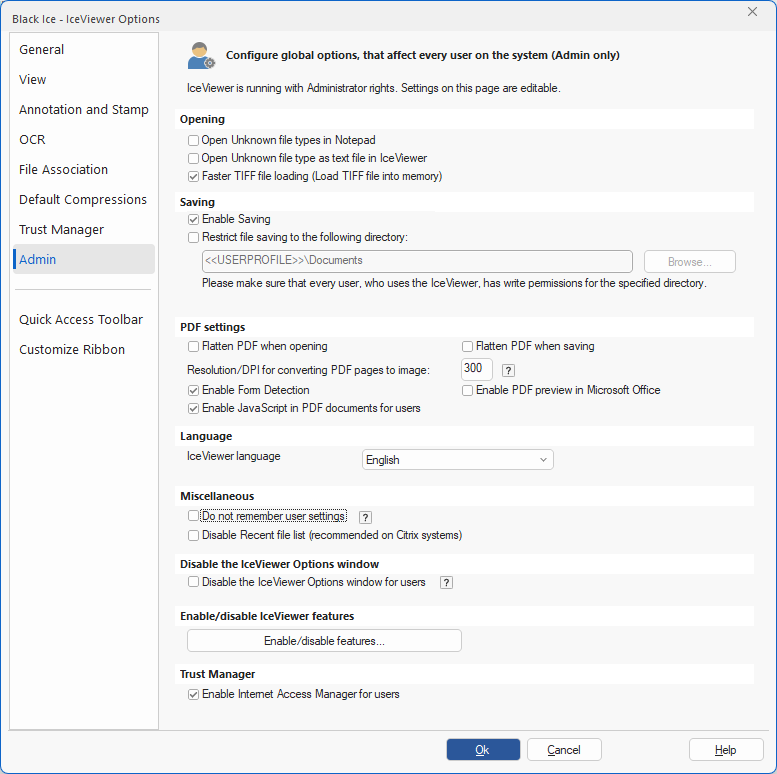
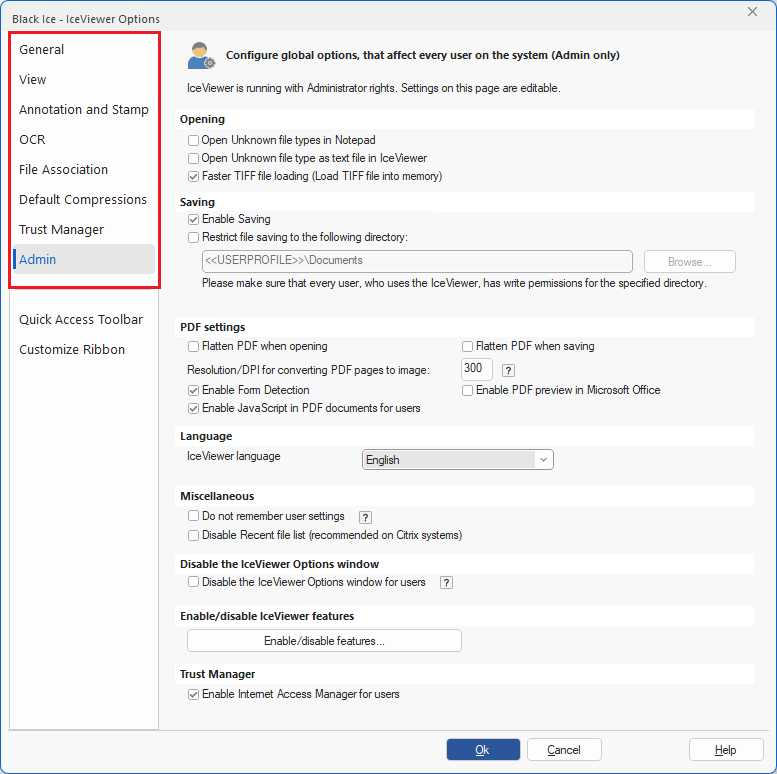
On the Admin tab the Administrator can change IceViewer settings that are applied for every user on the computer. Regular users cannot modify these options.
NOTE: To modify the Admin tab settings please run the IceViewer as administrator.
Opening
Open Unknown file types in Notepad – If this option is enabled, the IceViewer will offer to the user to open the unknown file types in Notepad.
For example: If the IceViewer tries to open a file with file extension of .TIF and file contain text file, the IceViewer will offer to the user to open the file in Notepad.
Open Unknown file type as text file in IceViewer – If this option is enabled, files with unknown file types will be treated as text files and opened in the IceViewer.
Faster TIFF file loading (Load TIFF file into memory) – Configures the IceViewer to load the entire image into the memory before opening. Enabling this option results in faster loading. (Available in the IceViewer TIFF and IceViewer Pro.)
Saving
Enable Saving – This option enables or disables the saving feature in the IceViewer for every user.
Restrict file saving to the following directory – When this option is enabled, every saved document will be saved into the specified directory. This feature is useful if Administrators want to restrict every User’s access to only one directory, or if Administrators want to keep the documents in one directory.
NOTE: When using the “Restrict saving into the following directory” option, please make sure that every user who uses IceViewer has write permissions in the specified directory.
PDF settings
(Available in the IceViewer PDF and IceViewer Pro)
Flatten PDF when opening – If this option is enabled, PDF documents with interactive elements (such as text boxes, checkboxes, drop-down lists) become no longer editable after opening.
Flatten PDF when saving – If this option is enabled, PDF documents with interactive elements (such as text boxes, checkboxes, drop-down lists) become no longer editable after saving.
Resolution/DPI for converting PDF pages to image – This option controls the size of the images that were converted from Vector PDF pages. The default is 300 DPI, which means that an 8.5 x 11 inch page will be converted to a 2550x3300 pixel image.
Enable Form Detection – By using this option, IceViewer detects and opens fillable forms with the Black Ice Form Filler automatically.
Enable JavaScript in PDF documents – Enables JavaScript support in PDF documents. In most cases, JavaScript in PDF documents is used for validating interactive forms.
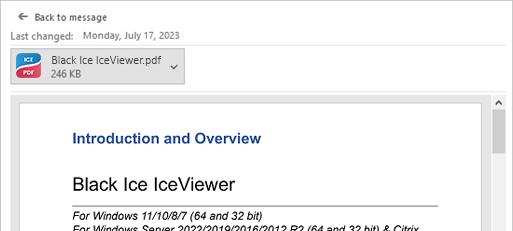
Enable PDF preview in Microsoft Office - Enables the PDF file preview in Microsoft Outlook and Windows File Explorer. The example below shows the PDF preview in Outlook. The Enable PDF Preview in Microsoft Office option is available for both 32-bit and 64-bit systems with IceViewer PDF and IceViewer Pro licenses.
Language
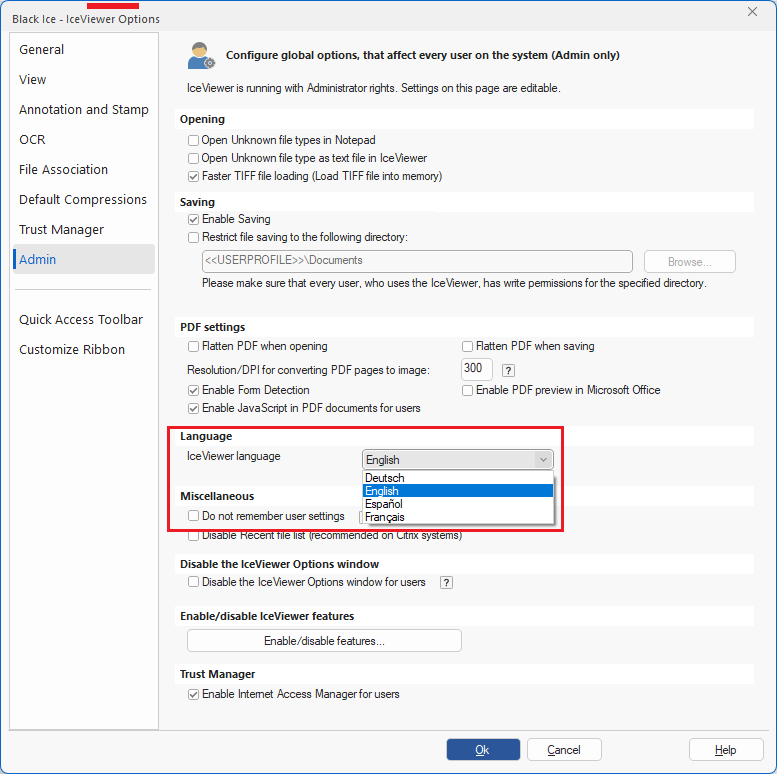
IceViewer language – Administrators can select the application language from the “IceViewer language” drop-down menu. After selecting a language, please press the Ok button on the Options window and restart the IceViewer to apply selected language to the IceViewer.
Miscellaneous
Do not remember user settings – IceViewer will not remember any user settings such as:
- User settings in the IceViewer Options dialog
Disable Recent file list – This option can be used to disable the Recent file list in the Application menu. It is recommended to use this option on Citrix systems.
Disable IceViewer Options
Disable the IceViewer Options window for users – By using this option, Administrators can deny access to all settings under the Options window for regular users. The restriction does not apply to users with administrative privileges.
Enable/disable IceViewer features
The Enable/disable features… button will open a new dialog, where various features and tabs in the IceViewer can be enabled or disabled individually. See the manual for Enable/disable IceViewer features .
Trust Manager
Enable Internet Access Manager for users - The Trust Manager tab provides options to control web access and security for PDF and TIFF files. Users can specify how the IceViewer should respond when a link is clicked.
Update
Administrators can check for updates or configure automatic updates by clicking on the Check for updates… button.