
Browser Plug-in
(Available in the 32-bit versions of IceViewer TIFF and IceViewer Pro)
On the Browser Plug-in tab of the IceViewer Options, Administrators can edit the settings of the IceViewer Internet Explorer Browser Plug-in.
Please note that the 64-bit version of the IceViewer does not support the Internet Explorer Browser Plug-In. One can use the IceViewer Chrome/Edge Browser Extension or IceViewer Core instead.
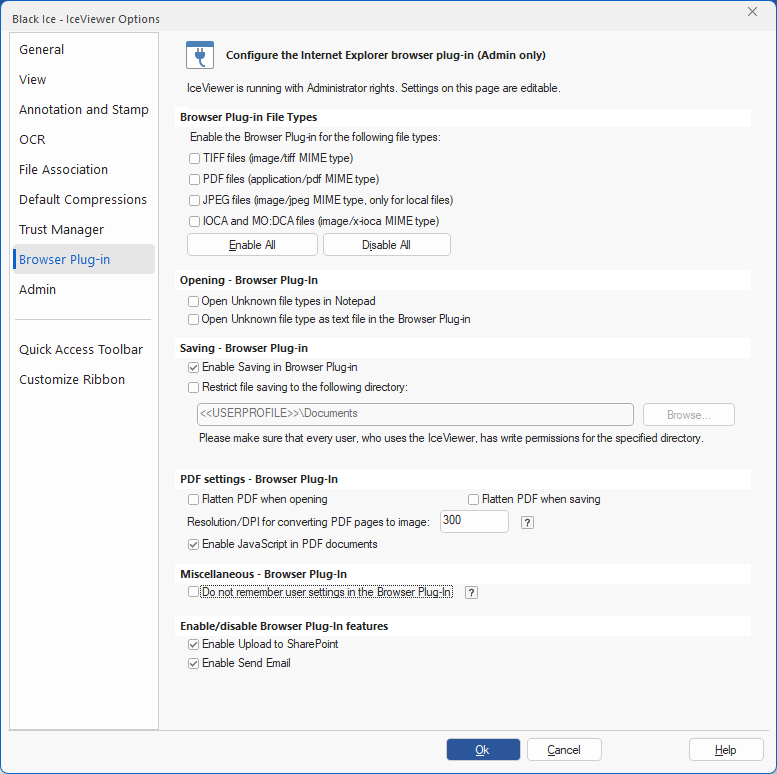
Browser Plug-in File Types
Under the Browser Plug-in File Types section one can associate or unassociate supported file formats with IceViewer Browser Plug-in. Any file format selected on this tab is opened with the IceViewer Browser Plug-in by default. If the user deselects an image format, it is opened with its original default program again.
Opening - Browser Plug-In
Open unknown file types in Notepad – If this option is enabled, the IceViewer Browser Plug-in will offer to the user to open the unknown file types in Notepad.
For example: If the IceViewer Browser Plug-in tries to open a file with file extension of .TIF and file contain text file, the IceViewer Browser Plug-in will offer to the user to open the file in Notepad.
Open unknown file type as a text file in the Browser Plug-in - If this option is enabled, files with unknown file types will be treated as text files and opened in the IceViewer Browser Plug-in.
Saving - Browser Plug-In
Enable Saving in Browser Plug-in – If this option is checked, saving in the IceViewer Browser Plug-In is enabled. Saving files in the IceViewer Browser Plug-In is enabled by default.
Restrict file saving to the following directory - If this option is enabled, every saved document will be saved into the specified directory. This feature is useful if Administrators want to restrict every User’s access to only one directory, or if Administrators want to keep the documents in one directory.
PDF settings - Browser Plug-In
Flatten PDF when opening – If this option is enabled, PDF documents with interactive elements (such as text boxes, checkboxes, drop-down lists) become no longer editable after opening.
Flatten PDF when saving – If this option is enabled, PDF documents with interactive elements (such as text boxes, checkboxes, drop-down lists) become no longer editable after saving.
Resolution/DPI for converting PDF pages to image – This option controls the size of the images that were converted from Vector PDF pages. The default is 300 DPI, which means that an 8.5 x 11 inch page will be converted to a 2550x3300 pixel image.
Enable JavaScript in PDF documents – Enables JavaScript support in PDF documents. In most cases, JavaScript in PDF documents is used for validating interactive forms.
Miscellaneous - Browser Plug-In
Do not remember user settings in the Browser Plug-In – The IceViewer will not remember any user settings made on the Options dialog in the Browser Plug-In.
Enable/disable Browser Plug-In features
Enable Upload to SharePoint – If this option is unchecked, the Upload to SharePoint feature on the toolbar will be disabled.
Enable Send Email – If this option is unchecked, the Send Email and Email Settings features on the toolbar will be disabled.