Customize Ribbon
The IceViewer provides ribbon customization options. Users can add, rename, move or delete new ribbon tabs or groups, and assign IceViewer features to the newly created groups. To customize the ribbon, please navigate to File > Options > Customize Ribbon tab.
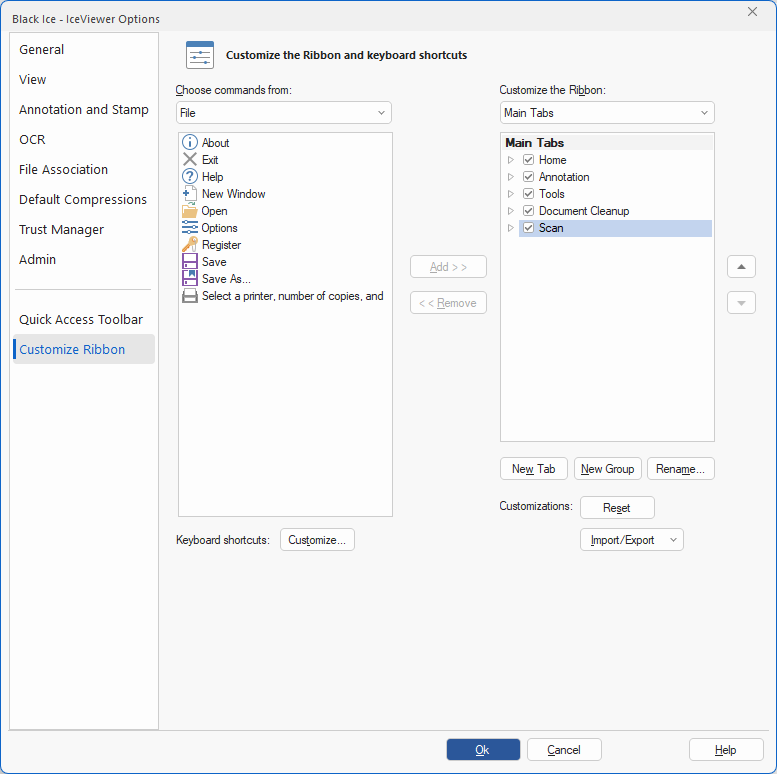
One can create new tabs or groups by using the New Tab and New Group buttons. To rename a tab or group, please select an item in the Customize the Ribbon section, and click on the Rename option.
To assign a feature to a group, select the desired command in the Commands list and click on the Add >> button. To change the order of tabs, groups or features, please use the up and down arrows next to the Customize the Ribbon section.
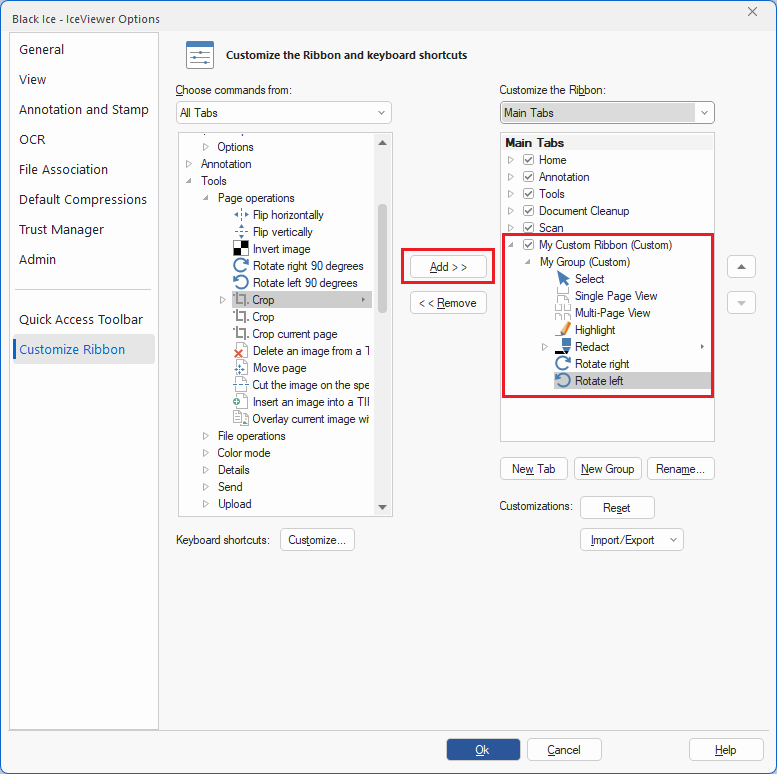
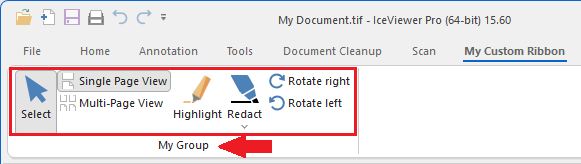
When finished, click on the OK button, and check if the customization was successful.
Import/Export Custom Ribbon Layout Configurations
The Import/Export option on the Customize Ribbon tab enables users to save or load custom ribbon layout configurations in the IceViewer. Exported files can be used for backup or to apply ribbon settings during MSI installation.
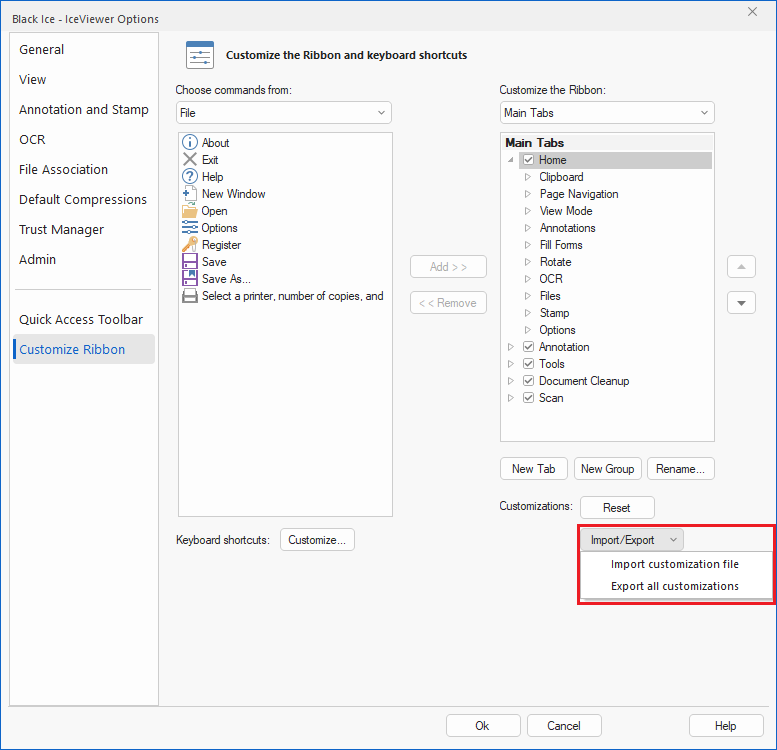
Import customization file
Load a previously saved ribbon configuration file (.RIBBONUI) to apply a custom ribbon layout.
Export all customizations
Save the current ribbon layout, including any newly added tabs, groups, or features, to a .RIBBONUI file.
Apply Custom Ribbon During MSI Installation
The exported file can be used for MSI installations by referencing the .RIBBONUI file through the CUSTOMRIBBON parameter during installation, as shown in the following example:
msiexec /i "<<PATH>>\IceViewer64BitSetup.msi" /q CUSTOMRIBBON="C:\<<PATH>>\IceViewer.RIBBONUI" REGNUM=xxxxx-xxxxxxxx-xxxxxxxxxx
Simplified Ribbon
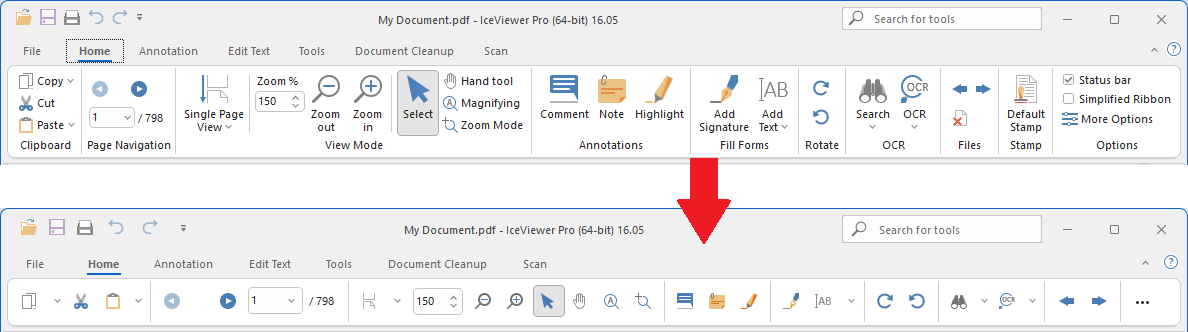
The Simplified Ribbon option reduces the ribbon to a single row for a cleaner, more compact interface.
To simplify the ribbon, please navigate to the Home tab in the IceViewer and check the Simplified Ribbon checkbox.