
Annotation Objects
(Available in the IceViewer PDF and the IceViewer Pro)
The Annotation tab allows the user to select an annotation object to be placed upon the opened PDF document. The following annotations are available:
.png)
|
Text - Allows the user to create a text box by clicking and dragging. On the Text ribbon, users can specify the font size, text alignment, font style, color, and font family. | |||
.png)
|
Comment - Allows the user to place a sticky note annotation on the document. The note icon remains in the same place even if the user is scrolling in the document. On the Comment ribbon, users can specify the background color of the comment icon and the text alignment in the comment annotation. For more information about the Comment annotation, please refer to the Adding a Comment section. |
|||
.png)
|
Note - Allows the user to create an opaque box with a color specified by clicking and dragging. The user can input text as needed into this box. On the Note ribbon, users can specify the background color, border, font size, text alignment, font style, color, and font family. For more information about the Note annotation, please refer to the Adding a Note section. |
|||
.png)
|
Highlight - Allows the user to create a transparent box with a color specified by clicking and dragging. Items below the highlighted section are displayed with a transparent colored background. On the Highlight ribbon, users can specify the color of the annotation. Once placed on the document, the Highlight annotation cannot be moved. For more information about the Highlight annotation, please refer to the Highlight section. |
|||
.png)
|
Shapes – Allows users to place various shapes on the document by selecting the desired shape from the Shapes drop-down menu. The following shapes are available: |
|||
.png)
|
Rectangle - Allows the user to create an unfilled or filled rectangle with a border. On the Rectangle ribbon, users can specify the border width, border color, and the background color. | |||
.png)
|
Ellipse - Allows the user to create an unfilled or filled ellipse with a border. On the Ellipse ribbon, users can specify the border width, border color, and the background color. | |||
.png)
|
Rounded rectangle - Allows the user to create an unfilled or filled rectangle with a border. On the Rounded rectangle ribbon, users can specify the border width, border color, and the background color. | |||
.png)
|
Line - Allows the user to click and drag to create a straight line from a base point in any direction. The line is opaque and covers objects beneath it. On the Line/Arrow ribbon the width and the color of the line can be specified. | |||
.png)
|
Arrow - Allows the user to click and drag to create a straight line with an arrow from a base point in any direction. On the Line/Arrow ribbon the type (simple or double arrow, filled or unfilled arrow) and the width and the color of the arrow can be specified. | |||
.png)
|
Pencil - Allows the user to create a freehand line by clicking and dragging. On the Freehand ribbon, users can specify the width and color of the drawn line. | |||
.png)
|
Redact - Allows the user to create a rectangle area over the document by clicking and dragging, to create an opaque black, white, or custom-colored cover over a specific text on the document to be blocked from the user. The redact annotation must be burned in the document to permanently erase the covered text. On the Redact ribbon the color of the redact annotation can be specified. Once placed on the document, the Redact annotation cannot be moved. | |||
.png)
|
Whiteout - Allows the user to create a rectangle area over the document by clicking and dragging, to create an opaque white cover over a specific text on the document to be blocked from the user. The whiteout annotation must be burned in the document to permanently erase the covered text. Once placed on the document, the Whiteout annotation cannot be moved. | |||
.png)
|
Rubber Stamp - Allows the user to place a dynamic or predefined rubber stamp on the document. To read more please see the Adding a Rubber Stamp section of the manual. | |||
.png)
|
||||
|
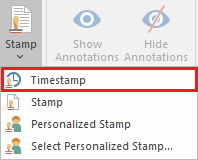
Timestamp - Allows the user to add a timestamp to the document with a personalized date and time format, time zone, and additional text. For more information, please see Adding Timestamp . | |||
|
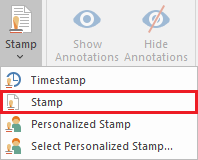
Stamp - Allows the user to stamp a PDF, BMP or TIFF image onto the PDF document. | |||
|
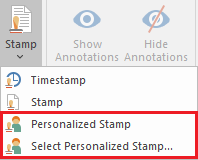
Personalized Stamp - Allows the user to stamp personalized images onto the PDF document. The user can set up a personalized stamp annotation by using the Select Personalized Stamp option. The supported image formats are PDF, BMP and TIFF. For more information about Personalized stamps, please refer to the Adding a Personalized Stamp section. | |||
.png)
|
Watermark - Allows users to overlay custom text or files onto PDF documents. To read more about adding watermark, please refer to the Adding a Watermark section of the manual. | |||