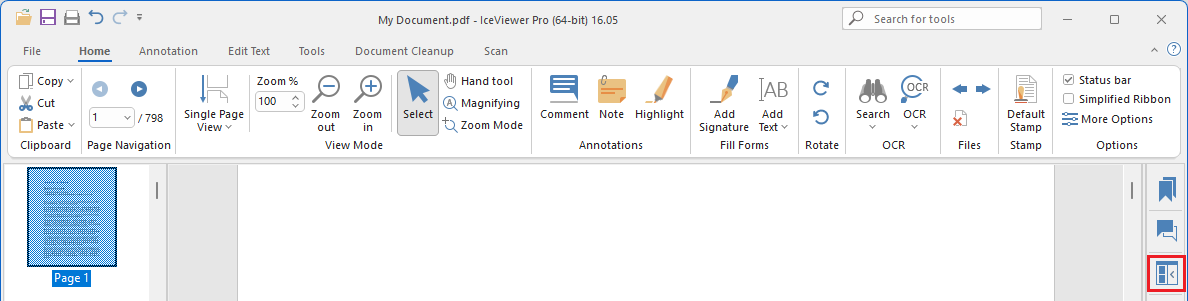
Viewing Multipage files in Thumbnail View
The Thumbnail view is available in the IceViewer for multipage TIFF and PDF files.
If the user opens a multipage TIFF or PDF file, the pages are displayed in the thumbnail view on the left side of the IceViewer window. Users are able to switch between pages by clicking on the page in the thumbnail view.
Pages in the thumbnail view can be moved and rearranged by simply drag and drop the page, and move the page to the new position.
Pages can be copied, cut and paste by right-clicking on a page in the thumbnail sidebar and selecting the appropriate option from the menu.
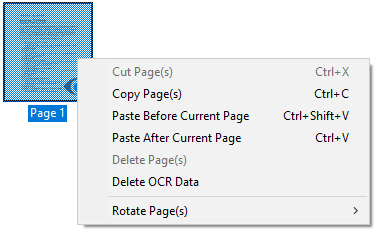
Also, standard windows shortcuts can be used as shown below:
| Ctrl + C | Copy the selected page |
| Ctrl + V | Cut the selected page |
| Ctrl + X | Paste the selected page |
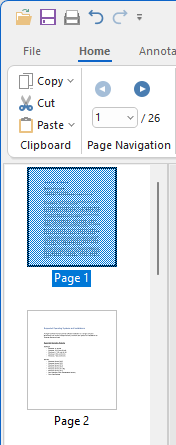
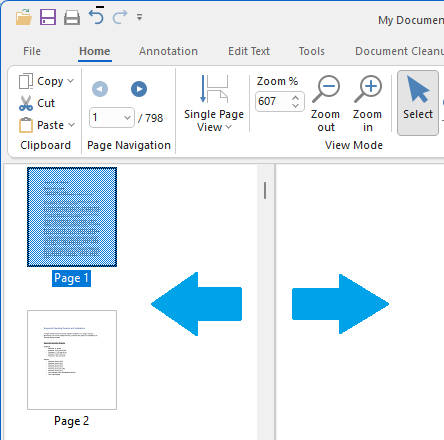
Users can increase or decrease the width of the Thumbnail sidebar by moving the panel splitter to left or right to display any number of thumbnails per line.
To turn the Thumbnail view in the IceViewer on and off, click on the Thumbnails button on the right sidebar.