
Compress multiple files
The Multiple files option compresses a whole list of PDFs with the same standard settings as Single file, one after another.
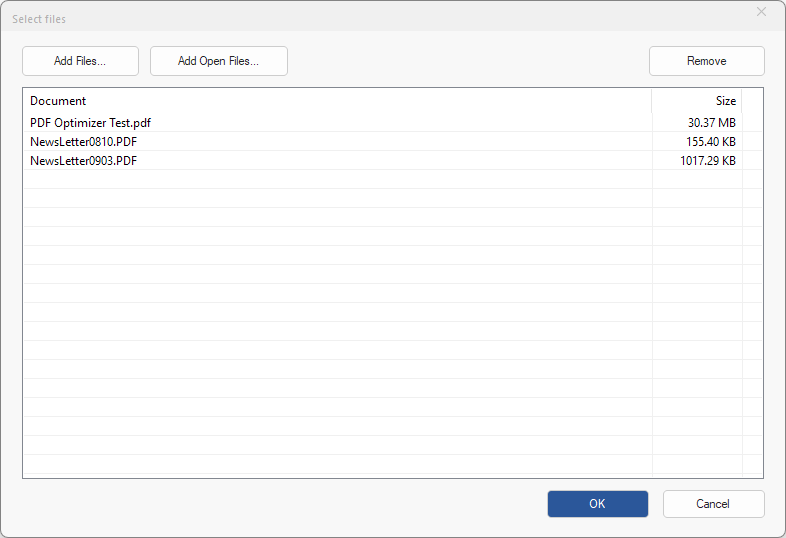
- Go to File → Compress PDF → Multiple files. The Select files window opens.
- Build the list of files:
- Add Files… – choose PDFs from your computer. You can also drag PDF files from Windows Explorer onto the list.
- Add Open Files… – choose from the PDFs already open in IceViewer. Press Ctrl+A in that window to select all of them.
- Tidy the list if needed:
- Select files and click Remove or press the Delete key. The next file is selected automatically, so you can keep pressing Delete.
- Press Ctrl+A to select every file in the list.
- Drag files up or down to change the order they are processed in. Press Esc while dragging to cancel.
- Click OK. If any selected file is open with unsaved changes, IceViewer asks you to save it first.
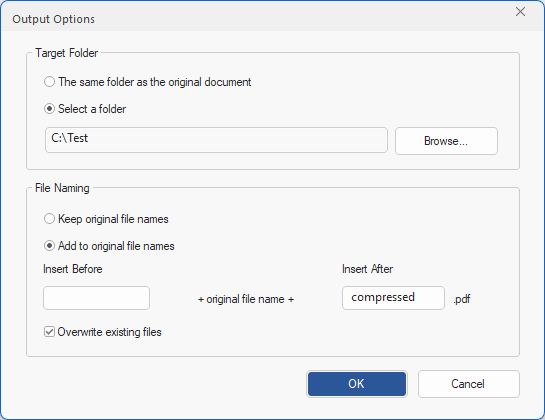
- In the Output Options window, choose where the compressed files go and how they are named (see below), then click OK.
- Wait while the Compressing PDF window shows which file is being processed. Click Cancel to stop after the current file.
- A message tells you how many files were compressed, or lists the files that could not be compressed.
Files that are open in IceViewer are reloaded automatically, so you see the compressed version.
In some cases, if the PDF is already compressed, IceViewer may not be able to decrease the file size further.
Output Options
| Setting | What it does |
|---|---|
| The same folder as the original document | Saves each compressed file next to its original. |
| Select a folder | Saves all compressed files into one folder you choose with Browse…. |
| Keep original file names | The compressed file gets the same name as the original. |
| Add to original file names | Adds your text before and/or after the original name. For example, Insert After = “_small” turns Report.pdf into Report_small.pdf. |
| Overwrite existing files | Replaces a file that already has the output name. When it is off, such files are skipped. |
Important: the default settings are same folder, keep original names and overwrite on. This replaces your original files with the compressed versions. To keep the originals, choose Select a folder or Add to original file names.
If a compressed file would replace a different PDF that is open in IceViewer, that file is not compressed and appears in the list of failed files.