
Advanced Optimization
Advanced Optimization lets you decide exactly how one PDF is compressed and what is removed from it. Use it when the standard settings remove too much or too little.
- Open the PDF, or skip this step to pick a file in the next step.
- Go to File → Compress PDF → Advanced Optimization. The Advanced PDF Optimizer window opens.
- Pick a preset in Settings, or adjust the options on the category pages.
- Click OK, then choose where to save the compressed file.
- IceViewer writes the compressed document to the specified file.
Advanced PDF Optimizer settings
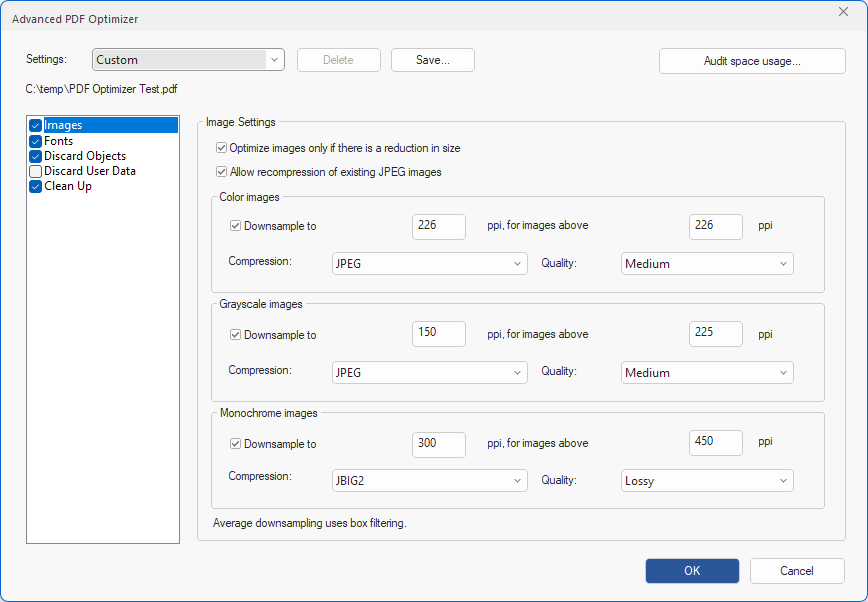
- Settings (top): the preset in use. Select a preset in the list to load it, create or delete presets with the Save… and Delete buttons.
- Audit space usage…: shows how much of the file is taken up by images, fonts, page content and other parts. Use it to see where the savings can come from.
- Category list (left): Images, Fonts, Discard Objects, Discard User Data and Clean Up. Click a name to show its options on the right. Untick the box next to a category to skip it completely.
Presets
| Preset | What it is |
|---|---|
| Standard | The same settings the Single file and Multiple files options use. Cannot be changed or deleted. |
| Mobile | Smaller files for phones and the web: lower image resolution, removes print settings and private data, and optimizes for fast web view. Cannot be changed or deleted. |
| Custom | Your current, unsaved choices. Changing any option switches to Custom. IceViewer remembers it for next time. |
| Your own presets | Created with Save…. You can overwrite or delete them. |
To save your own preset, adjust the options (the preset switches to Custom), click Save…, type a name and click Save. Names are not case-sensitive, so Report and report are the same preset, and you cannot use the name Custom. If the name already exists, you are asked whether to overwrite it.
To remove one of your presets, select it and click Delete. Built-in presets cannot be deleted.
Images
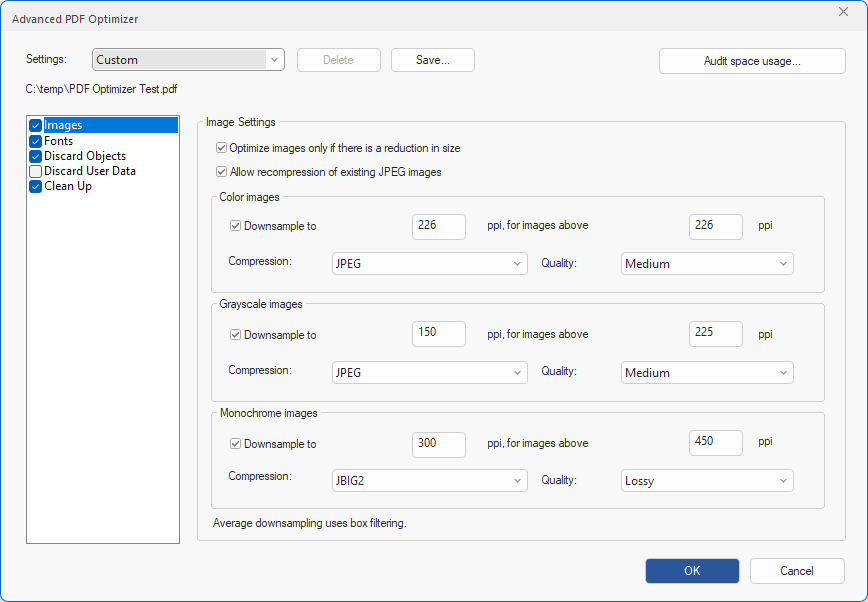
Settings are separate for Color images, Grayscale images and Monochrome images (black-and-white, such as scanned text).
| Option | What it does |
|---|---|
| Downsample to … ppi, for images above … ppi | Lowers the resolution of images that are sharper than needed. For example, 150 ppi for images above 225 ppi. Lower numbers give smaller files but less detail when zooming or printing. |
| Compression (colour, grey) | JPEG suits photos. JPEG 2000 can be smaller at the same quality. ZIP is lossless, best for screenshots and diagrams. Retain Existing keeps each image's current format. Auto lets IceViewer choose. |
| Quality (colour, grey) | Minimum, Low, Medium, High or Maximum. Lower quality means smaller files and more visible blur or blocks. JPEG 2000 also offers Lossless. |
| Compression (monochrome) | JBIG2 gives the smallest files. CCITT Group 4 and Group 3 are widely compatible fax formats. ZIP is lossless, best for screenshots and diagrams. Retain Existing keeps each image's current format. Auto lets IceViewer choose. |
| Quality (monochrome) | Lossy is smaller. Lossless keeps every pixel exactly. |
| Optimize images only if there is a reduction in size | Keeps the original image whenever the new one would not be smaller. Recommended. |
| Allow recompression of existing JPEG images | Lets JPEG images be compressed again. This saves more space but can lower their quality slightly. |
Fonts
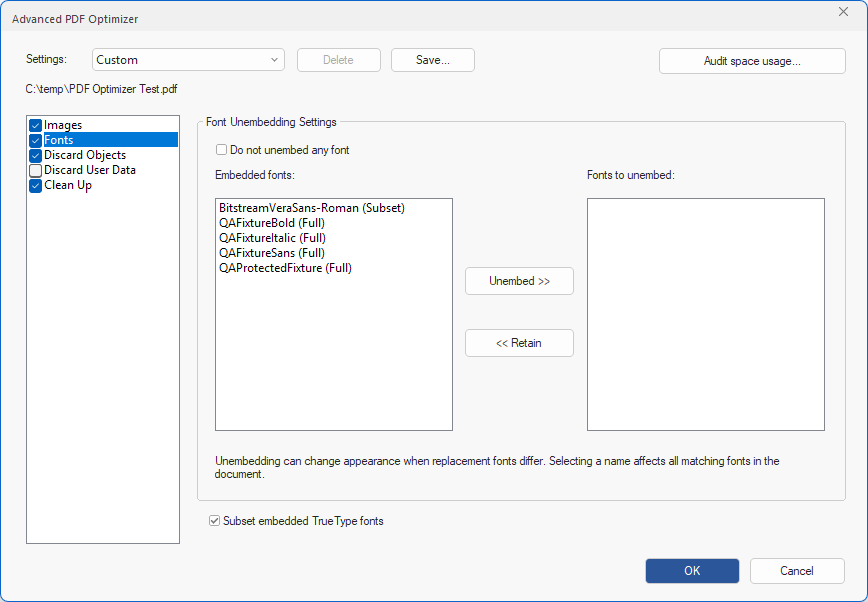
The left list shows the fonts embedded in the PDF. Fonts moved to the right list are removed from the file. The reader's computer then shows the text with its own copy of that font.
- Select fonts and click Unembed >> to remove them, or << Retain to keep them. The arrow keys move the selected fonts too.
- A font name can appear more than once, if the document contains multiple fonts of the same name.
- Do not unembed any font keeps every font in the file.
- Subset embedded TrueType fonts keeps only the characters the document actually uses from each font. This is safe and usually saves a lot of space.
Only unembed fonts that most computers have, such as Arial, Times New Roman or Courier New. Otherwise, the text may look different on other computers, or text may become completely unintelligible.
Discard Objects
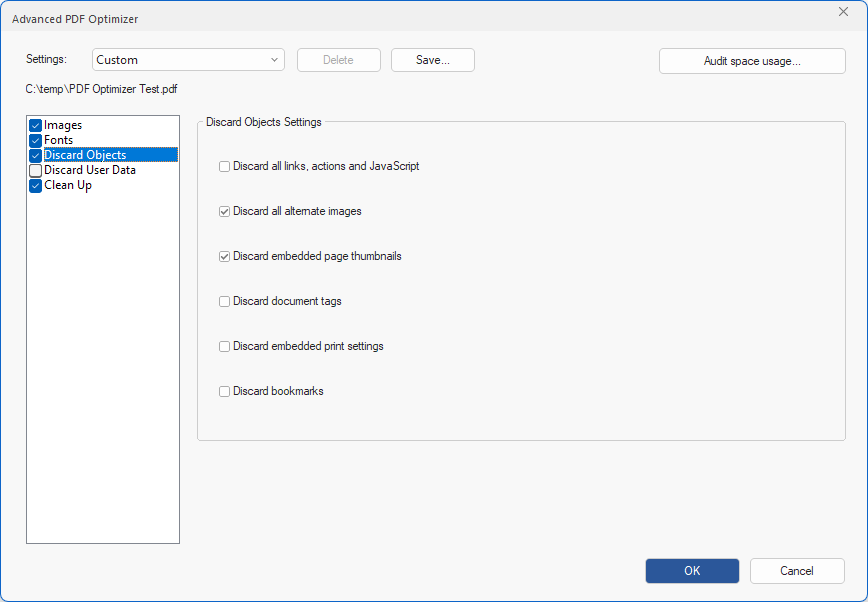
Tick an item to remove it from the PDF:
- Discard all links, actions and JavaScript – links and buttons will no longer work.
- Discard all alternate images – extra versions of images, for example for printing.
- Discard embedded page thumbnails – IceViewer and other viewers create these again when needed.
- Discard document tags – the structure screen readers use. Avoid this if the PDF must be accessible.
- Discard embedded print settings – such as the default paper size or number of copies.
- Discard bookmarks – the table of contents in the side panel.
Discard User Data
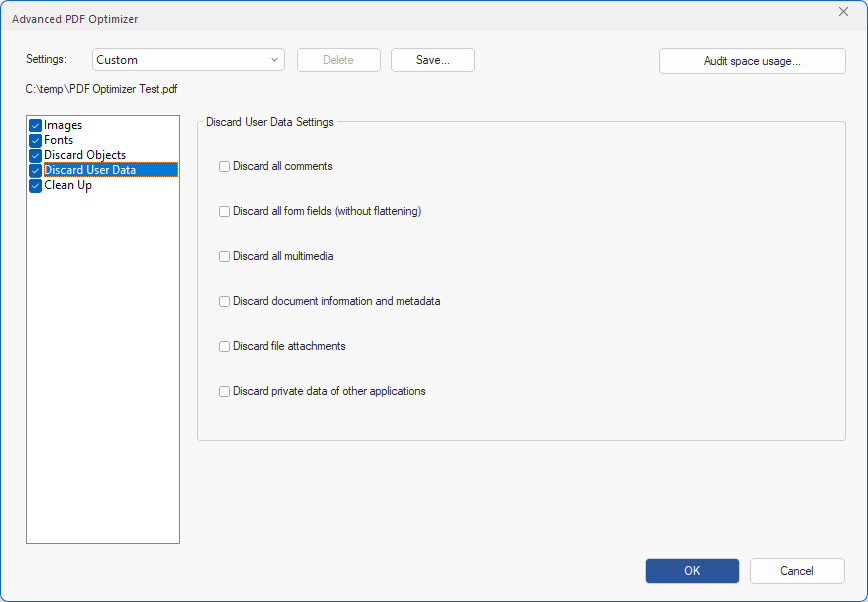
Tick an item to remove it from the PDF:
- Discard all comments – notes, highlights and other annotations.
- Discard all form fields (without flattening) – the fields and the values typed into them disappear.
- Discard all multimedia – embedded sound and video.
- Discard document information and metadata – title, author, keywords and similar details.
- Discard file attachments – files embedded in the PDF.
- Discard private data of other applications – extra data that other programs stored in the file.
Clean Up
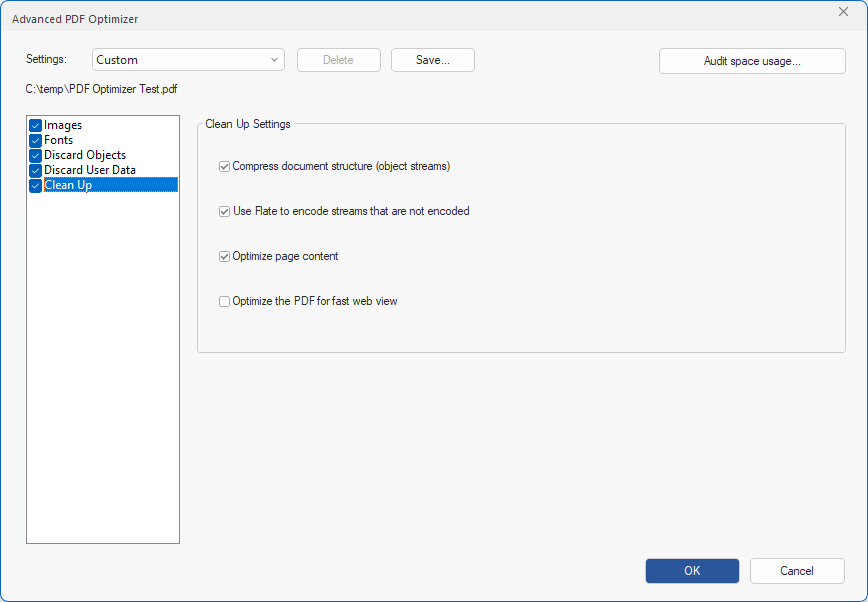
These options tidy the inside of the file without changing what you see:
- Compress document structure (object streams) – packs the file's internal structure more tightly.
- Use Flate to encode streams that are not encoded – compresses any parts that are not compressed yet.
- Optimize page content – removes redundant drawing instructions from pages.
- Optimize the PDF for fast web view – lets the first page appear quickly when the PDF opens from a website. This can make the file slightly larger.
Tips and messages
Tips
- Start with Single file. Use Advanced Optimization only if the result is too blurry or not small enough.
- For scanned documents, most savings come from the Images page, especially Monochrome images.
- Keep the original until you have checked the compressed file, especially when you remove comments, form fields or bookmarks.
- To compress a password-protected PDF, open it in IceViewer first, then compress it.
Common error messages
| Message | What it means and what to do |
|---|---|
| The file … is open in IceViewer and cannot be overwritten. | You chose the name of another PDF that is open. Close that document or choose a different name. |
| The file size could not be reduced. | The PDF is already well compressed. Try Advanced Optimization with lower image quality or more discard options. |
| Current settings would require overwriting existing files. | In Output Options, tick Overwrite existing files, or choose another folder or add text to the file names. |
| Failed to compress the following files: … | The listed files could not be compressed. They may be damaged, password-protected, or have an output name that belongs to another open PDF. All other files were compressed. |
| Error while compressing the PDF document. | The file could not be compressed and nothing was saved. Check that the PDF opens correctly and try again. |
| PDF Compression is only available in IceViewer PDF and IceViewer Pro. | You are using the free version. Upgrade to IceViewer PDF or IceViewer Pro to use PDF Compression. |