
Advanced Search
Advanced Search lets you search for text across multiple PDF files in a selected folder and its subfolders. Results are grouped by file and page, with a short text preview for each match. Selecting a result opens the document in IceViewer and highlights the matching text.
Availability:
IceViewer PDF and Pro editions. Advanced Search is not available in IceViewer TIFF.
Start Advanced Search
- Start IceViewer.
- Select File and then Advanced Search. You can also press Ctrl+Shift+F.
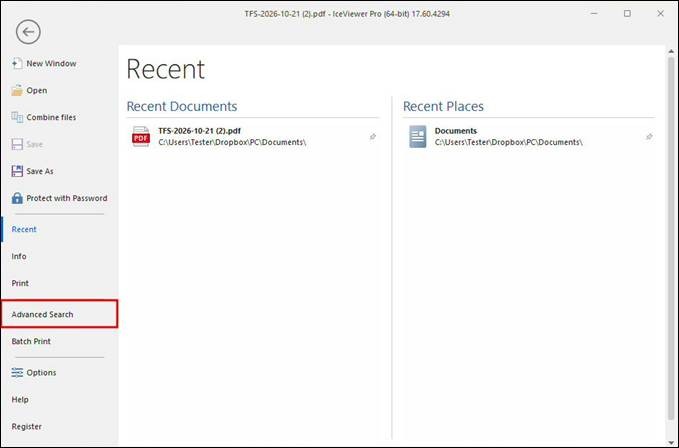
- IceViewer starts the Advanced Search window automatically.
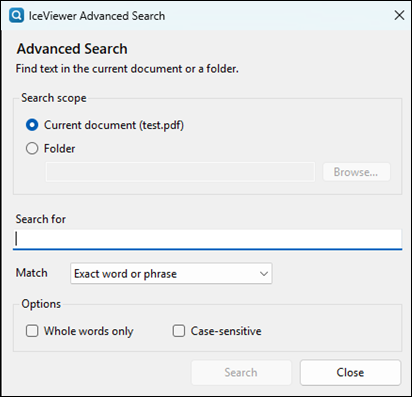
Configure a Search
Choose the search scope and matching behavior before starting the search. The Search button becomes available after you enter a query and select a valid scope.
| Settings | What it does | Guidance |
| Current document | Searches the PDF currently open in IceViewer. | Available only when IceViewer supplies an open PDF as the document context. |
| Folder | Searches PDF files in the selected folder and all subfolders. | Enter a folder path or select Browse. |
| Search for | The word, phrase, or set of words to locate. | Leading and trailing spaces are ignored. |
| Exact word or phrase | Finds the complete entered text in the same order. | Use for names, identifiers, and known phrases. |
| Any of the words | Searches for each entered word separately. | Use when any query term is relevant. |
| Whole words only | Excludes matches that occur only inside a longer word. | For example, searching for net does not match network. |
| Case sensitive | Requires the same uppercase and lowercase letters. | Leave cleared for the broadest search. |
Run the Search
- Enter the text in Search for.
- Select Exact word or phrase or Any of the words.
- Select Whole words only or Case sensitive when needed.
- Select Search. Folder searches show the current file and overall progress.
- To stop the search, select Cancel or press Escape. Results already found remain available.
Work with Search Results
The results window groups matches by file. Select a file on the left to display its matching pages and text previews on the right. The matching text is highlighted in each preview.
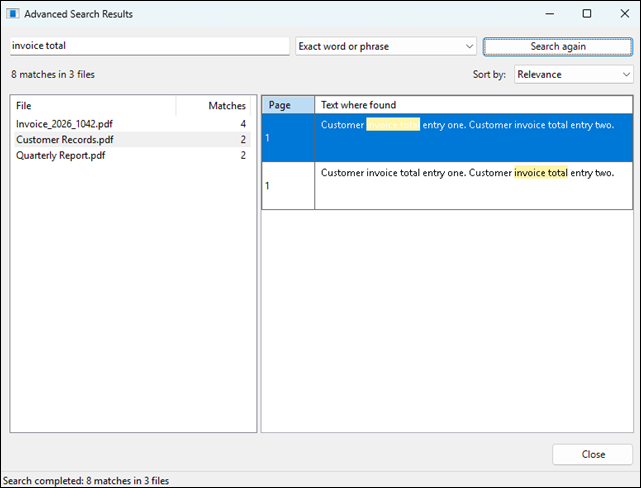
Folder search results grouped by file and page
Select a file to view all matches in page and occurrence order.
For folder searches, use Sort by to order files by Relevance, Date modified, Filename, or Location.
Double-click a match, or select it and press Enter, to open the PDF at that page in IceViewer and highlight the occurrence.
Change the query or match type at the top of the window, then select Search again.
Select the warnings link to review PDFs or folders that could not be searched.
Select Close to return to the main Advanced Search configuration window.
Advanced Search Limitations
Advanced Search reads the text layer stored inside PDF files. It does not replace OCR and does not search every type of PDF content.
| Area | Limitations |
| Supported files | Advanced Search searches PDF files only. It does not search TIFF files or other document formats. |
| Scanned documents | Image-only or scanned PDFs have no searchable text unless OCR has already been applied. Use OCR & Search in IceViewer for these documents. |
| PDF content | Bookmarks, comments, file attachments, form metadata, document properties, and object data are not searched. |
| Protected PDFs | The current PDF can be searched when IceViewer can provide its open password. Password-protected PDFs found during folder search are skipped and reported as warnings. |
| Damaged or inaccessible files | Files that cannot be opened, read, or converted are skipped. Select the warnings link for the affected filename and reason. |