
Change Resolution
(Available in the IceViewer TIFF and the IceViewer Pro)
The IceViewer allows users to view and modify the resolution of the currently selected page by clicking on the Change Resolution option in the Tools tab.

The Change Resolution window provides information about the current image file, including Dimensions (in pixels), Colors, and Resolution. The user can also change the dimensions and resolution of the selected image in this window.
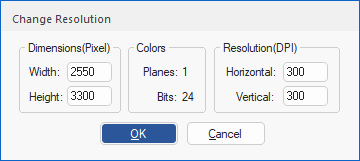
The dimensions and resolution of multiple pages can be changed by holding down the Ctrl key and selecting multiple pages with the left mouse button in the Thumbnail sidebar. When pages are selected, click on the Change Resolution option, enter the desired values, and click on the OK button.
Changing the dimensions
By changing the dimensions, the image will not be scaled.
- By increasing the width value, the IceViewer will add a white margin to the right side of the selected page(s), while decreasing the width value will result in cropping the page from right to left.
- By increasing the height value, the IceViewer will add a white margin to the bottom of the selected page(s), while decreasing the height value will result in cropping the page from the bottom to the top.