
Trust Manager
The Trust Manager tab provides options to control web access and security for PDF and TIFF files. Users can specify how the IceViewer Core should respond when a link is clicked.
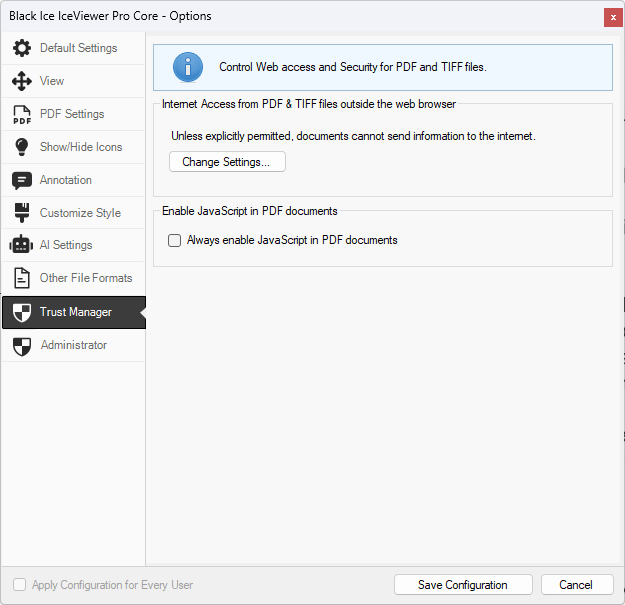
Internet Access from PDF & TIFF files outside the web browser
To manage Internet Access, please click on the Change Settings… button.
.png)
Allow PDF & TIFF files to access all web sites
The Allow PDF & TIFF files to access all web sites option enables unrestricted web access for links within PDF and TIFF files. When enabled, users can open any link to external websites or files directly from the IceViewer Core without restrictions.
Custom Setting
When the Custom Setting option is enabled, users can control web access for PDF and TIFF files by specifying individual websites to allow or block.
Specify Web Sites to Allow or Block
Enter the hostname of the website (e.g., www.example.com) in the Host name field, and click Allow to permit access to the site or Block to deny access. Added sites appear in the Web Sites list, where the websites specified by the user, and access permissions (allowed or blocked) are displayed.
.png)
To remove a website from the list, please select the website in the list and click on the Delete button.
Default Behavior for Websites Not in the Above List
Options in the Default Behavior for Websites Not in the Above List section determines how the IceViewer handles access to websites that are not specified in the Web Sites list.
.png)
Users can select one of the following default actions:
- Always ask
Prompts the user with a security warning each time a new website is accessed. Upon clicking a link, a pop-up window appears, displaying the URL and offering the user options to allow or block access to the site. If the Remember this action for this site for all documents option is enabled, the IceViewer allows the user to apply the selected action for future interactions with the same site. Allowed or blocked websites will appear in the Web Sites list on the Internet Access Manager window.
.png)
- Allow access
Permits access to any website not listed without additional prompts.
- Block access
Denies access to any website not listed.
Block PDF & TIFF files’ access to all web sites
The Block PDF & TIFF files’ access to all web sites option completely restricts web access for PDF and TIFF files. When enabled, users will not be able to open links to any external websites or files from within the IceViewer Core to ensure that no external content can be accessed.
.png)
Enable JavaScript in PDF documents
The Enable JavaScript in PDF documents option allows users to control whether JavaScript embedded in PDF documents is executed when opening a document. JavaScript in PDF documents is commonly used for interactive forms, automated calculations, and dynamic content. However, it can also lead to potential security issues.
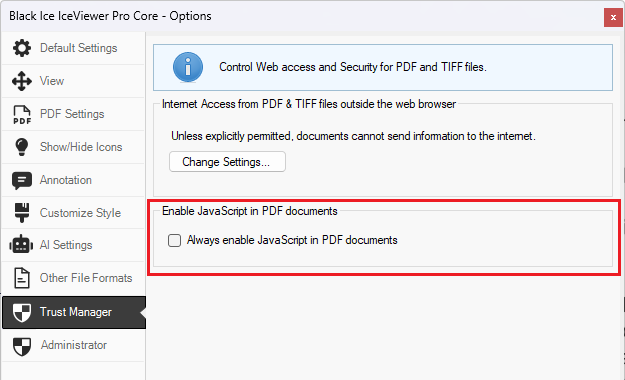
When the Enable JavaScript in PDF documents option is enabled, JavaScript in PDF documents runs automatically without prompts.
When the Enable JavaScript in PDF documents option is disabled and a PDF document containing JavaScript is opened, the IceViewer Core displays a security warning at the top of the document, allowing users to Enable Once or Always Enable JavaScript for future documents. By default, the Enable JavaScript in PDF documents option is disabled.
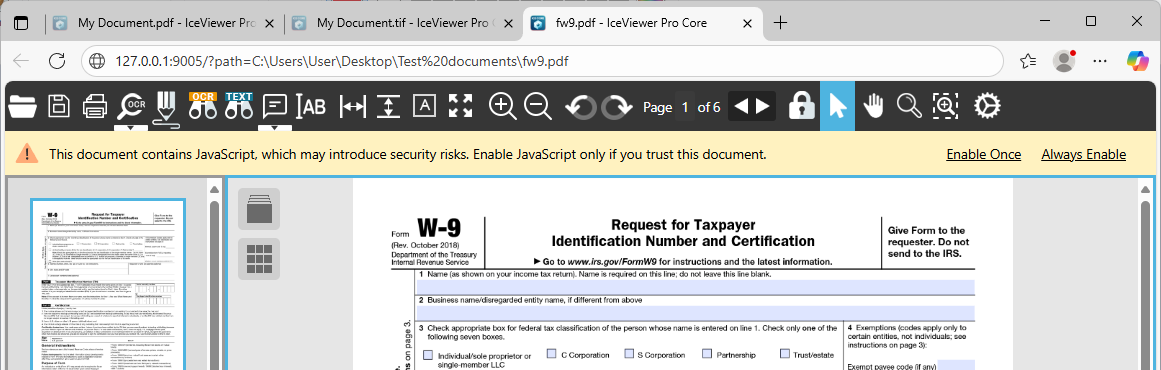
- Selecting the Enable Once option allows JavaScript execution for the current session only, and the warning will reappear when reopening the document.
- Selecting the Always Enable option allows JavaScript to run in every future document without further prompts.