
Embed the IceViewer Core on your website
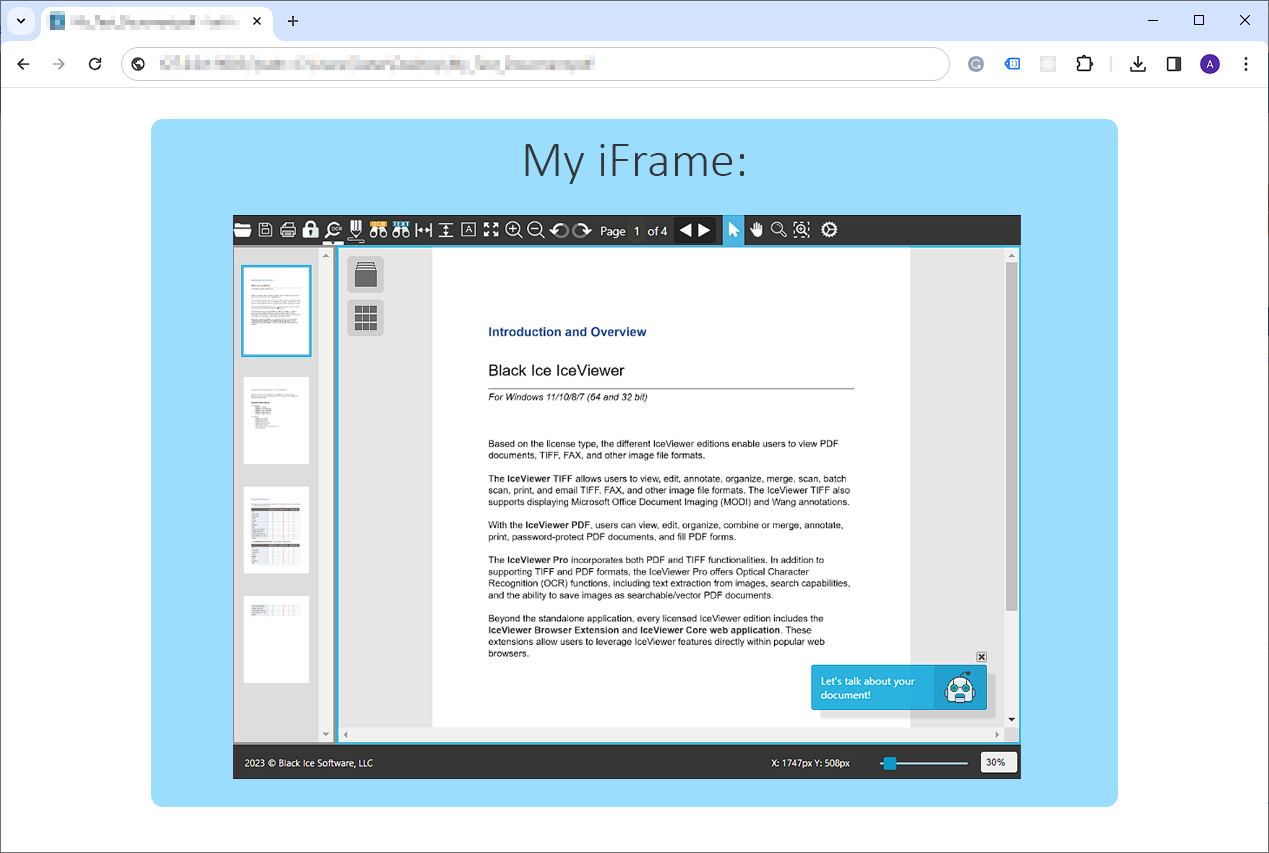
The IceViewer Core supports embedding in a web page and opening documents.
In order to embed the application into a website, please open the Web App settings, and change the browser settings to open the documents in My Web Application (Dynamic Embed).
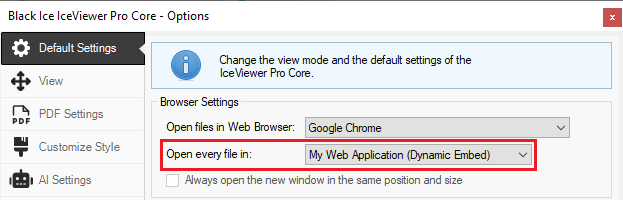
Click on the Save Configuration button.
One has to add an iframe with a specified id (tvcore_iframe) attribute as in the following example:
| <iframe id="tvcore_iframe" width="1080" height="600" ></iframe> |
NOTE: The id attribute must be “tvcore_iframe”, in order to make sure the IceViewer Core can find the target iframe.
One also has to add a JavaScript file bi.embed.js file to the <HEAD> tag of the webpage, as in the following example:
| <script src="bi.embed.js"></script> |
You can copy the bi.embed.js file to your website from the following directory:
<<IceViewer Installation directory>>\Core\wwwroot\js\bi.embed.js
As a result, every time the browser attempts to download a file, the Web App will detect the file and will load the file into the iframe, instead of opening a new tab.
NOTE: The width and height attributes in the examples are changeable.