
Annotation Settings
On the Annotation tab, one can configure the timestamp format and add text to the timestamp.
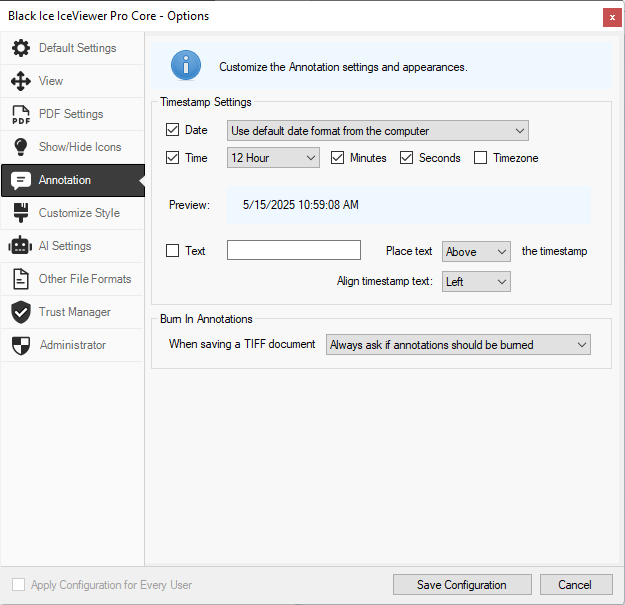
The following options are available:
Date
Users have the following options to configure the date format (in the example 29th July 2024 is used):
- Use default date format from the computer (default)
- MM/DD/YYYY (07/29/2024)
- M/D/YY (7/29/24)
- YYYY/MM/DD (2024/07/29)
- DD/MM/YYYY (European) (29/07/2024)
- DD-MON-YYYY (29/JUL/2024)
- Julian Date (2460520)
Time
Users can configure the timestamp settings by selecting between 12-hour and 24-hour time formats, including minutes and seconds in the timestamp, or using the computer’s time zone. (By default, the 12-hour time format is selected, and minutes and seconds are included in the timestamp.)
Text
By enabling the Text option, additional text can be added to the timestamp. Users can also configure the position and alignment of the text using the Place text and Align timestamp text dropdown menus. (disabled by default)
Burn In Annotations
The Burn In Annotations feature allows users to control how annotations are handled when saving TIFF documents. When saving a TIFF document, users can select from the following options in the dropdown:
- Always ask if annotations should be burned - Prompts the user every time a TIFF document is saved, asking whether the annotations should be burned into the image or not.
- Burn in the annotations - Automatically embeds every annotation into the image when saving a TIFF document.
- Do not burn in annotations - Annotations are not embedded into the TIFF image, allowing future modifications or deletions.