
PDF Settings
(Available in the IceViewer PDF and IceViewer Pro)
On the PDF Settings tab, one can configure the PDF settings of the IceViewer Core.
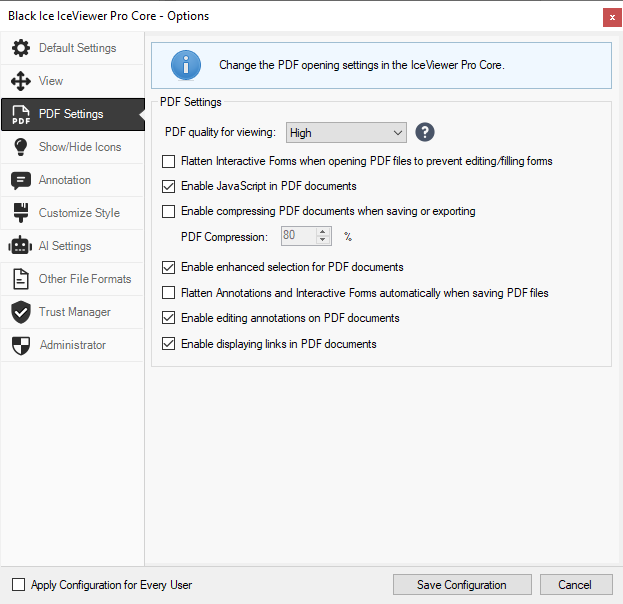
PDF quality for viewing – This option defines the quality of the displayed PDF pages. The following options are available in the PDF quality for viewing dropdown menu:
- High – Pages are displayed in high resolution, but use more system resources and may take longer to open and save documents. (default)
- Medium – Pages are displayed in medium resolution. Compared to high resolution, medium resolution uses less system resources, and opening and saving documents is faster.
- Low – Pages are displayed in low resolution, but use less system resources and opening and saving documents is faster.
Flatten interactive Forms when opening PDF files to prevent editing/filling forms – If this option is enabled, the IceViewer Core will flatten the interactive forms (if there any) on the opened PDF document, preventing users to fill the interactive form. (disabled by default)
Enable JavaScript in PDF documents – If this option is enabled, the IceViewer Core will allow JavaScript in PDF documents. JavaScript in PDF documents usually have the purpose to validate fields in interactive forms. (enabled by default)
Please note: JavaScript can have potentially unwanted actions or security issues; therefore, the application has this option Disabled by default. This can be used to prevent any unwanted scripts from running.
Enable compressing PDF documents when saving or exporting – If this option is enabled, the IceViewer Core will compress the opened document when saving or exporting the document in PDF format. This option can reduce the generated PDF file size. (disabled by default)
The quality of the compression depends on the PDF Compression value. The lower the PDF Compression value is, the more compressed the generated PDF will be.

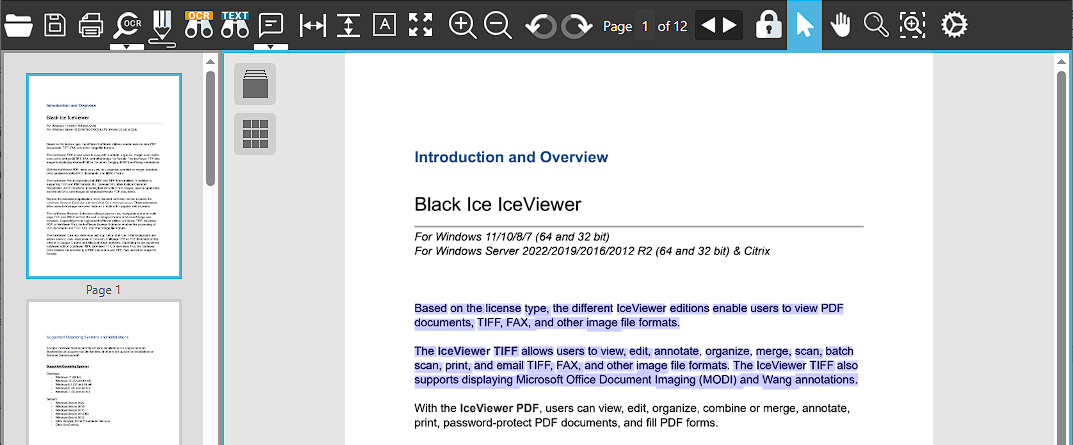
Enable enhanced selection for PDF documents – The enhanced selection makes it easier to select large parts of a vector PDF document (such as paragraphs or sections). (enabled by default)
With the enhanced selection enabled, users are also able to OCR a selected area in non-searchable PDF documents. To OCR a selected area, right-click on the selection and select the OCR Selection option in the context menu.
Flatten Annotations and Interactive Forms automatically when saving PDF files – If this option is enabled, PDF documents with interactive elements (such as annotations, text boxes, checkboxes, drop-down lists) become no longer editable after opening. (disabled by default)
Enable editing annotations on PDF documents – If this option is enabled, PDF annotations placed on the opened document will be editable. (enabled by default)
Enable displaying links in PDF documents – If this option is enabled, hyperlinks added to the currently opened PDF document will be clickable, including the table of contents (TOC) if available. (enabled by default)