Starting and Closing the IceViewer Core
To start the IceViewer Core simply double-click on the IceViewer Core icon on the desktop, or open the Start menu and start typing IceViewer Core. Once launched, the IceViewer Core will run in the background and automatically open in Chrome/Edge when opening a document . To open the IceViewer Core without a document, double-click on the application icon on the desktop, while the IceViewer Core is already running in the background.
For more information on how to set up the preferred browser for opening documents using the IceViewer Core, please see the Default Settings section.
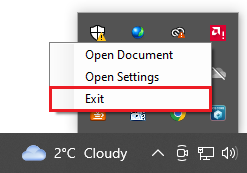
To close the IceViewer Core (stop the IceViewer Core running in the background), right-click on the IceViewer Core on the system tray and click on the Exit option.