
Using the Comments Panel
The Comments Panel in the IceViewer Core provides an efficient solution for managing annotation comments in PDF and TIFF documents. The Comments Panel lists every annotation placed on the document, allowing users to edit text-based annotations (e.g., Note, Comment, Text annotations), create annotation comments and replies for collaboration, and delete existing annotations.
To show or hide the Comments Panel, please click on the Comments button on the IceViewer Core user interface.
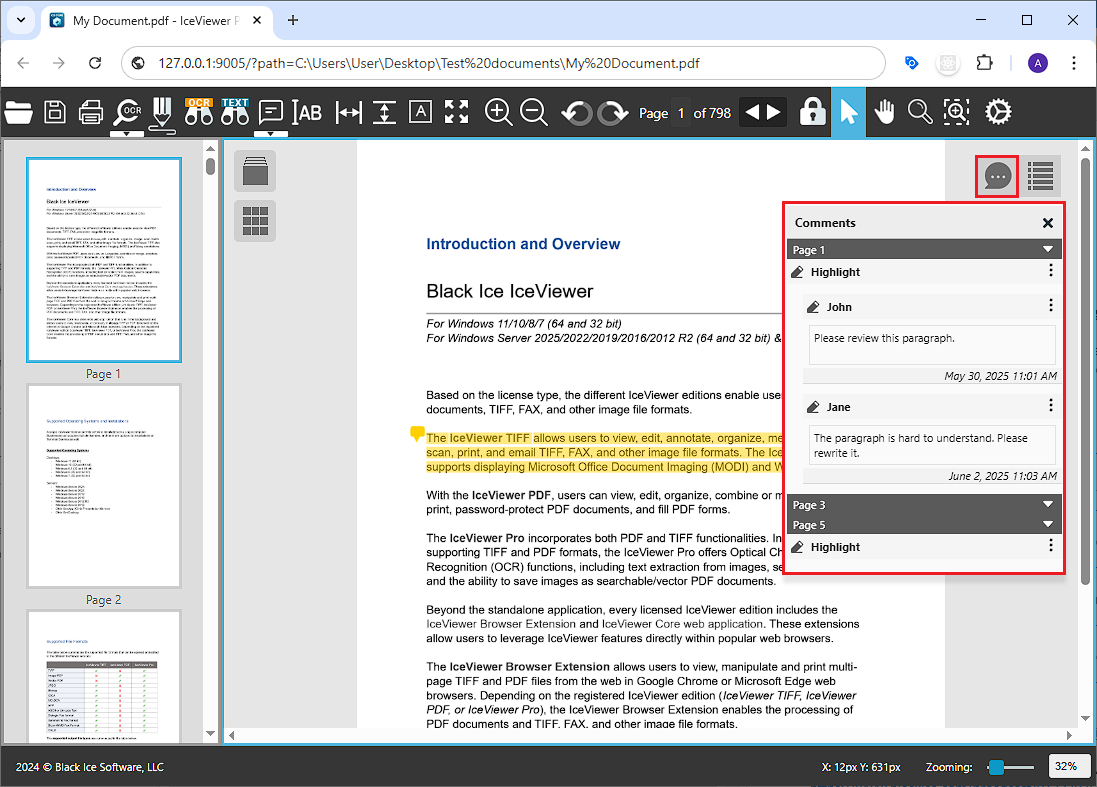
Annotations on the Comments Panel are organized by pages. Please click the button of the desired page to expand or collapse the list of annotations for the selected page. For each annotation, the Comments Panel displays the name of the author and the date and time of the last modification.
.png)
Editing a Comment
To edit an existing comment, click the desired text field to make the text editable, make the necessary changes, and click on the Save button.
.png)
Edit Annotation Replies
Annotation Replies allow users to collaborate in threaded discussions directly within the document. By replying to existing annotations, team members can provide feedback, ask questions, or offer further insights in a structured manner. The Comments Panel displays the name of the respondent and the date of the response. Replies are displayed in chronological order, from top to bottom under the related annotation.
To see how to add a reply, please see the Annotation Replies section. To edit a reply, please click on the reply field, make the changes and click on the Save button.
.png)
Delete Comments or Replies
To delete, please hover the settings (.png) ) icon of the desired comment or
reply, and select the Delete option from the
menu.
) icon of the desired comment or
reply, and select the Delete option from the
menu.
.png)
Deleting an Annotation
To delete an annotation, please hover the settings (.png) ) icon of the annotation, and select
the Delete option.
) icon of the annotation, and select
the Delete option.
.png)