
Saving Files to SharePoint
(Not available in the Free version)
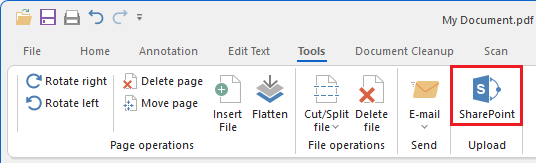
The IceViewer has a built-in feature to save images or documents to a designated SharePoint server instantly. To configure the IceViewer to save the currently opened image or document directly to SharePoint, please navigate to the Tools tab and click on the SharePoint button.
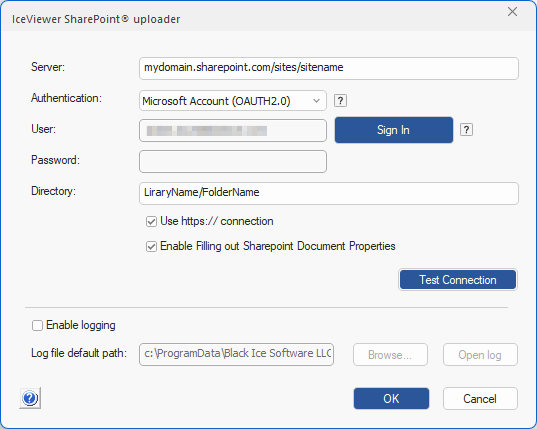
On the IceViewer SharePoint uploader window, the user can configure the SharePoint server where the files will be saved.
Server
The complete URL of the server, without http:// or https://.
For example:
mydomain.sharepoint.com/sites/sitename
Authentication
The user can select the authentication method from the Authentication dropdown menu. The Username and Password method is used by older SharePoint servers, while the more secure Microsoft Account (OAUTH2.0) authentication can be used with SharePoint 365 Servers.
- Username and Password
The username and password of the domain user has to be provided.
- Microsoft Account (OAUTH2.0)
The user will be prompted to select the Microsoft account for saving files to SharePoint. To read more about how to use the Microsoft Account (OAUTH2.0) authentication method, please see the Use Microsoft Account (OAUTH 2.0) authentication to save files to SharePoint section.
Please make sure the that the provided user account has the Add Items/List Permission, or a Contributor Permission level to the given library or directory; otherwise, the files cannot be saved.
Directory
The full path of the save directory. The save directory needs to be determined correctly before saving files.
A complete SharePoint website URL usually looks similar as the following example:
https://servername/sites/sitename/libraryname/foldername/
The libraryname/foldername part of the URL above should be entered into the Directory field. The directory cannot start with a forward slash (/) character.
|
Determining the Directory to save documents The save directory can be determined with a previously manually saved document.
|
Please ensure that file saving works correctly after setting or changing the directory.
NOTE: The Shared Documents directory of the Office 365 SharePoint online directory is the same as the Documents directory in the SharePoint.
For example:
Directory on the SharePoint 365 online: Shared Documents\Test
Directory on the SharePoint Uploader: Documents\Test
NOTE: If other users cannot see the saved file, please make sure the document is published to other users.
Use https:// connection (SSL)
SSL (Secure Sockets Layer) is a protocol that provides communication security over the Internet. By selecting the Use https:// connection option, the IceViewer will use secure https protocol to save every file to the SharePoint server.
Enable Filling out SharePoint Document Columns
If the Enable Filling out SharePoint Document Properties option is checked, the Document Properties window will appear, where the user can edit the columns (property values) of the saved document.
Editing Document Properties During Save
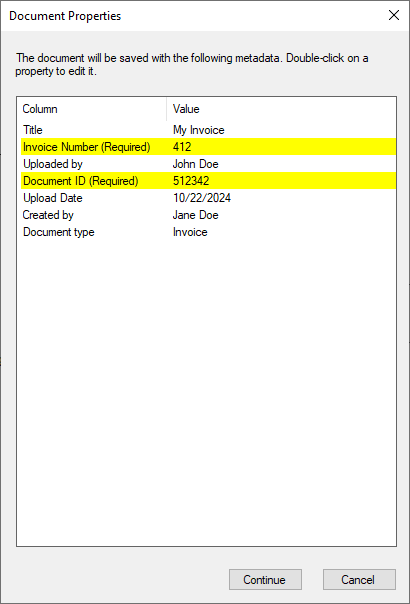
On the Document Properties window, the metadata associated with the saved document can be edited. To use this feature, please make sure that the Enable Filling out SharePoint Document Properties option is enabled.
To edit a property value, please double-click the property. Required properties are highlighted in yellow and must be filled. Please note that the properties displayed in the Document Properties window can be configured in SharePoint.
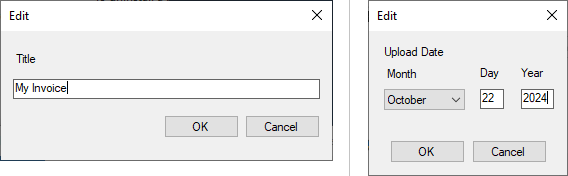
On the Edit window, the value of the selected property can be modified. Editing options may vary depending on the property type and configurations in SharePoint (e.g., text, date and time, number, currency, etc.).
The SharePoint uploader supports the following column data types:
- Single line of text
- Multiple lines of text
- Number
- Yes/No
- Person or Group
- Date and time
- Choice
- Hyperlink
- Currency
The SharePoint uploader does not support the following column data types:
- Location
- Image
- Managed metadata
- Lookup
Click Continue to complete the save of the printed document to SharePoint.
Test Connection
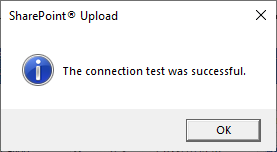
To make sure saving to SharePoint has been configured successfully, please click on the Test Connection button. If the connection is established successfully, the following window appears.
Logging
If the Enable Logging option is checked, every SharePoint related message is recorded in the specified log file.
By default, the log file is available in the following directory:
c:\ProgramData\Black Ice Software LLC\IceViewer\Logs\BiUploadToSharePoint.log
The log file contains information about:
- The start date of the save
- Source file
- URL
- User
- Upload finish date, and result
NOTE: Environment variables can also be used to specify the directory.
NOTE: Please make sure to select a directory for the log file where every IceViewer user have permission to write.
If the saving to SharePoint is configured, please click on the OK button to initiate the file saving.
SharePoint error messages
Unable to connect
Please check the SharePoint settings including Server, Directory, Username and Password.
Upload Error
Use a different file name. To be considered valid by SharePoint, file or folder names cannot begin or end with a dot, cannot contain consecutive dots and cannot contain any of the following characters: ~ " # % & * : < > ? / \ { | }.
Limitations
The saving to SharePoint feature requires .NET Framework version 4.7.2 or higher.