
Command Line Silent Printing
The IceViewer has the built-in capability to print supported documents silently from command line. With the command line printing feature, users can print documents and images with IceViewer more quickly and easily without starting the IceViewer and opening the file.
To print a document or image with IceViewer, open a Command Line and start IceViewer with /p parameter, as in the following example:
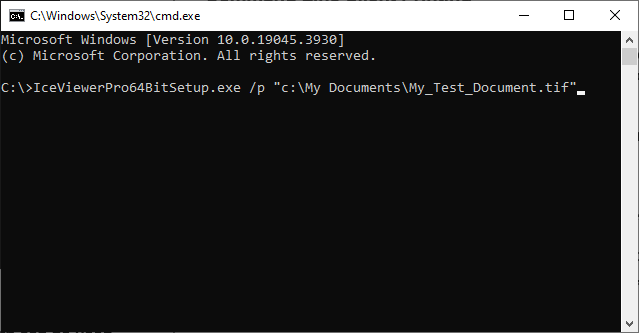
IceViewerPro64BitSetup.exe /p "c:\My Documents\My_Test_Document.tif"
NOTE: The “c:\My Documents\My_Test_Document.tif” must be substituted with the relative path or absolute path and filename of the file you would like to print. Relative path can be used, if you are currently in the directory where the image or document is located, for example:
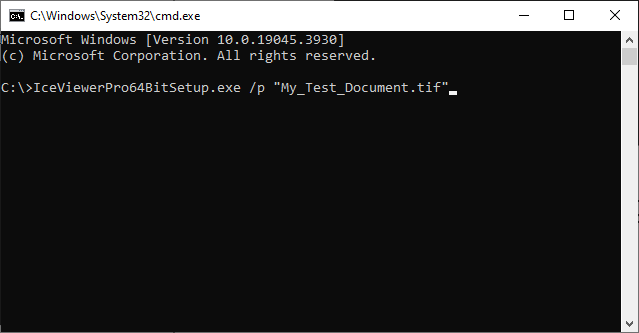
IceViewerPro64BitSetup.exe /p "My_Test_Document.tif"
In every other case, please use absolute path.
When printing with /p parameter, IceViewer always use the default printer on the system with the last used printing configuration from IceViewer. For example, if you printed with Stretch to Fit page option last time when printed from IceViewer, then /p parameter will print the specified document with Stretch to Fit page option again.
Alternatively, IceViewer can be started with /pt parameter where the user can also specify the printer to use for the printing. For example:
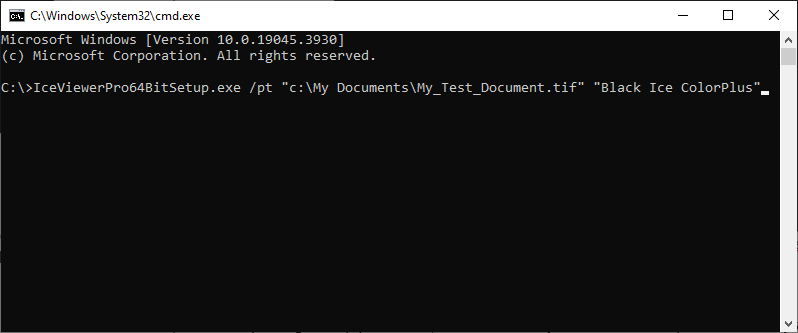
IceViewerPro64BitSetup.exe /pt "c:\My Documents\My_Test_Document.tif" "Black Ice ColorPlus"
In this case the specified printer will print the document, as in this example the Black Ice ColorPlus printer.
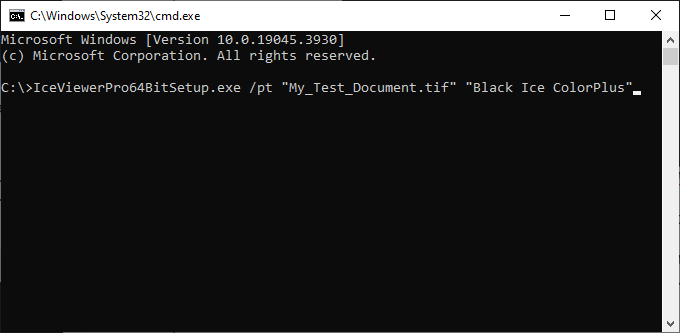
NOTE: The “C:\Images\MyDoc.TIF” must be substituted with the relative path or absolute path and filename of the file you would like to print. Relative path can be used, if you are currently in the directory where the image or document is located, for example:
Annotations
When printing with IceViewer in command line, the annotations will be automatically loaded and printed from the annotation (.ann) file, if the Enable loading annotation file automatically option is enabled in the IceViewer Options > Annotation and Stamp, and if the annotation file is located next to the printed TIFF document.
One also can specify the annotation file location with the /annotation parameter. For example:
IceViewerPro64BitSetup.exe /p <PATH TO TIFF> /annotation <PATH TO ANN FILE>
Limitations
- Command line printing is also available in Free IceViewer, but only prints the first page of the document.
- Command line printing in IceViewer Demo version will pop up the starting window with the remaining days from the demo period. After clicking on Continue button on the window, the printing starts.
- TXT files cannot be printed with the command line printing feature.
Command Line Exit Codes
From the command line printing, IceViewer can return with the following Exit codes:
0: Print finished successfully
1: File name parameter not specified
2: Printer parameter not specified
3: Error opening the file
4: Error loading the annotation
5: Error printing the file