
OCR only a selected area
(Available in the IceViewer Pro)
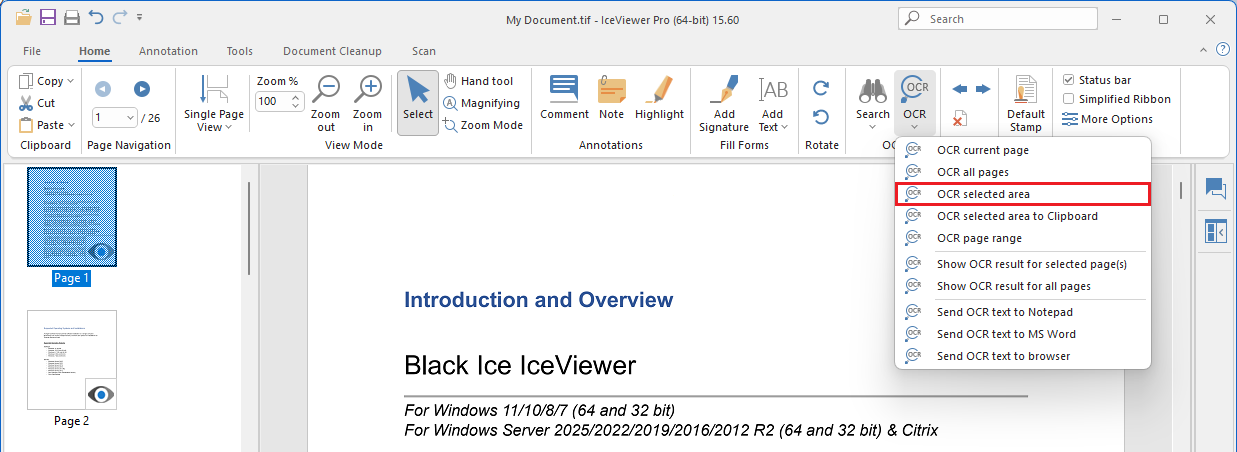
To OCR only a selected area, click on the Select icon under the Home tab, and select an area on the page, and click on the OCR icon and select OCR selected area option.
When finished, IceViewer opens the extracted text automatically in the configured OCR viewer application.
The OCR viewer application can be changed in the IceViewer Options, on the OCR page. The default is the system default text editor (Notepad).
NOTE: Optical Character Recognition runs in the background, so users can use IceViewer even if a very large document was selected to OCR. When the process is finished, IceViewer informs the user on the status bar at the bottom of IceViewer and opens the extracted text.
