
How to use Outlook signatures in outgoing emails from Print2Email
Print2Email can use predefined signatures from the Microsoft Outlook Client on every outgoing email.
The predefined signatures are listed in the Print2Email under the Email Sending tab, in the Signature dropdown list.
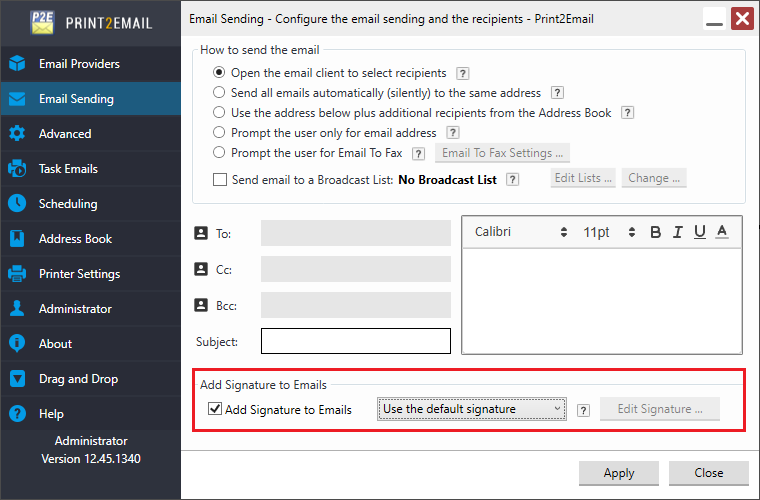
To use a signature in the outgoing emails, enable the Add Signature to Emails option, select the appropriate signature from the dropdown list, and press Apply to save the changes.
To create your own custom signature, select the Use a custom signature option and click on the Edit Signature button to bring up the signature editor window.
If you do not see any signature in the dropdown list, please make sure that the signature is added in Microsoft Outlook. For more information, please refer to the following section.
With the option "Use legacy MAPI for email sending (Display Outlook Security Alert window)" enabled, Print2Email launches the Outlook client, and only Plain Text signatures can be used; no images or HTML formatting or links can be used in the signature.
From now on, the selected signature will be added to the bottom of every outgoing email from Print2Email.
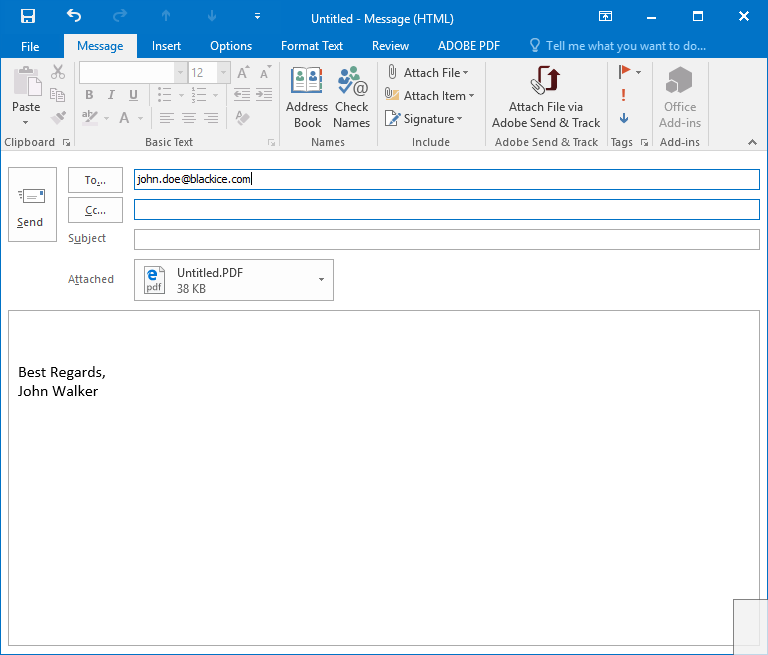
NOTE: If a third-party application launches the Outlook client, Outlook will not use the signature.