
Configuring Single Click Notification and Alert email sending
The Print2Email can be configured for One Click email sending for sending out notification or emergency alert emails for multiple recipients. Email subject, email body, and the email sending method (SMTP, Exchange, or any other method) can be preconfigured, and when printing a document to Print2Email, an email will be sent automatically to the configured recipients.
This configuration is recommended for sending out notification or emergency alert emails to a large number of recipients with one single click.
To configure Print2Email for notification and emergency alert sending, please perform the following steps:
- Go to Print2Email > Email Sending Tab > Select the Send all emails automatically to the same address option.
- Enter the recipients into the To, Cc, and Bcc fields separated by a semicolon (;) (For example: recipient1@domain.com; recipient2@domain.com...) or set up a Contact Group with the email addresses, and enter the name of the group into the To field.
For more information about how to set up a Contact Group, please refer to the Contact Group section.
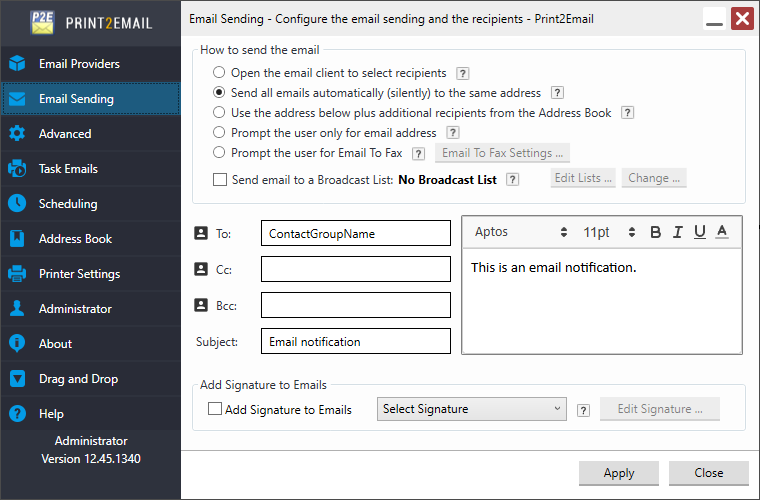
Also specify the Email subject and Email body fields.
When finished, click on the Apply button to save the changes. From now on, every time when print a document to the Print2Email printer, an email will be sent to every recipient or contact group specified with the printed document attached.