
Configuring Single Click POS (Point of Sale) email sending
Print2Email can be configured for One-Click email sending on Point of Sale (POS) systems. In this setup, the recipients, subject, email body, and sending method (SMTP, Exchange, etc.) are preconfigured. When sending an email, the user simply enters the recipient’s email address in the prompted window.
This setup is ideal for POS systems or restricted environments, allowing administrators to preconfigure Print2Email while users only need to click to print and send.
To configure Print2Email for Point of Sale purposes, perform the following steps:
- Go to Print2Email > Email Sending Tab > Select the Prompt the user only for email address option.
- Enter the Email Subject and Email Body to send the emails with.
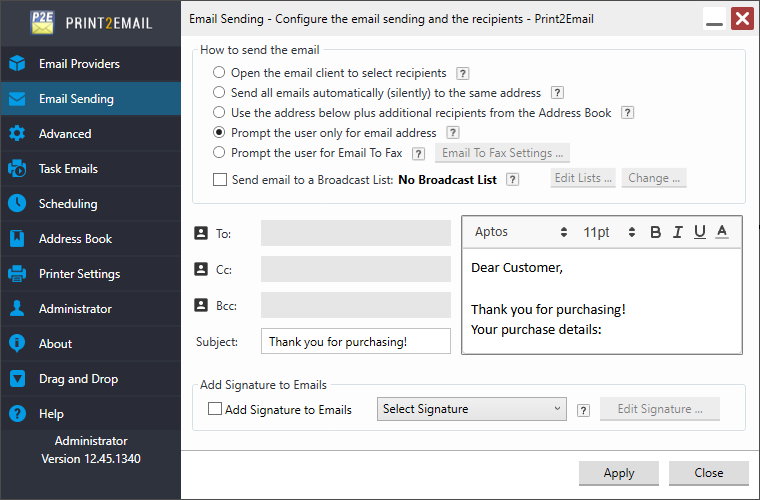
- On the Email Providers tab, every provider (Outlook, SMTP, and every major email provider) supports Point of Sale configuration, therefore Administrators can setup any email sending method depending on their company.
- When everything is set up, click on the Apply button to save the settings.
- From now on, every time when printing a document to the Print2Email printer, the following window appears:
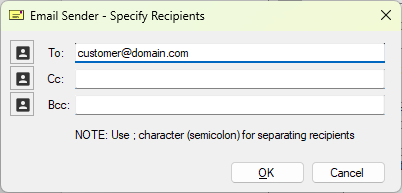
- Specify the To, Cc and Bcc fields, and click on the OK button to send the email.