
Comment Annotation
Comment Annotation allows the user to place a sticky note annotation on the opened TIFF or PDF document. When clicking on the note icon, the note editor appears where the user can enter any text information, note or reminder.
To add Comment Annotations to documents, please click on the Annotations icon on the top toolbar, select the Comment Annotation option from the dropdown menu and draw the annotation on the page by clicking and holding down the left mouse button while moving the cursor.
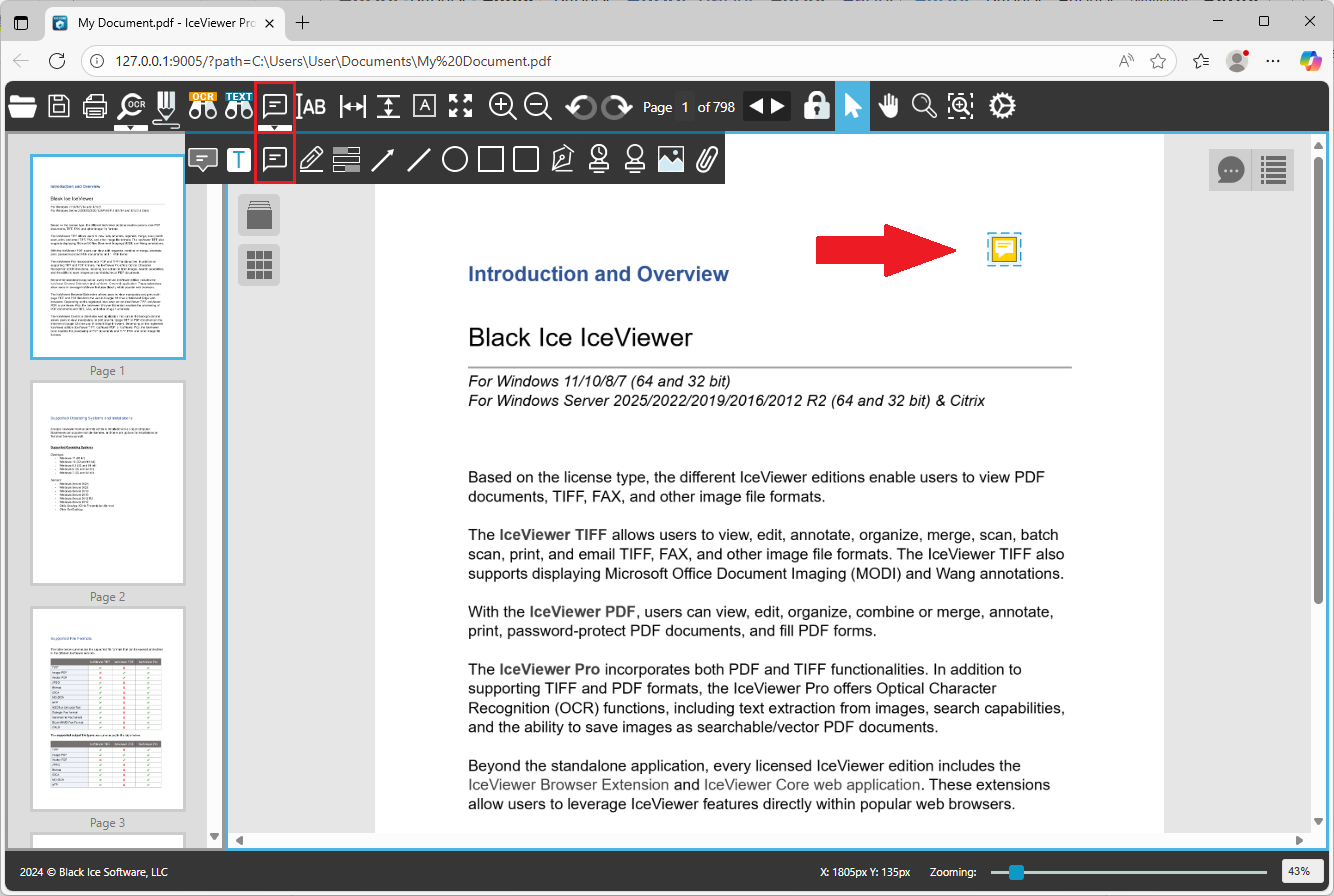
By clicking once on the placed annotation on the document, the Comment Annotation Properties window appears where the user can enter any text information, note or reminder.
.png)
When clicking on the Show Advanced Settings button, further options appear. One can select the color of the annotation, and set the annotation background to be opaque or transparent.
.png)
Please click on the OK button to finish editing.
Annotation Replies
In IceViewer Core, users can add replies to every annotation type, allowing team members to provide feedback, ask questions, or offer further insights in a structured manner. To add an initial reply, please start typing into the Add a reply field and save the reply.
For more details, please visit the Annotation Replies section of the manual.