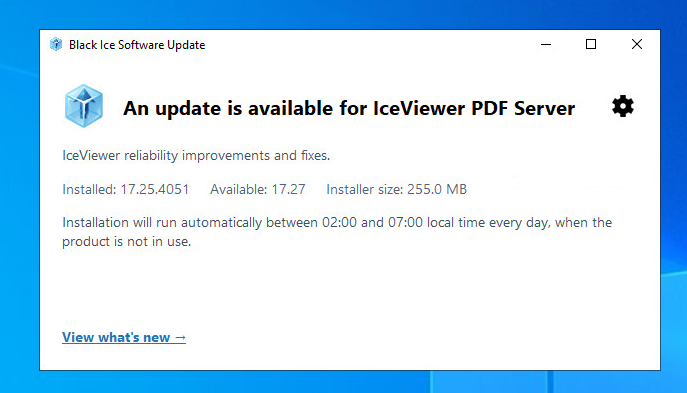
Checking for a new version manually
To manually check for new versions, start IceViewer, and click File > Help > Check for Updates, or start the updater application from the system tray.
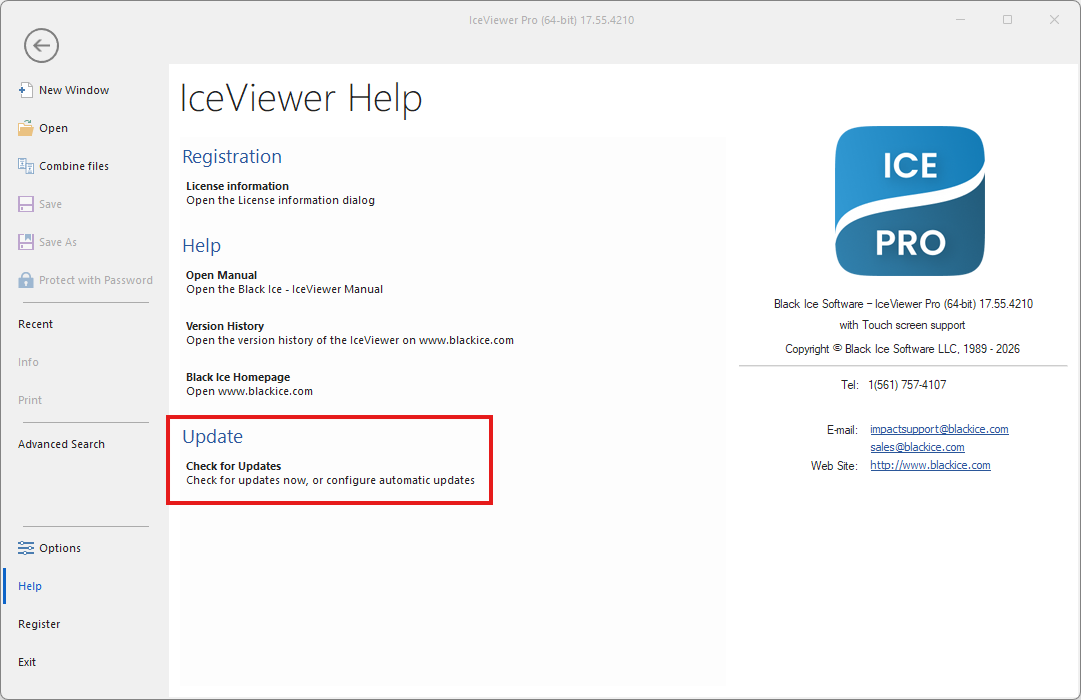
A manual check looks for a new release but does not start the download or installation by itself. You remain in control until you select Install now. Manual checking may be disabled by your administrator.
- Open the updater Double-click the Black Ice update icon in the Windows system tray. You can also right-click the icon and select View update status.
- Start the check Select Check for updates.
- Review the result If an update is available, review the installed and available versions, installer size, and the link to what is new.
- Approve the update Select Install now. The updater downloads and verifies the installer.
- Close IceViewer if requested Save your work and close IceViewer in every user session. Installation continues when all reported blockers are gone.
- Complete the update Wait while the silent installer runs. Restart Windows if requested, or select Open product when that option is available.