Add and edit hyperlinks
The IceViewer Core enables users to add new, or modify existing hyperlinks in PDF and TIFF documents, supporting navigation within the document, opening web pages or files, and launching email messages. The following hyperlink types are available:
- Page view link – navigate inside the document.
- Web link – open a web page.
- Send an email.
- File link – launch or execute an application or open an attachment file quickly and easily.
How to add a new hyperlink
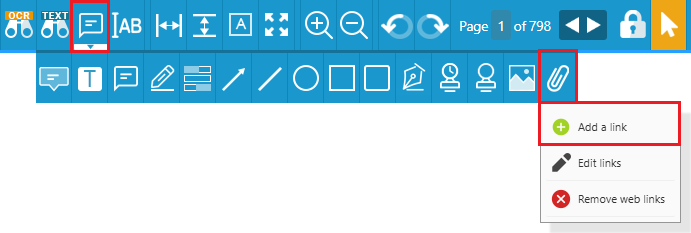
To create a new link, please click on the Annotation icon on the main toolbar, hover over the Link option, and select the Add a link option from the dropdown menu.
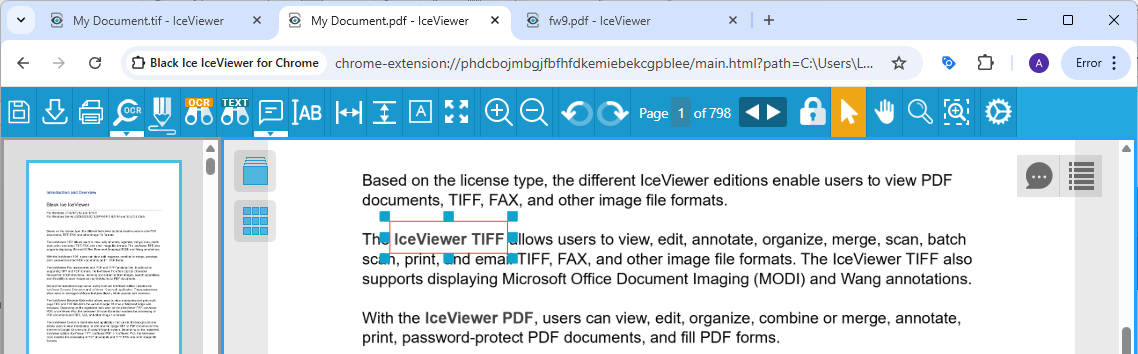
Drag a rectangle to define the area where the hyperlink will be active. The selected area can be over text, graphics, or any desired area of the document.
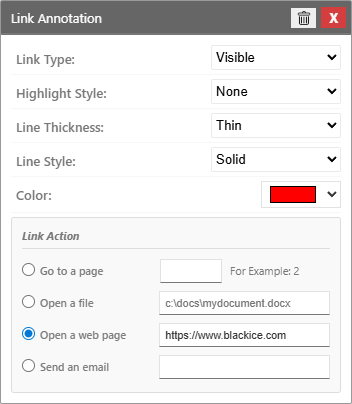
In the appearing Link Annotation window, the user can configure the appearance and the action of the link.
Link type
Select whether the link should be displayed as a Visible Rectangle or an Invisible Rectangle. If the Visible Rectangle option is selected, the user can specify the line style, color and thickness of the rectangle.
Highlight style
The user can specify the highlight effect that will appear when the link is clicked. The following options are available:
- None: No highlight is applied.
- Invert: Reverses the colors of the selected area.
- Outline: Highlights the area with an outlined border.
- Inset: Creates an inset/pressed appearance.
Line Thickness
Specifies the thickness of the rectangle outlining the hyperlink. The following line thickness options are available: thin, medium, thick.
Line Style
Defines the visual pattern of the hyperlink border. The following line styles are available: solid, dashed, underline.
Color
The user can select a color for the rectangle.
Link Action
Under the Link Action section, the user can configure what the link should do when it is clicked.
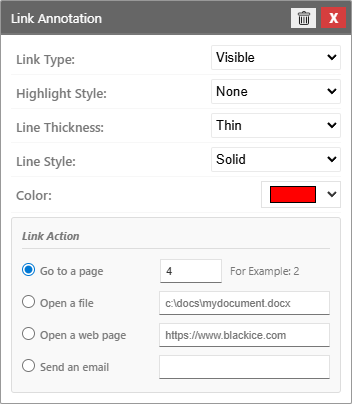
The following link actions are available:
Go to a page
To configure the link to navigate to a specific page within the document, select the Go to a page option and specify the destination page number.
Open a file
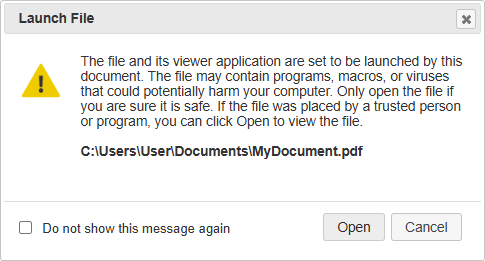
To configure the link to open a file, select the Open a file option and enter the path of the destination file. Please note that when the link is clicked, the IceViewer Core will prompt the user to confirm opening the file for security reasons. The launched file may contain programs, macros, or viruses that could potentially harm the computer.
Open a web page
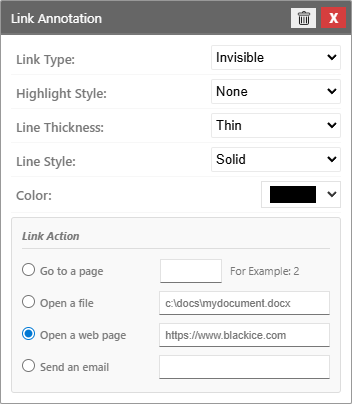
To configure the link to open a webpage, please select the Open a web page option and enter the URL of the destination webpage. For example:
https://www.blackice.com/IceViewer_Pro.htm
To read about how to control web access for PDF and TIFF files, please see the Trust Manager section of the manual.
Send an Email
To configure the link to send an email, select the Send an Email option and enter the desired recipient email address into the field. When the link is clicked, the default email client will open a new message with the specified email address in the To field.
How to Edit existing hyperlinks
To edit hyperlinks within the document, please click on the Annotation icon on the main toolbar, hover over the Link option, and select the Edit Links option from the dropdown menu.
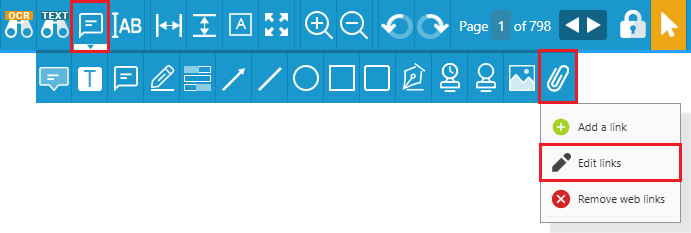
When the Edit links option is active, users can modify existing hyperlinks by clicking on the desired hyperlink. This opens the Link Annotation window, where the appearance and action settings of the hyperlink can be configured.
How to remove a hyperlink
To remove a hyperlink, please click on the Annotation icon, hover over the Link option, and select the Edit Links option from the dropdown menu. When the Edit links option is active, select the desired hyperlink and press the Delete button on the keyboard.
How to automatically remove web links
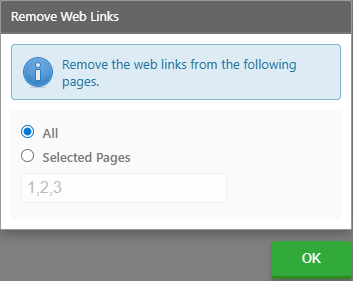
To automatically remove web links from the whole document or selected pages, please click on the Annotation icon on the main toolbar, hover over the Link option, and select the Remove web links option from the dropdown menu.
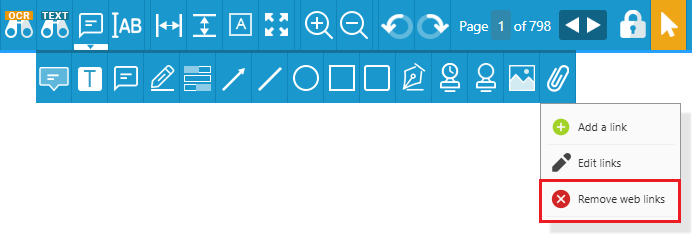
The Remove Web Links dialog box appears, allowing users to delete web links from the specified pages. Select the All option to remove web links from the entire document, or specify pages to remove links only from the selected pages.