
Embed the IceViewer Chrome and Edge extension on your website
The IceViewer Chrome and Edge extension can be embedded in a web page two different ways, using either static or dynamic embedding.
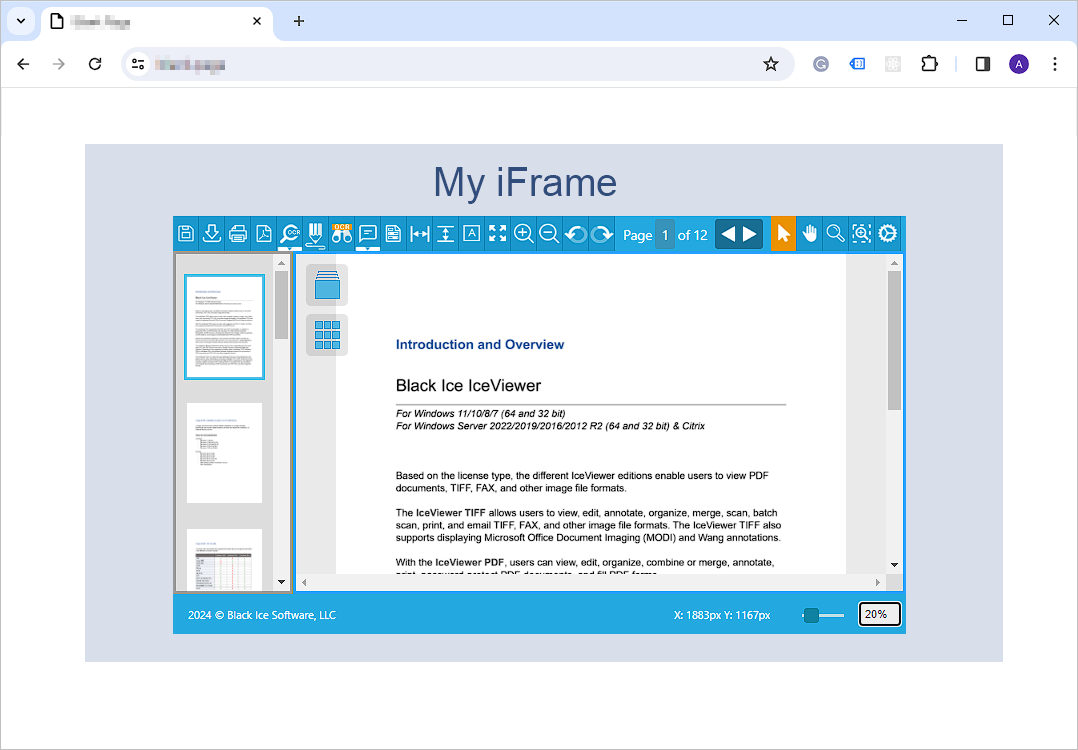
Dynamic embedding
By using dynamic embedding, one has to add an iframe with a specified id (bitv_iframe) attribute as in the following example:
| <iframe id="bitv_iframe" width="1080" height="600" ></iframe> |
NOTE: The id attribute must be “bitv_iframe”, in order to make sure the extension can find the target iframe.
If one is unable to change the iframe ID to “bitv_iframe”, it can be configured in the extension XML configuration file “ BITV_Extension_config.xml ” in the <IframeID> section.
As a result, every time the browser attempts to load/download a file, the extension will detect the iframe on the active browser tab, and will load the file into the iframe, instead of opening a new tab.
Advantages: The dynamic embedding is the proper approach for opening files from websites using session or authentication, such as SharePoint, or opening files using anchor links <a> links in the HTML code.
NOTE: The width and height attributes in the examples are changeable.
Static embedding
By using static embedding, one has to specify the absolute URL of the extension and the location of the TIFF file, as in the following example in the iframe src attribute:
| <iframe src="chrome-extension://hinllambflhajfhffnaeplcaonpbpkgo/main.html?path=http://www.blackice.com/tiffocx/test.tif" width="1080" height="600" ></iframe> |
NOTE: The URL http://www.blackice.com/tiffocx/test.tif must be substituted with your document.
As a result, the iframe will call the IceViewer extension directly and open the file specified in the URL.
The static embedding method provides an easy and more flexibly implementation, as web developers only has to add an iframe to their webpage, and they can specify the src attribute manually.
Limitations: The static embedding does not support opening files from websites using session or authentication, such as SharePoint, or using anchor links <a> in HTML.