
Signing in with Outlook
Microsoft requires explicit account holder approval for third-party applications, like Print2Email, to access their online email services, including Outlook.com, Exchange Online, and Office 365. The account owner must verify ownership before Print2Email can send emails through these services. Using secure OAuth 2.0 authorization, users can safely grant Print2Email access to their email accounts.
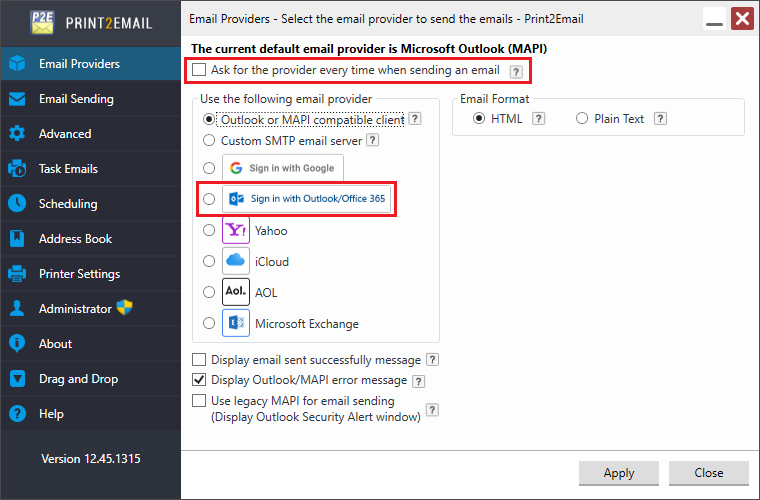
To configure the Print2Email to use Outlook when sending an email, go to Print2Email > Email Providers tab > Uncheck the Ask for the provider every time when sending an email checkbox and click on the Sign in with Outlook button.
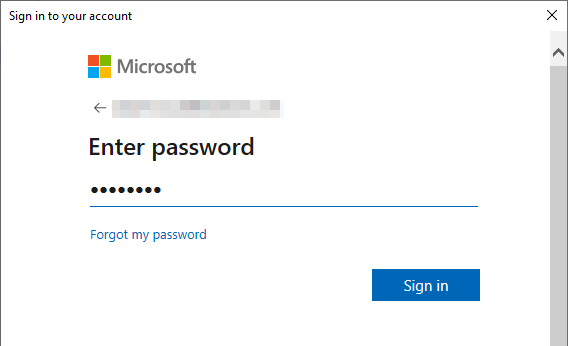
On the webpage that appears, please sign in to your Outlook.com account.
NOTE: Print2Email supports Two-Factor Authentication for Outlook.com accounts.
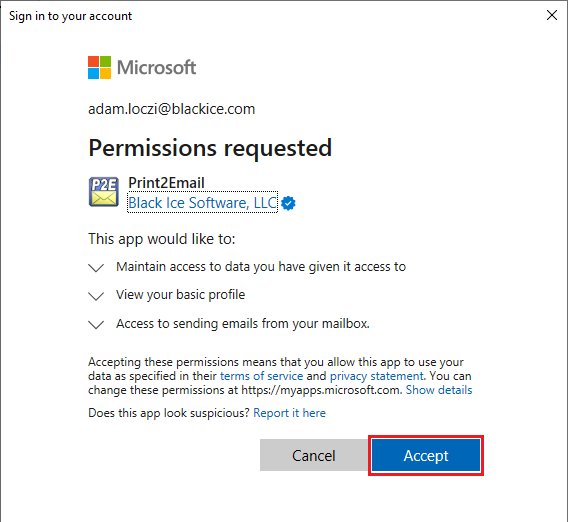
After logging in, click on the Accept button to allow Print2Email to access the Outlook.com account.
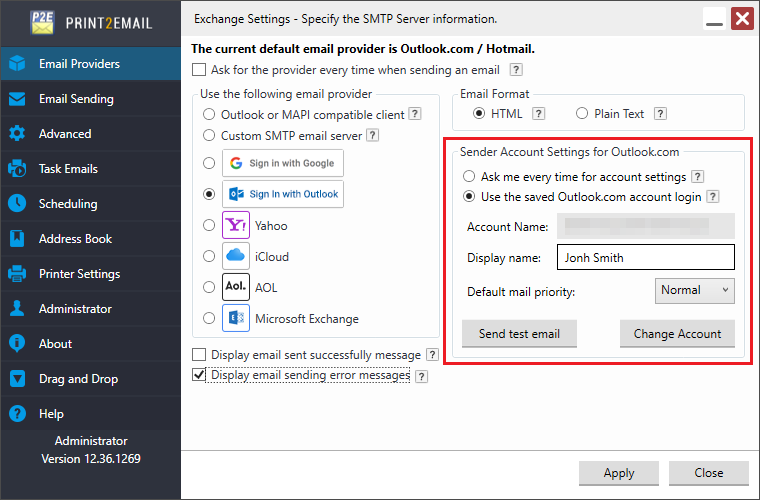
Now, the Sender Account Settings for Outlook.com can be configured in the Print2Email application:
If Display email sent successfully message is enabled, Print2Email will show a confirmation message after an email is sent.
If Display email sending error messages is enabled, any SMTP-related errors are shown when an email fails to send.
Email Format
- HTML – Format message as HTML. HTML message can contain formatting and are compatible with most e-mail readers.
- Plain Text – Format message as plain text. Plain text can be read by everyone but contains no formatting.
Sender Account Settings
- Ask me every time for account settings
Select the “Ask me every time for account settings” option to enter the email sender account name and password every time an email is sent.
- Use the following account settings
Select the “Use the following account settings” option to enter the account name and password. The Print2Email will use these settings automatically every time when sending an email.
Under Authentication settings Print2Email users can also set how recipients will see the message in their email clients (for example, Outlook). The following options are available:
- Display name field does not need to be a valid email address. Display name can be any text or name of the individual or the company.
- Priority defines the importance of the email message. If the email is important, one can configure High priority for the email, and the email will be displayed as important email for the recipient.
When finished, click on the Apply button to save the changes. From now on, every document printed to the Print2Email printer driver will be opened in the Print2Email Email Sender to let users send the printed documents in email quickly and easily using the configured Outlook.com account.
.png)