Administrator
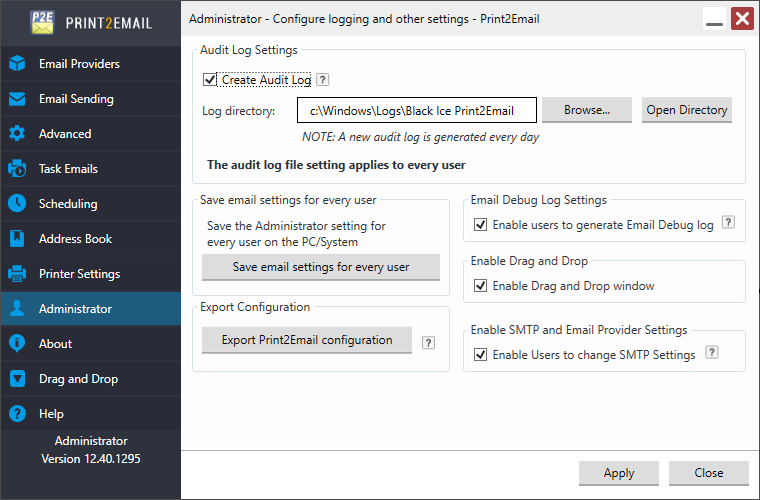
On the Print2Email > Administrator tab, administrators can specify settings to control and log Print2Email for every user on the computer.
NOTE: Only Administrators can edit the settings under Administrator tab. To be able to edit the settings, make sure that the current user has Administrator privileges and Print2Email is running by as an Administrator.
By using the Audit log, Administrators can track and verify emails sent out by Users on the system with Print2Email. A new Audit log is generated every day. By pressing the Open Directory button, users can open the directory where the log files are saved.
For more information about the Audit Log feature, please refer to the Create Audit Log section.
For more information about the Debug Log feature, please refer to the Create Email Debug Log section.
For more information about the Export Print2Email configuration, please refer to the Export Print2Email configurations for MSI installation section.
Enable Drag and Drop window
To turn on the Drag and Drop window for every user, please open the Print2Email while logged in as an administrator. On the Administrator tab check the ‘Enable Drag and Drop window’ option and click on the Apply button.
Save email settings for every user
Clicking on the Save email settings for every user button applies the current email provider and email settings for all users on the computer.
Saving email settings for every user requires Administrator privileges.
Enable SMTP and Email Provider Settings
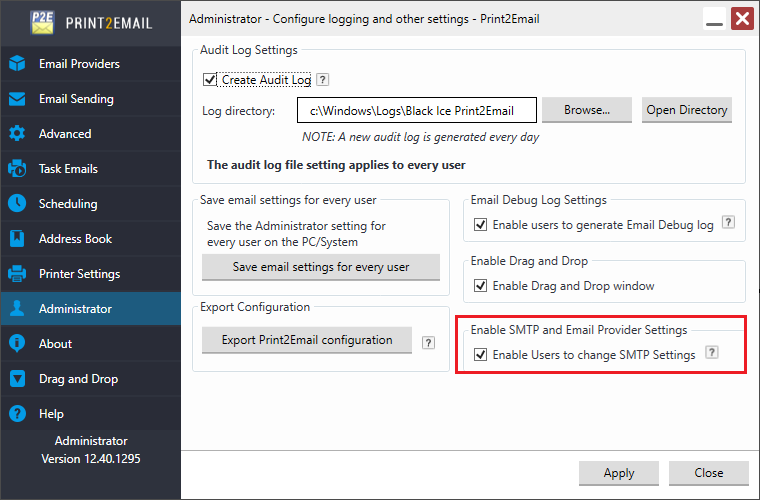
The Enable Users to change SMTP Settings option allows administrators to control whether standard users can configure email provider settings. If this option is disabled, users will not be able to modify settings in the Email Providers tab. Configuring the Enable Users to change SMTP Settings option requires administrator privileges.
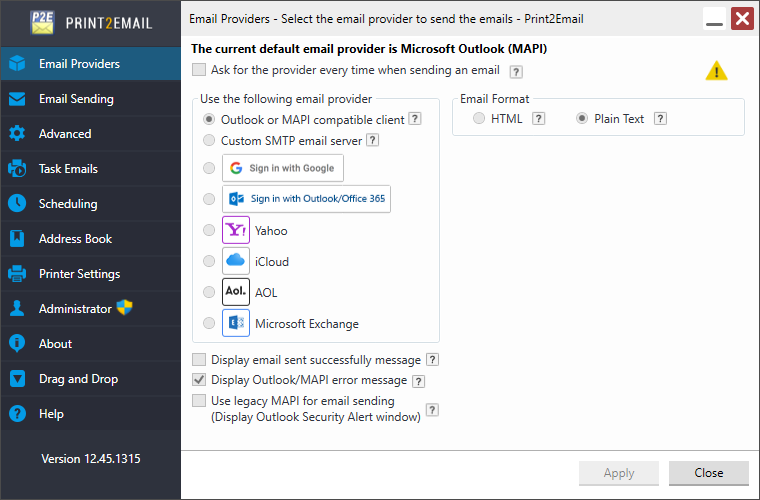
On the Email Providers tab, a yellow warning icon appears in the top-right corner of the Print2Email user interface when the administrator has disabled access to email provider settings.