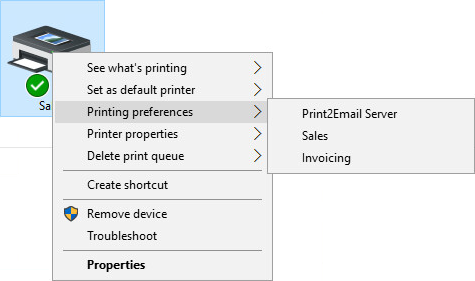
How do I find Task Email printers on my computer?
In the Windows Control Panel or under Printers & Scanners, printers that use the same driver and port are grouped under a single printer. As a result, the displayed printer name may appear as the base Print2Email printer or one of the previously created Task Email printers.
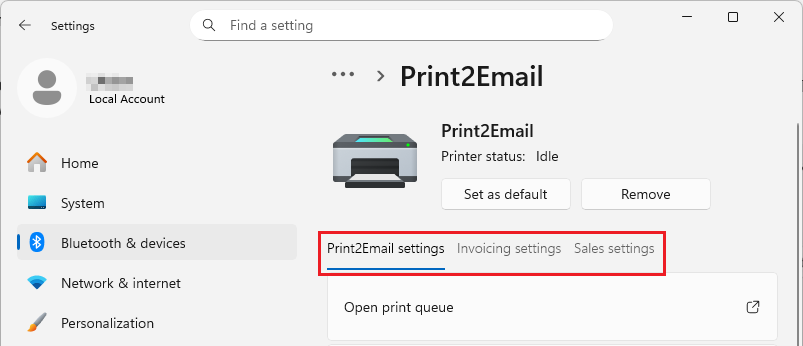
On Windows 11 systems, please navigate to Settings > Bluetooth & devices > Printers & scanners > click on the Task Email or Print2Email printer you can find.
Windows creates a settings tab for every Task Email, or Printer:
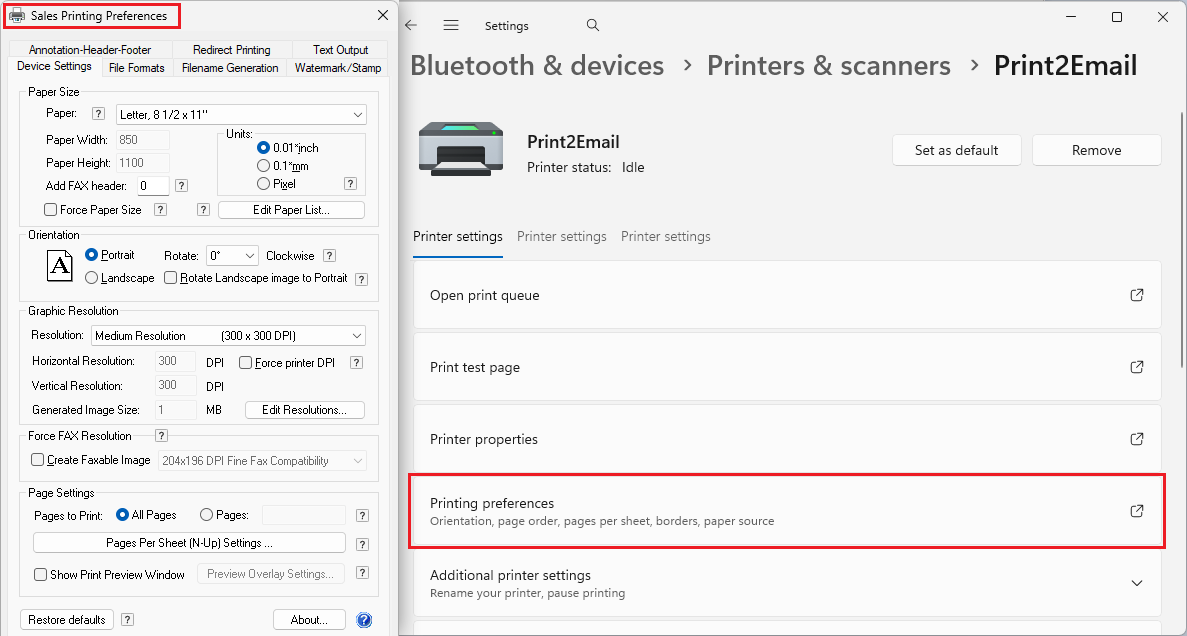
On some older versions of Windows 11, the tabs are not named after Task Emails. To find out which Task Email the tab belongs to, please open Printing preferences and check the window title:
On Windows 10/8/7 and Windows Server systems, to find the printer on the Control Panel > Devices and Printers, please right-click on the Task Email or Print2Email printer.
For example, to open the Printing Preferences, please right-click on the Task Email or Print2Email printer, select Printing preferences, and click the printer that needs to be configured.