
Error: 535 5.7.3 Authentication unsuccessful – Outlook
The error “535 5.7.3 Authentication unsuccessful” occurs during the OAuth sign-in process when Print2Email attempts to authenticate with Outlook.com.
This error is returned directly by Microsoft and indicates that the authentication request was rejected.
Since the configuration was working previously and started failing without changes on your side, this strongly suggests a server-side or account-level change rather than an issue with Print2Email itself.
Common reasons this can occur with OAuth authentication include:
- A change in the account’s security settings (for example, MFA or conditional access updates)
- A temporary or permanent block triggered by Microsoft’s security systems
- Changes in Outlook.com or Microsoft 365 authentication policies
Recommended next steps:
- Please contact your Office 365 Administrator to ensure that there has been no change in the account or security settings recently.
- Sign in to the Outlook.com account via the web interface, see if sign-in works without any issues, and check for any security alerts or consent prompts.
- Re-run the OAuth authorization process in Print2Email and ensure consent is fully granted.
If the problem persists, then the consent for Print2Email may have been revoked in your Outlook account. If the issue persists, please perform the following steps to fully reset the OAuth authorization and consent:
- Sign in to the Outlook.com (Microsoft) account via a web browser
-
Navigate to https://account.microsoft.com/privacy/apps-services
Or go to Microsoft Account → Privacy → Apps and services (or My Apps / App permissions) > App access (on the bottom)
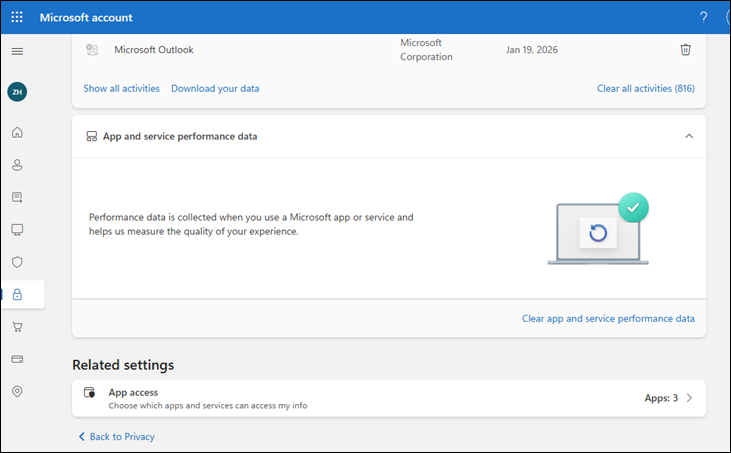
- Locate Print2Email / Black Ice Software in the list of authorized applications
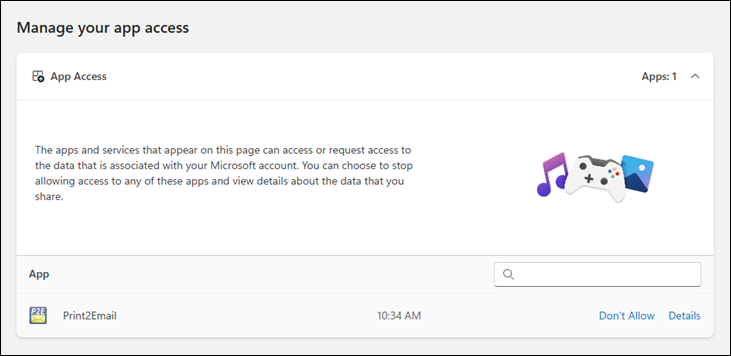
- Remove the existing permission by clicking on the Don’t Allow button.
- Restart Print2Email
- Print2Email will automatically prompt you again to sign in to your Outlook.com account. If it does not prompt you automatically, then use the Change Account and complete the OAuth sign-in again, ensuring consent is fully granted.
- Make sure to accept the consent screen prompted by Print2Email during the sign-in:
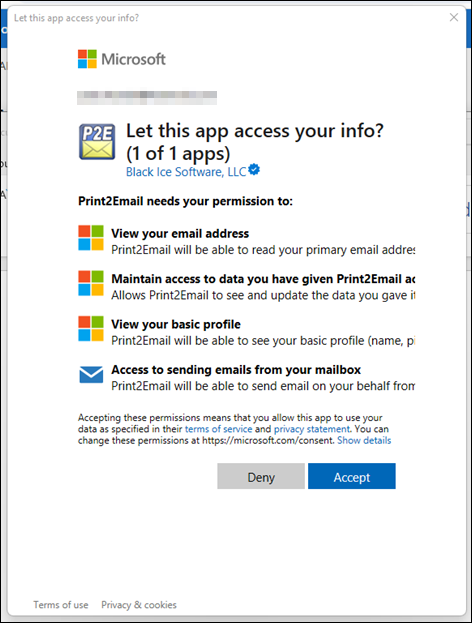
This forces Microsoft to create a fresh OAuth authorization and often resolves authentication issues that appear suddenly, even if the configuration previously worked.