Configuring General Settings in the Print2Email.ini
Users can configure some parameters in the Print2Email.ini file that disable some email sending field(s) in the SMTP email client.
To configure Print2Email.ini with notepad, open the Print2Email.ini and edit the parameters.
The default path of the Print2Email.ini file is:
c:\Program Files\Black Ice Software LLC\Print2Email\Print2Email.ini
NOTE: You must have administrative privileges to change, configure and save the Print2Email.ini file.
The following parameters are configurable under the General Settings:
- Zip Attachment=0
- Disable Email To Address=0
- Disable Email Cc Address=0
- Disable Email Bcc Address=0
- Disable Email Subject=0
- Disable Email Body=0
- Prefix for Email Subject=0
Zip Attachment
With this setting, you can send your attached files in a .zip file.
Available values:
0: The attached file(s) is not modified
1: The attached files are sent in a .zip file
Default value: 0
Example: If this parameter’s value is 1, the attached files file(s) is sent in a single .ZIP file.

Disable Email To Address
With this setting, you can disable the Email To: Address field in the SMTP Email Sender window.
Available values:
0: The Email To: field is enabled and usable in the SMTP Email Sender window
1: The Email To: field is disabled in the SMTP Email Sender window
Default value: 0
Disable Email Cc Address
With this setting, you can disable the Email CC: Address field in the SMTP Email Sender window.
Available values:
0: The Email CC: Address field is enabled and usable in the SMTP Email Sender window
1: The Email CC: Address field is disabled in the SMTP Email Sender window
Default value: 0
Disable Email Bcc Address
With this setting, you can disable the Email Bcc: Address field in the SMTP Email Sender window.
Available values:
0: The Email Bcc: Address field is enabled and usable in the SMTP Email Sender window
1: The Email Bcc: Address field is disabled in the SMTP Email Sender window
Default value: 0
Disable Email Subject
With this setting, you can disable the Email Subject: field in the SMTP Email Sender window.
Available values:
0: The Email Subject: field is enabled and usable in the SMTP Email Sender window
1: The Email Subject: field is disabled in the SMTP Email Sender window
Default value: 0
Disable Email Body
With this setting, you can disable the Email Body field in the SMTP Email Sender window.
Available values:
0: The Email Body field is enabled and usable in the SMTP Email Sender window
1: The Email Body field is disabled in the SMTP Email Sender window
Default value: 0
Prefix for Email Subject
With this setting, one can automatically fill the Email Subject: field with the sender computer name.
Available values:
0: The Email Subject: is empty
1: The Email Subject: is automatically filled (computer name)
Default value: 0
NOTE: If you allow this setting, the subject will be that form: Subject: “[computer name]”
If you write something (e.g:”Black Ice LLC”) to the subject field, the subject will be that form:
Subject: “[computer name] Black Ice LLC”
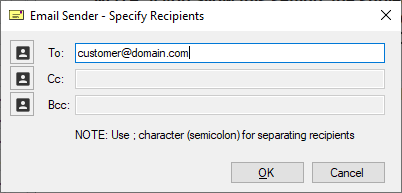
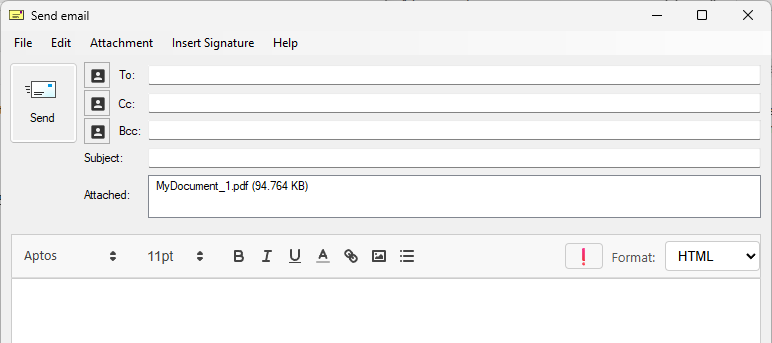
On the SMTP Email Sender window, the Email Cc, Email Bcc, and Email Body can be grayed out with the using the Disable field parameters.
For example: when the Email Cc, Email Bcc, and Email Body are disabled the following window will show:
On the Email Sender window the Email Cc, Email Bcc, and Email Body can be grayed out with the using the Disable field parameters.
For example: when the Email Cc, Email Bcc, and Email Body are disabled the following window will show: