
Export Print2Email configurations for MSI installation
In the Print2Email, users have the option to export the Print2Email Administrator configurations and Task Email settings for MSI installation.
Exporting Print2Email configurations
To export configurations, please run the Print2Email as an administrator, navigate to the Administrator tab, and click on the “Export Print2Email configuration” button.
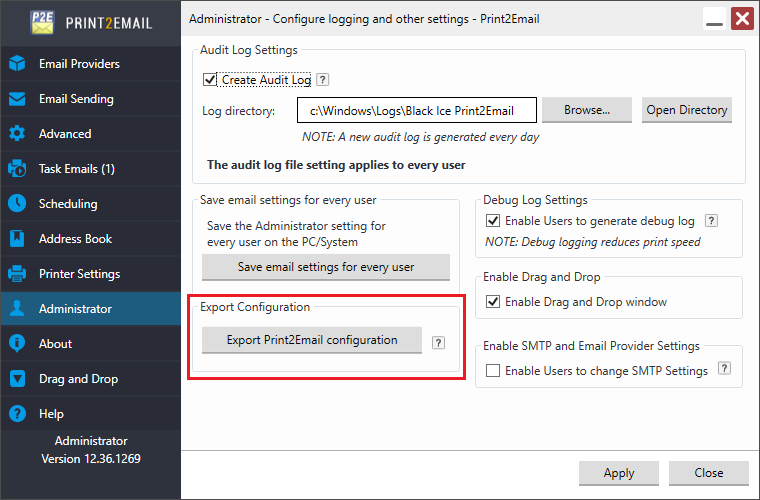
The Print2Email will create one configuration (Print2Email.ini) file for the Print2Email settings, and one .ini file to list the Task Email printer(s) (for example: TaskEmailList.ini file). Also, “Export Print2Email Configuration” will create a separate profile file (.bip) file for each existing Task Email printer. Every profile (.bip) file will be named after the Task Email printer.
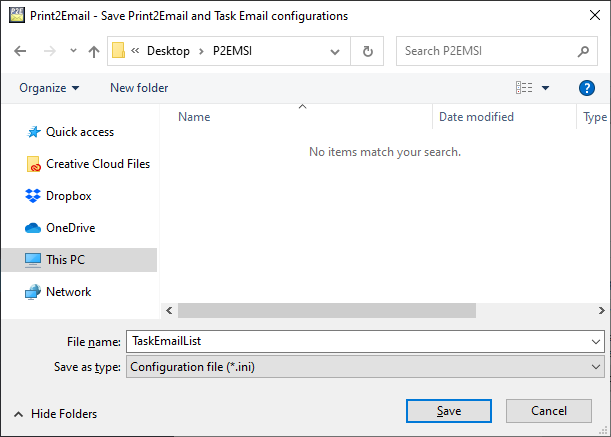
The following window appears where users can specify the location of the exported files, and enter a filename for the configuration (.ini) file of the Task Email list (for example: TaskEmailList.ini).
Click on the Save button to start exporting.
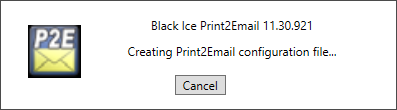
Please wait until the Print2Email is exporting configurations.
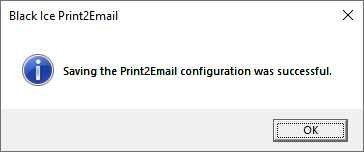
The following window appears when the Print2Email has finished exporting configurations:
Using configurations when installing the Print2Email with MSI installer
Please copy every file generated by “Export Print2Email Configuration” option, to the same directory (for example: “c:\P2EMSI\”).
Please run command line as an administrator and install the Print2Email with TEPLIST and CUSTOMINI parameters.
For example:
msiexec /i Print2Email.msi REGNUM=XXXXX-XXXXXXXX-XXXXXXXXXX TEPLIST=c:\P2EMSI\TaskEmailList.ini CUSTOMINI=c:\P2EMSI\Print2Email.ini /q
To read more about MSI installation, please see the Print2Email MSI installation Guide.
For MSI installer availability, please contact sales@blackice.com.