
Show / Hide Icons
(Administrators only)
In the IceViewer Browser Extension, Administrators have the option to show/hide icons on the user interface and save configurations for every user.
To show/hide icons, please run the “Configure Extension.exe” executable as an administrator in the following directory:
c:\ <<IceViewer Installation directory>>\nativeChromeHost\
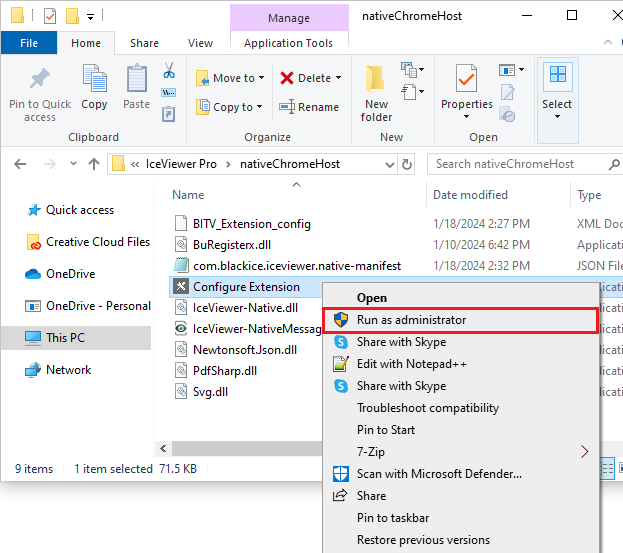
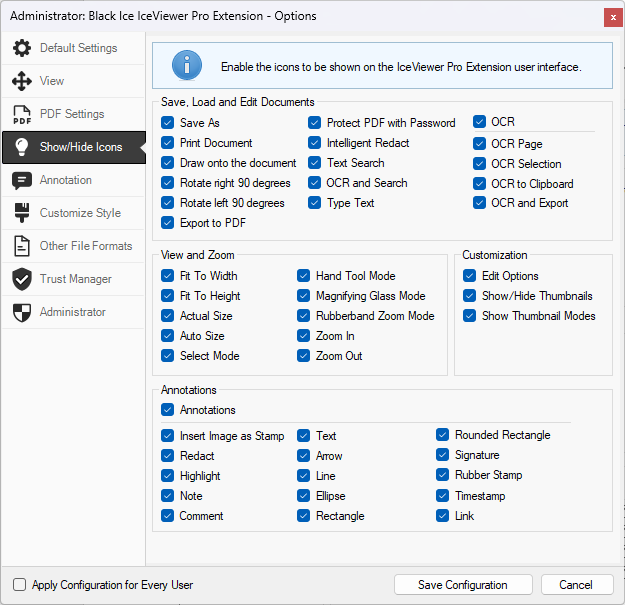
When running the Browser Extension Settings as an administrator, the Show/Hide Icons tab and the Apply Configuration for Every User option become available.
On the Show/Hide Icons tab administrators can enable or disable the desired icons of the Browser Extension. The options listed in the Show/Hide window may differ in different versions of the IceViewer.
Apply Configuration for Every User
If this option is checked, the Browser Extension will save the configurations for every user on the computer.
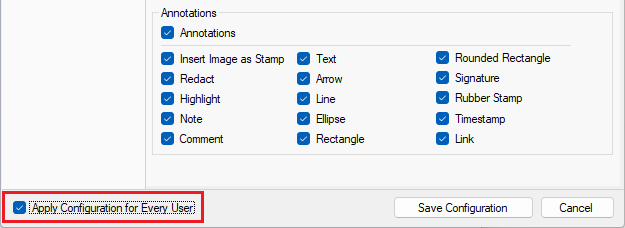
Please click on the Save Configuration button and refresh the page in the browser for the applied changes to take effect.