
Configure IceViewer Chrome / Edge PDF opening feature through Group Policy
To open PDF documents in the browser with the IceViewer Chrome / Edge extension, the Chrome / Edge browser must be configured to download the PDF documents. To control whether PDF documents are must be automatically downloaded or not, Administrators must configure the Always open PDF files externally group policy.
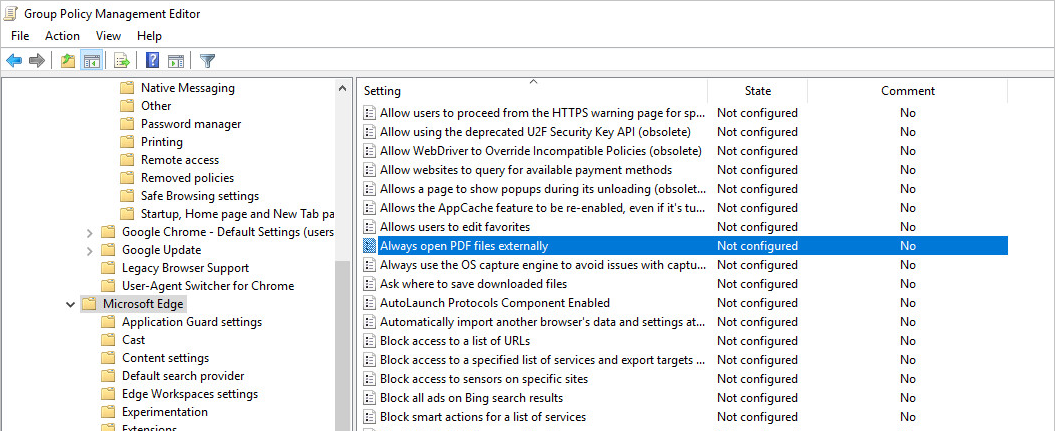
For Microsoft Edge
Go to Policies > Administrative Templates > Microsoft Edge > and double click on the Always open PDF files externally policy.
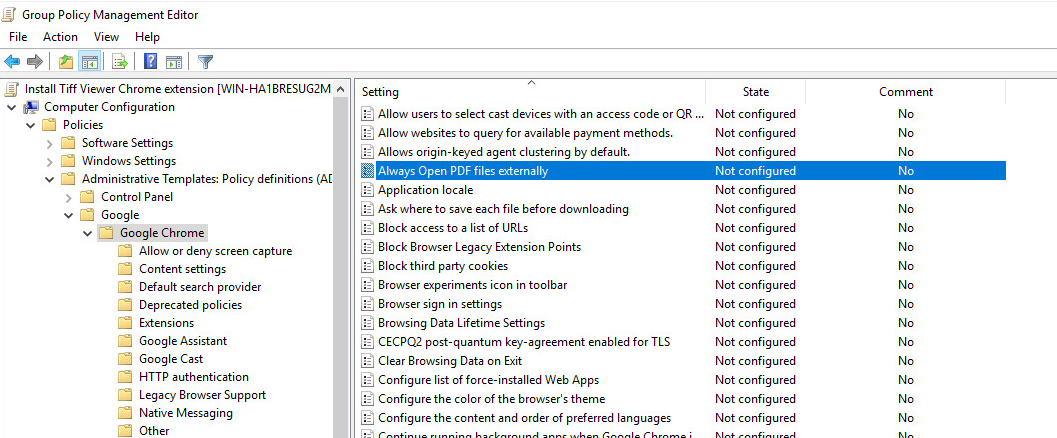
For Google Chrome
Go to Policies > Administrative Templates > Google > Google Chrome > and double click on the Always open PDF files externally policy.
Set the policy to Enabled, to open the PDF documents in the IceViewer extension, or set to Disabled, to open the PDF documents in the built-in PDF viewer.
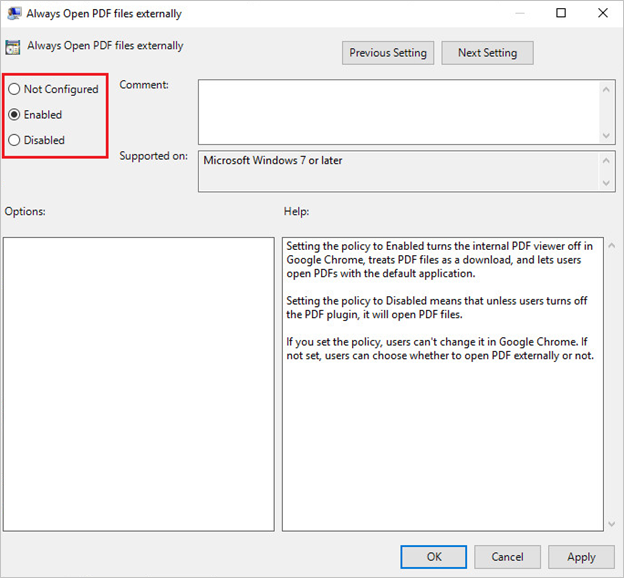
NOTE: Users will not be able to modify this setting in the browser.
Set the policy to Not configured, to allow the users to individually configure the PDF opening.
NOTE: The PDF opening also must be enabled in the IceViewer Chrome / Edge extension. For the recommended method to preconfigure and enable the PDF opening feature in the Chrome/Edge extension, see the following section .