
Show or Hide Bookmarks in PDF Documents
(Available in the IceViewer PDF and IceViewer Pro)
In the IceViewer Browser Extension, users can navigate through the sections of a PDF document using bookmarks.
To use bookmarks for navigation, please click on the Show/Hide Bookmarks button at the top right of the IceViewer Browser Extension user interface.
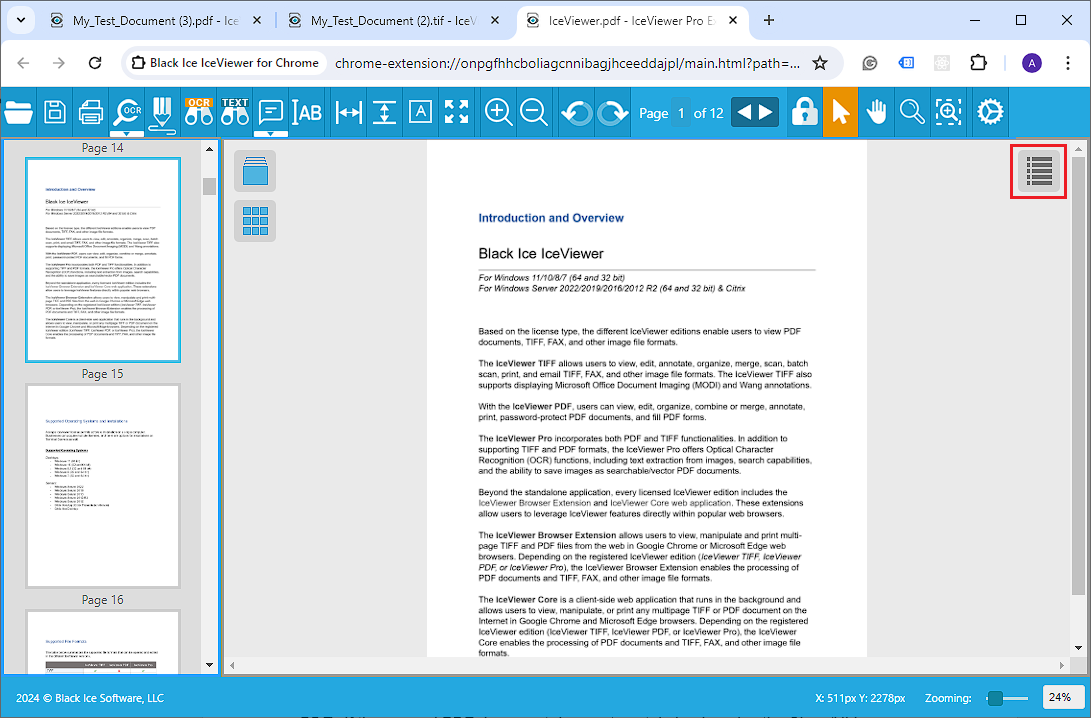
The Table of Contents window appears where users can navigate between sections by clicking on the bookmarks in the list.
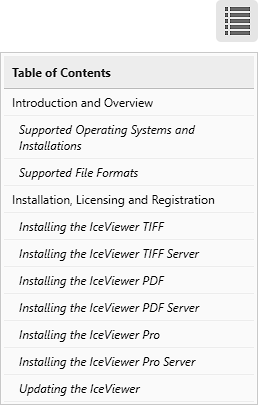
Please note, that bookmarks are generated automatically during PDF creation from the table-of-content of the document (for example: When saving an MS Word document to PDF). If the opened PDF document does not contain bookmarks, the Show/Hide Bookmarks option will not be available.