
Installing the IceViewer Extension manually without an internet connection
In case downloading the IceViewer extension from the Chrome Web Store is not possible due to a restricted internet connection, please find the steps below to install the extension manually without an internet connection:
- Install the IceViewer Desktop Application, with Chrome extension enabled on the end screen of the installation.
- Obtain the latest IceViewer Extension CRX file from our sales department at sales@blackice.com.
- Open the Google Chrome web browser and go to the Extensions (chrome://extensions).
- Enable Developer Mode.
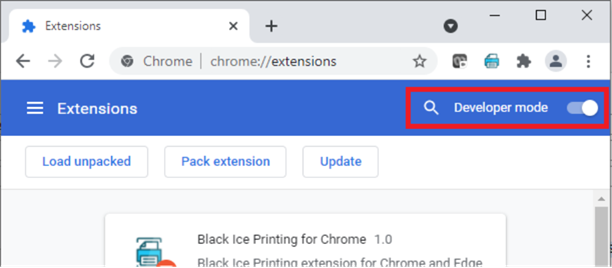
- Drag and drop the unzipped CRX file to the Chrome browser.
- On the confirmation window, click on the Add extension button.
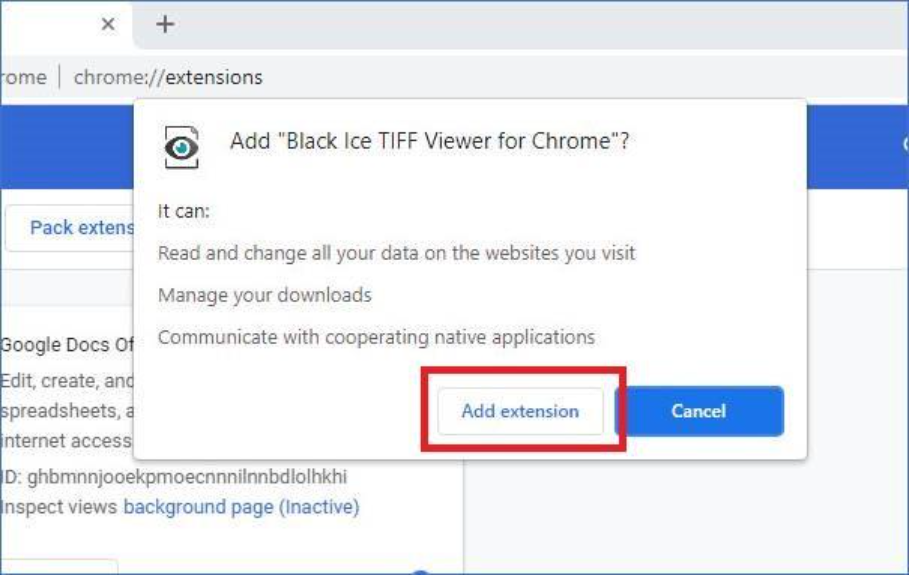
The extension should automatically appear among the installed extensions.
Try opening a TIFF file to see if the extension is working correctly:
https://www.blackice.com/tiffocx/test.tif
If you would like to deploy the Extension to multiple computers using Group Policies, please refer to the following section: