
Automatically delete files after being downloaded
In order to open files, the IceViewer extension lets the browser download the file.
By default, the files used by the extension are downloaded into the following directory:
c:\Users\<<USERNAME>>\Downloads\tv_extension\
The IceViewer extension can be configured to delete the downloaded files automatically after the document has been opened in the extension.
To automatically delete the files, enable the “Delete the downloaded files after opening in the browser” option in the extension.
To enable the option, please go to the extension Options:
.png)
On the following window, enable the “Delete the downloaded files after opening in the browser” option as in the following image:
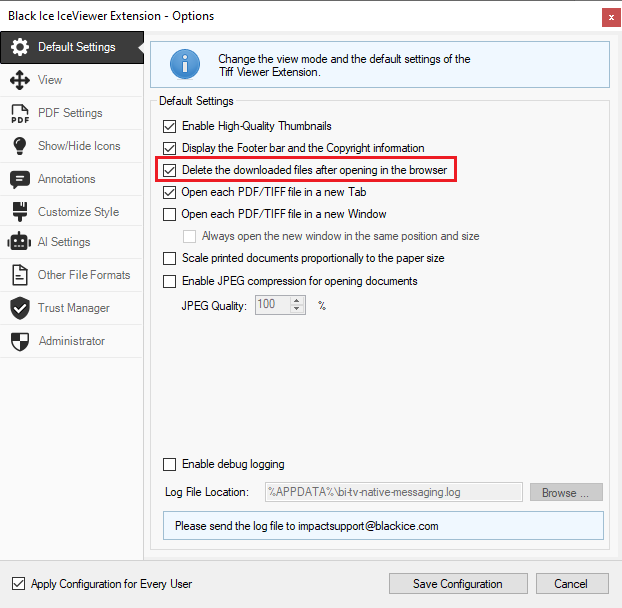
Click on the Save Configuration button to save the changes.
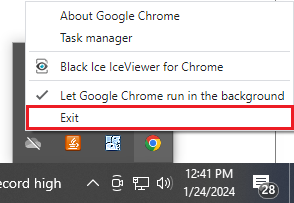
In order to make sure that the changes are applied, you may have to restart the IceViewer extension running in the background.
To restart the IceViewer extension, go to the System Tray > right-click on the Edge/Chrome icon > Exit, then restart the browser.
Once the option has been enabled, the downloaded documents will be automatically deleted after opening.