
Installing the IceViewer TIFF Server
Administrator privileges are required to install the IceViewer TIFF Server. Please run the installer as administrator, if the Administrator account has restrictions, please right click on the installer file and click on Run as administrator.
NOTE for the IceViewer Browser Plug-in: To make sure the IceViewer Browser Plug-In will run properly, please Disable the Internet Explorer Enhanced Security option on the operating system for Users or for the Administrator depending who will be using the IceViewer:
On Windows Server 2025 go to Server Manager > Local Server > IE Enhanced Security Configuration
On Windows Server 2022 go to Server Manager > Local Server > IE Enhanced Security Configuration
On Windows Server 2019 go to Server Manager > Local Server > IE Enhanced Security Configuration
On Windows Server 2016 go to Server Manager > Local Server > IE Enhanced Security Configuration
On Windows Server 2012 go to Server Manager > Local Server > IE Enhanced Security Configuration
Please note that the 64-bit version of the IceViewer does not support the Internet Explorer Browser Plug-In and Twain versions 1.9 or earlier.
To begin the installation if the IceViewer TIFF Server, please double click on the downloaded .exe file.
32-bit: IceViewerTiffServer32BitSetup.exe
64-bit: IceViewerTiffServer64BitSetup.exe
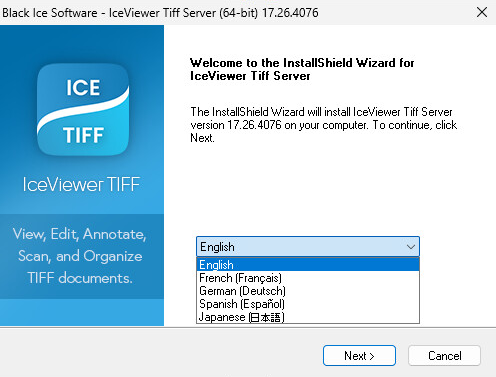
- Please select the application language from the drop-down menu
and press Next to continue.
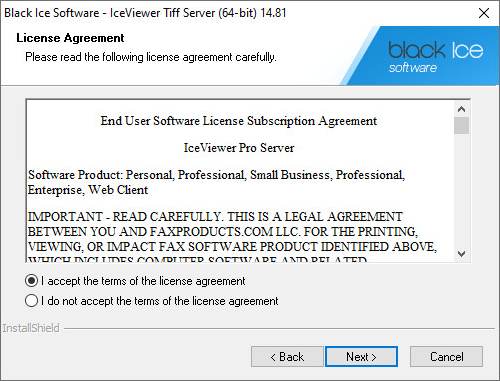
- Review the license agreement, press the radio button to accept
the terms of the license agreement, and click Next to continue the
installation.
- Choose to install the IceViewer for the current user or all
users.
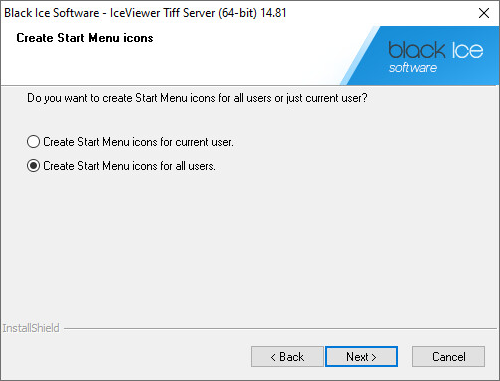
Press Next to continue.
- Specify the desired directory in which to install the
application, or use the default setting according to the following
screen.
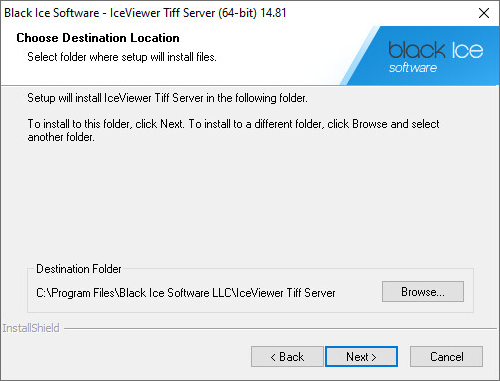
Press Next to continue.
- Specify the desired name for the IceViewer to appear as under
Start > Programs, or use the
default setting according to the following screen.
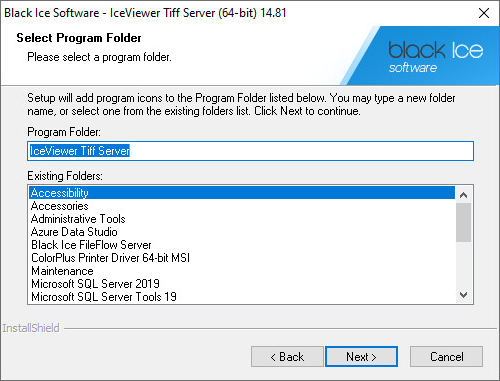
Press Next to continue.
- In the following step, the Administrators can disable the
following features for the users on the computer. Check the
features to be disabled and click Next.
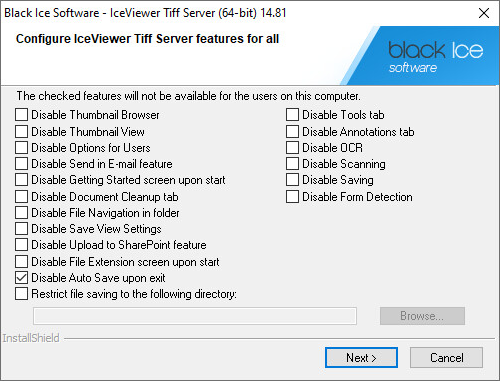
- On the next window, users can choose to install the
Browser Extension for Google
Chrome or Microsoft Edge
, or the
IceViewer Core
.
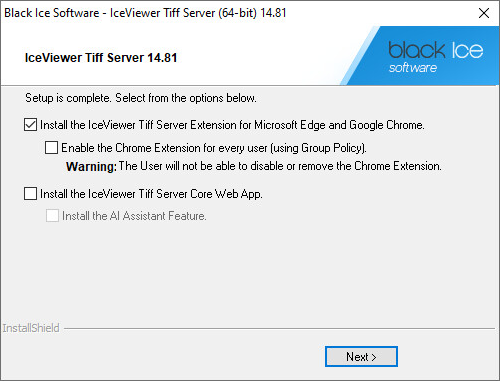
IceViewer Browser Extension installation options
Enable the Chrome Extension for every user (using Group Policy)
Users will not be able to disable or remove the IceViewer Chrome Extension after installation. The Enable the Chrome Extension for every user option is recommended to be used only by Administrators.
IceViewer Core installation options
Install the AI Assistant feature
To use the AI Assistant feature in the IceViewer Core after installation, please enable the Install the AI Assistant feature checkbox (enabled by default). To read more about the IceViewer Core AI Assistant, please see the IceViewer Core AI Assistant section of the manual.
NOTE: If one proceeds with the installation without the Install the AI Assistant option checked, the AI Assistant feature will not be available in any form in the IceViewer Core.
Press Next to continue.
- On the next window, users can choose to create a desktop shortcut for IceViewer TIFF Server and IceViewer Core (if selected), or view the IceViewer documentation after the installation has finished.
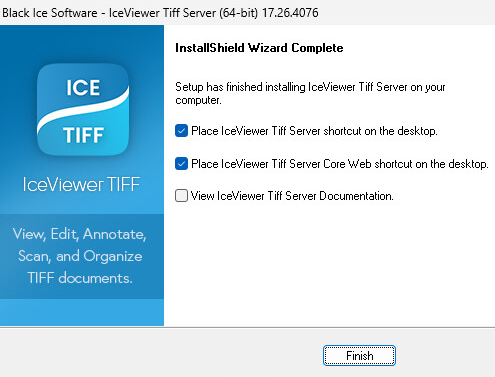
- Click on the Finish button to complete the installation.